
Remote maintenance and logs
Operating the TV on site with its remote is the recommended way to check and configure a Player. Remote maintenance helps when you cannot be there immediately. App installation, Android permissions and USB access may still require someone to confirm a system dialog at the TV.
1. Check the connection and open remote control
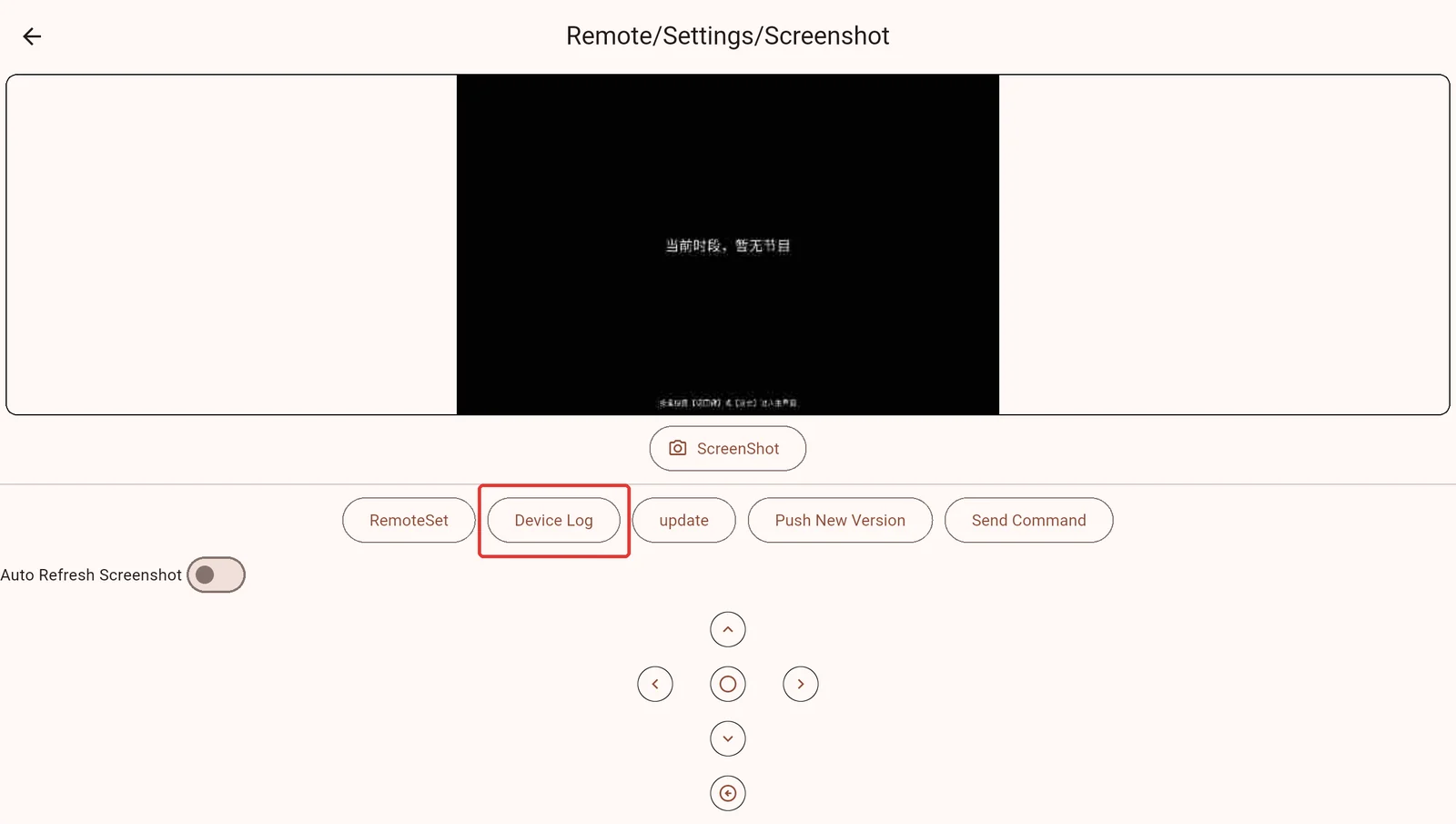
Select the correct Cloud or LAN service in the Manager, open My Devices, select the device, then open its remote control/screenshot entry. Verify both name and device ID.
The Player must be connected to that service, your account must have permission, and the device must meet the licensing requirement shown by the page. If it is offline, check power, network and whether the Player is running first. See Player settings for related options.
2. Request a screenshot
Select Screenshot and wait for the returned image. Use it to inspect the current program, messages or home screen.
A screenshot is a still image, not live video. Native video, protected content or some systems may not be captured completely. A blank capture alone does not prove that the TV is blank; confirm with someone on site.
3. Use the remote controller
Use direction and confirm keys to navigate. Back normally opens the Player home screen from playback. Wait after each action and request another screenshot when needed.
Send one action at a time. If nothing changes, distinguish offline status, a failed command, missing focus and frozen rendering. After changing settings remotely, verify the result on site or in a fresh screenshot.
4. Read, search and copy logs
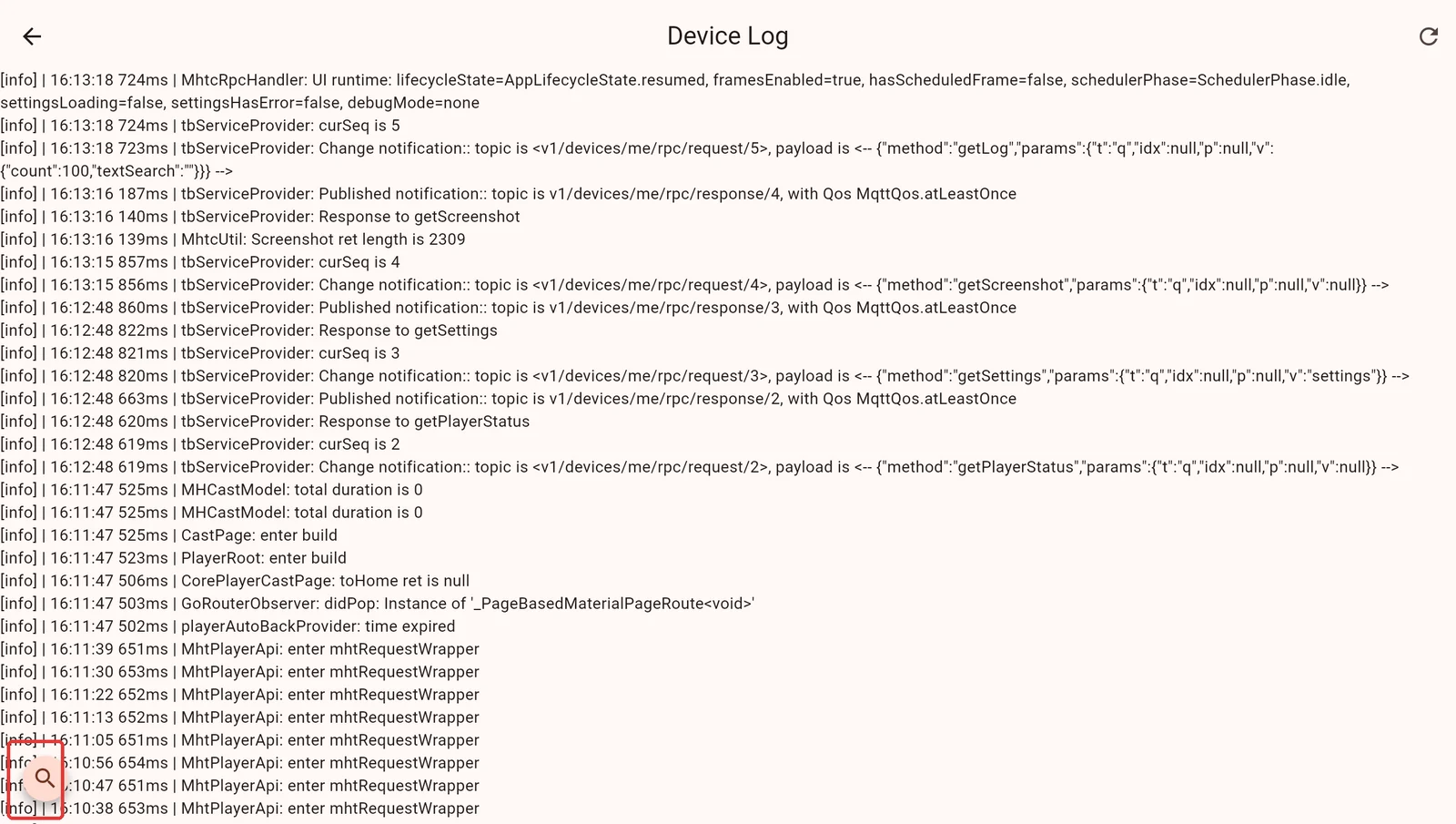
Open Logs from the remote control page. It requests recent Player log entries; refresh or search for a keyword such as error, sync or a relevant filename.
- Record the time, time zone, device ID, software version and Standard/Compatibility build.
- Reproduce the issue once and note each action and its time.
- Refresh the logs and preserve context before and after the error. Search only when needed to narrow the result.
- Select and copy the log text, then include the observed symptoms and times in the support request.
The page supports viewing, searching and copying text; it does not offer a one-click log file export. Recent history is limited, so collect it promptly. Avoid clearing logs or repeatedly restarting first. If a restart is needed to restore service, save logs and a photo beforehand when possible.
5. Prepare an issue report
Device name / ID:
Operating system version:
Player version / Standard or Compatibility build:
Casting method: Cloud / LAN / Cloud peer-to-peer / USB / Folder
Issue time and time zone:
Program type and media count:
Symptoms and whether the position is repeatable:
Actions tried and results, including Back and restart:
Attachments: on-site photo, remote screenshot, surrounding logs
Logs can contain account information, device identifiers, LAN addresses or file links. Share them only with the necessary support staff. Do not publish passwords, API keys or credential-bearing URLs.
What to check next
| Symptom | Next step |
|---|---|
| Device offline | Check power, network, service address and the running Player on site. |
| Command acknowledged but picture unchanged | Capture again and collect logs. An acknowledgement does not prove a new frame was rendered. |
| Slideshow freezes after a while | Keep logs and compare a simpler program with resized images and transitions disabled; see Media preparation. |
| Update waits at a system dialog | Ask someone on site to confirm it; see Updating the Player. |
Continue with Troubleshooting for other cases.