
If the device is nearby, your phone or computer is on the same LAN as the device, and you only want to manage one or a few devices for now, start with this method.
You can think of it as opening the local management page of this specific device directly, instead of using the cloud admin side.
Before you begin, make sure:
- The Player app is already installed
- Your phone or computer is on the same LAN as the display device
- You want a quick trial, or you only need to manage one or two devices
Step 1: Install the Display Terminal on Your TV, Set-Top Box, or Digital Signage
Choose the appropriate version for your device's hardware and software architecture.
Make sure the Player app is already installed. If not, obtain the correct installation package from your current download or distribution channel.
After installation, you should see the following interface: 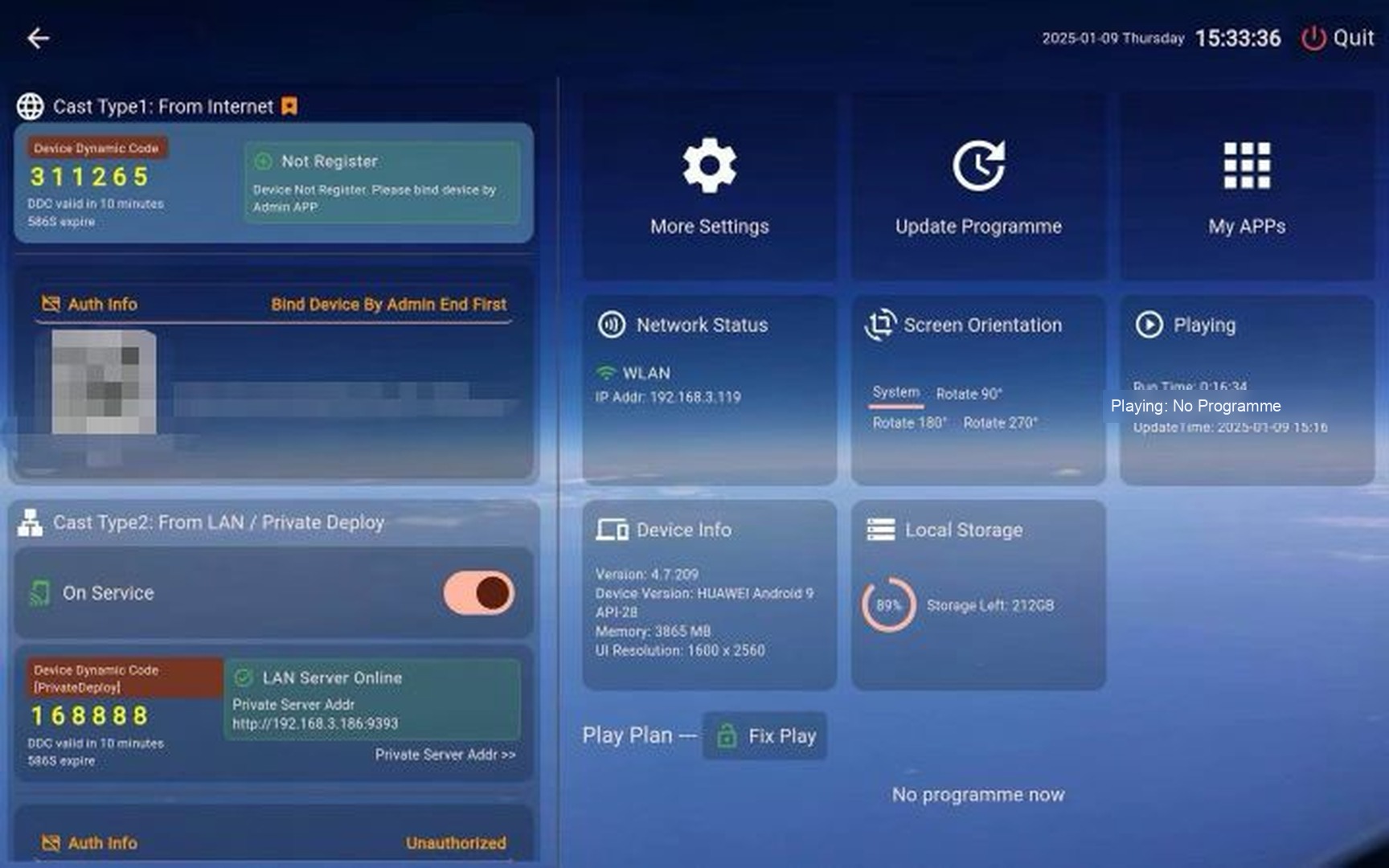
Step 2: Enable LAN Direct Connection
Turn on the LAN direct connection feature.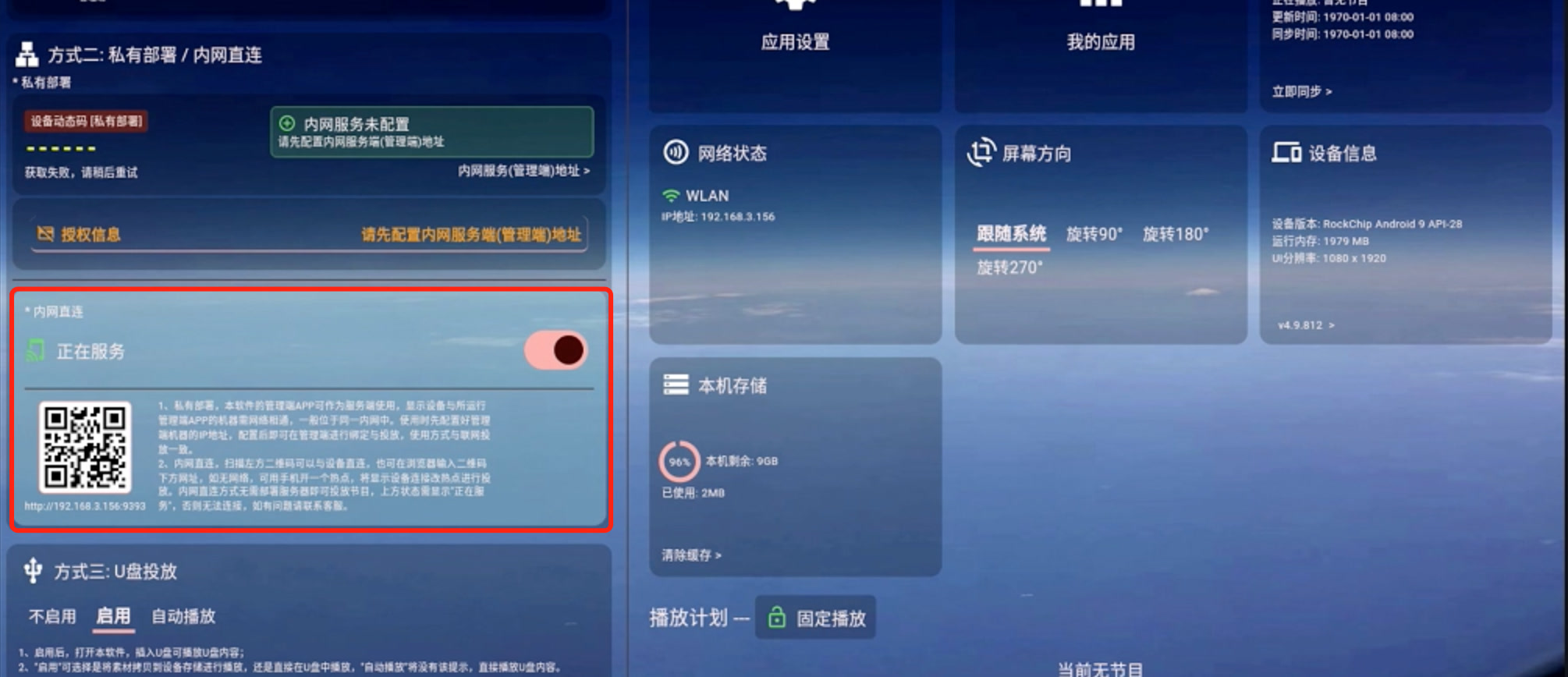
Step 3: Open the Device's Local Management Page
After enabling LAN Direct, a QR code with a local network address will appear below. Use a phone or computer on the same LAN to scan the QR code, or type the address directly into your browser. 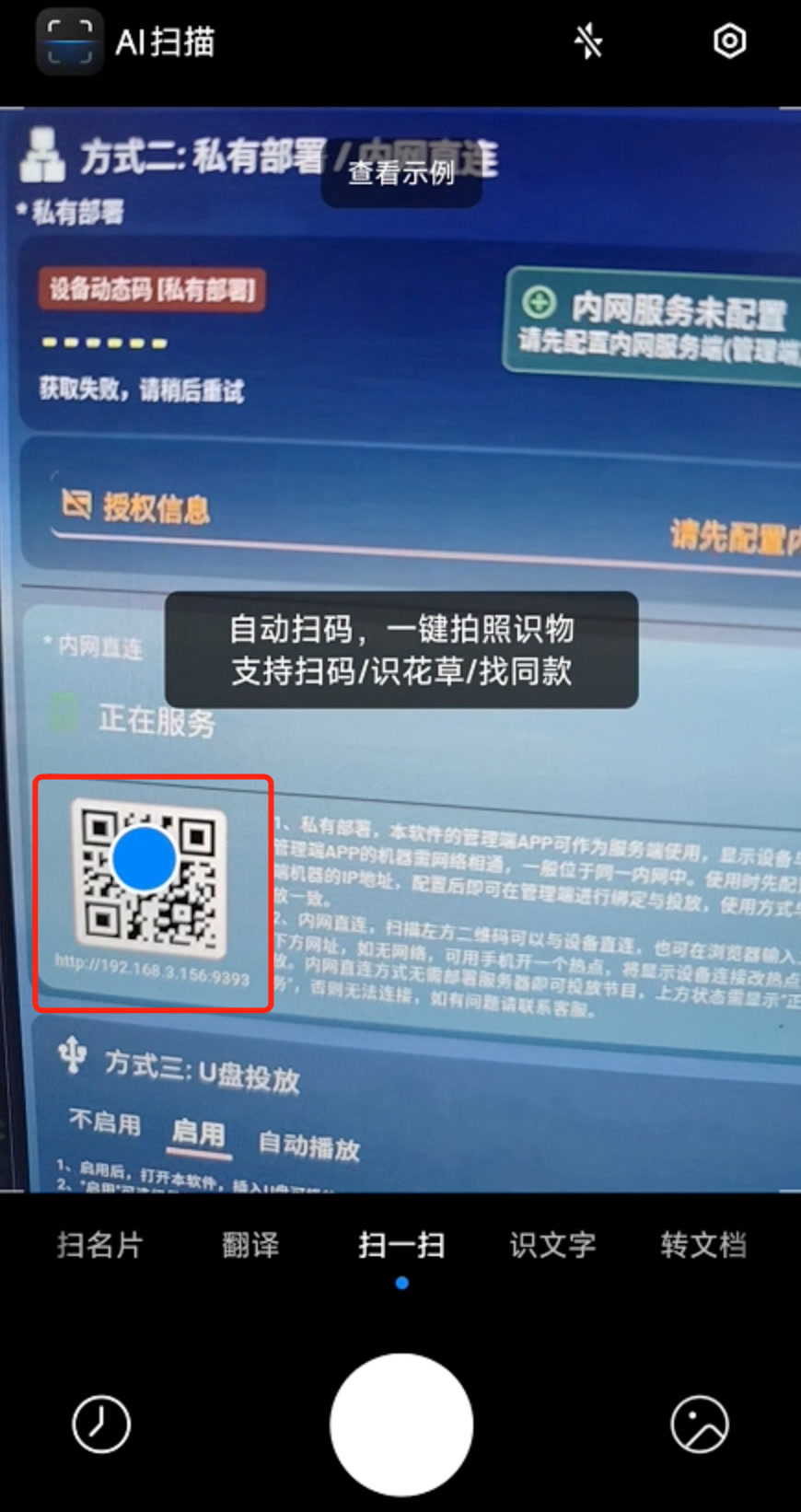
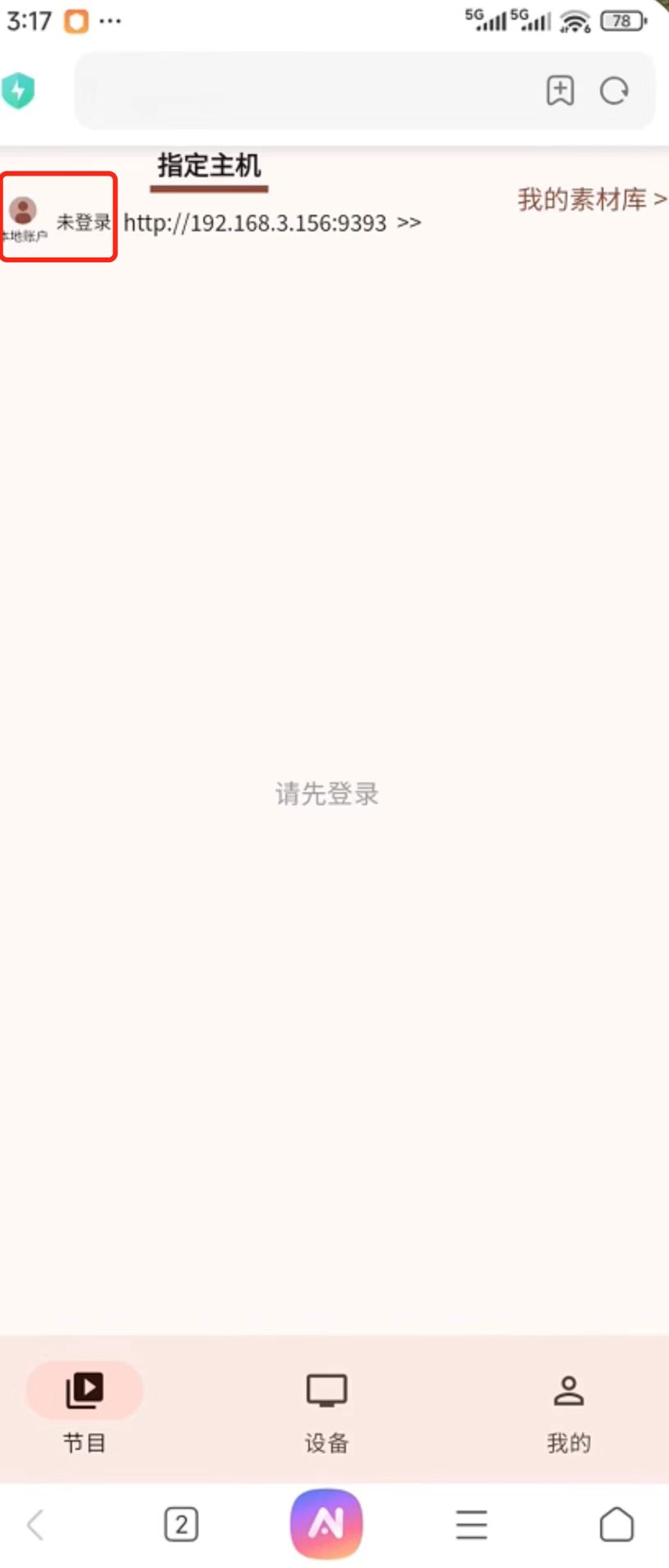
This is not the cloud admin side. It is the local management page of this device. Once opened, click the avatar in the top left corner to log in. The default password is admin. Please change your password promptly after logging in. 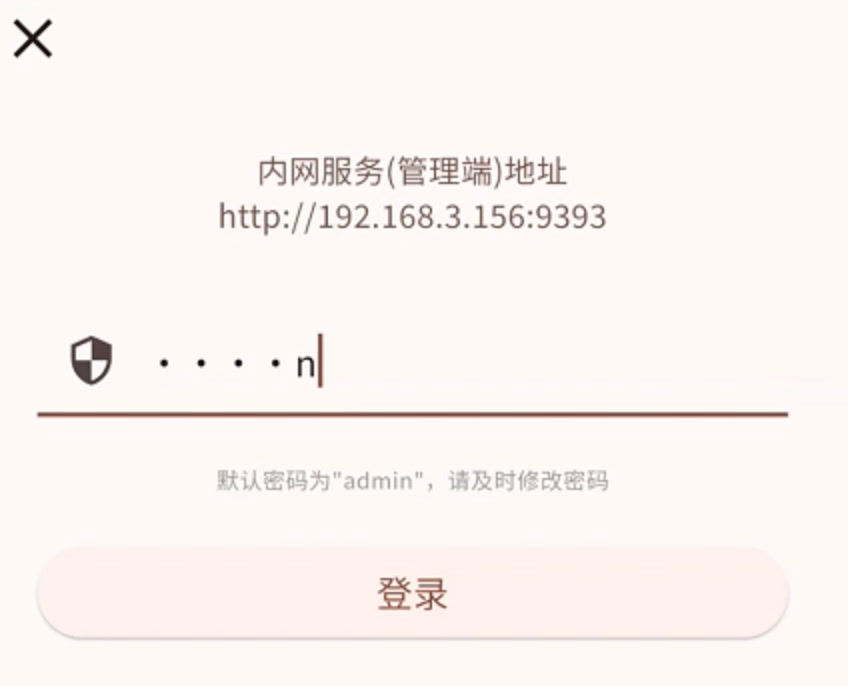
Step 4: Create and Cast a Program
After logging in, you need to create a program. Click the "Create Program" button in the bottom right corner and follow the prompts to create a program. 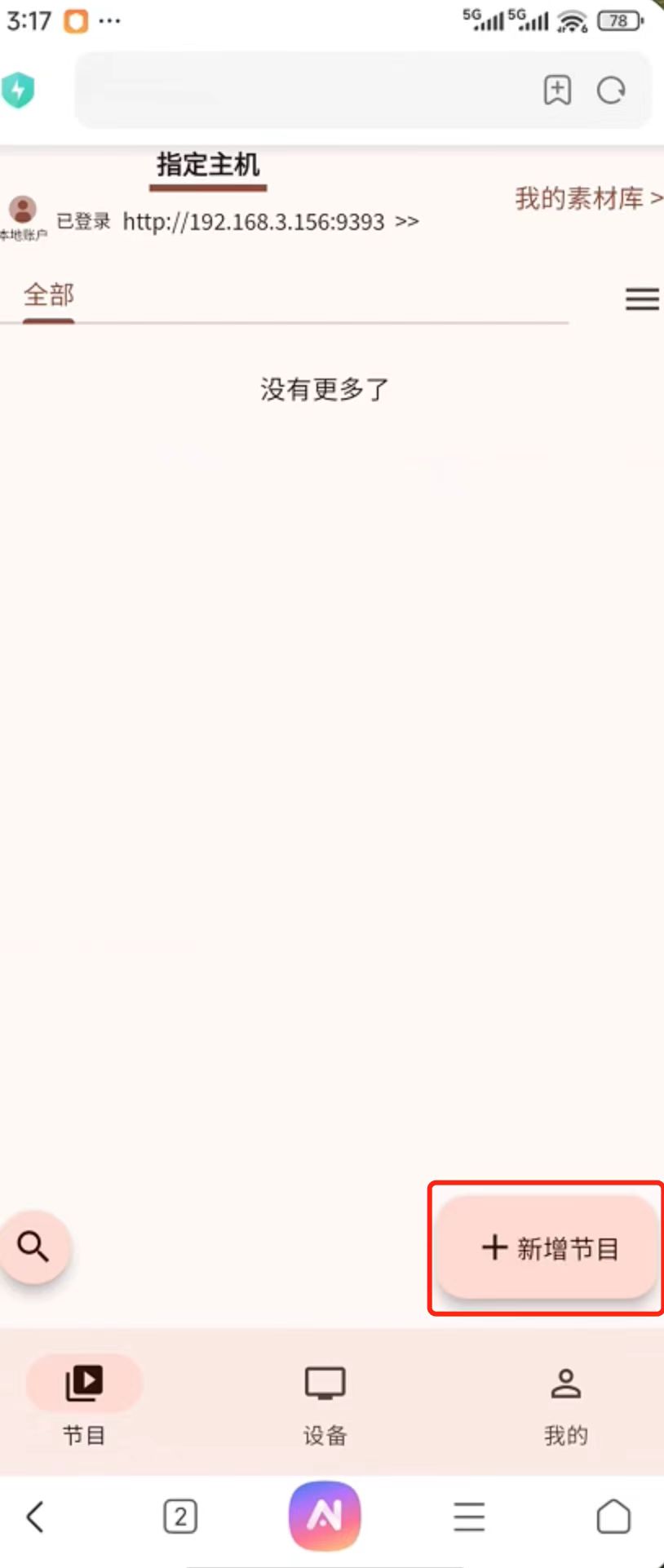
Then, enter the program editing interface. Click the "Add" button in the bottom right corner to add media. Here, we'll use an image as an example. 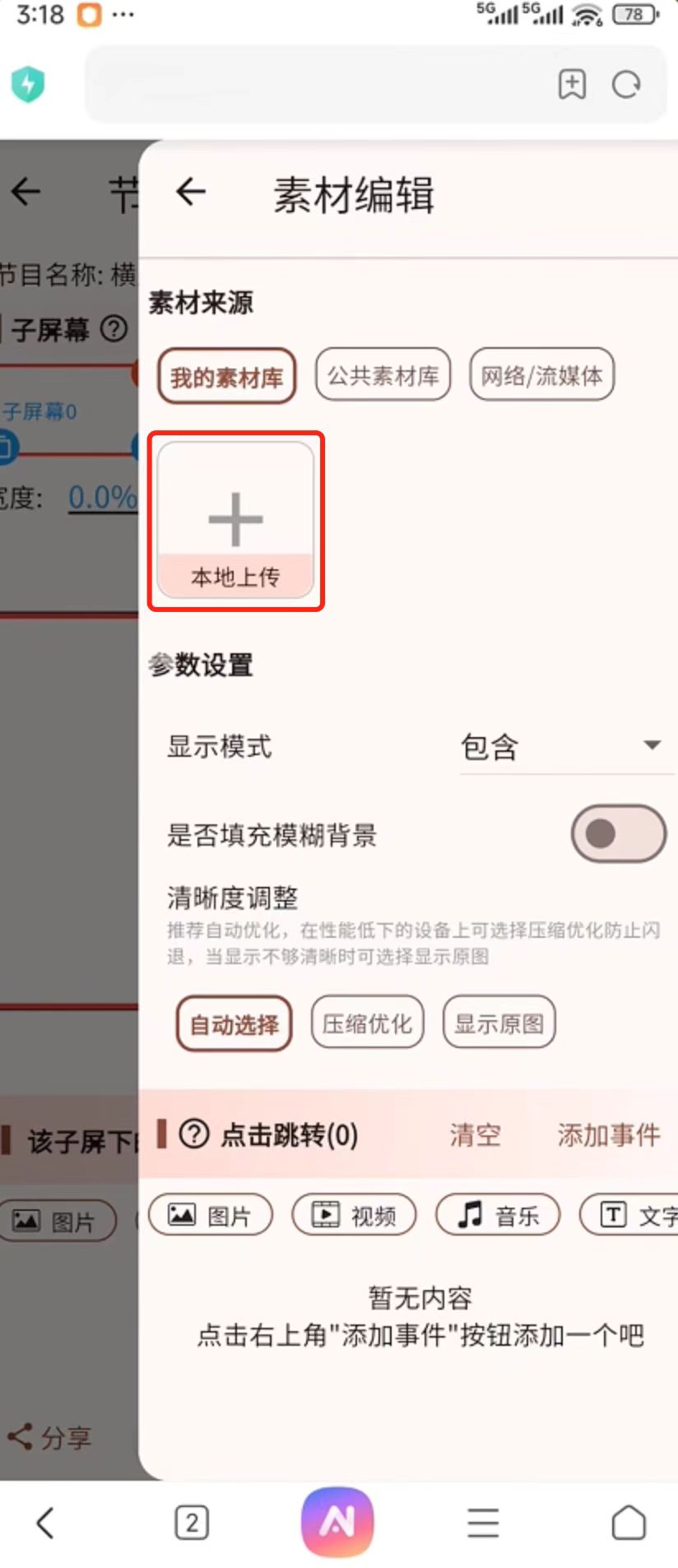
Select an image from your phone, then click the "Save" button in the top right corner of the program editing interface. After saving, click the "Cast" button in the bottom right corner. 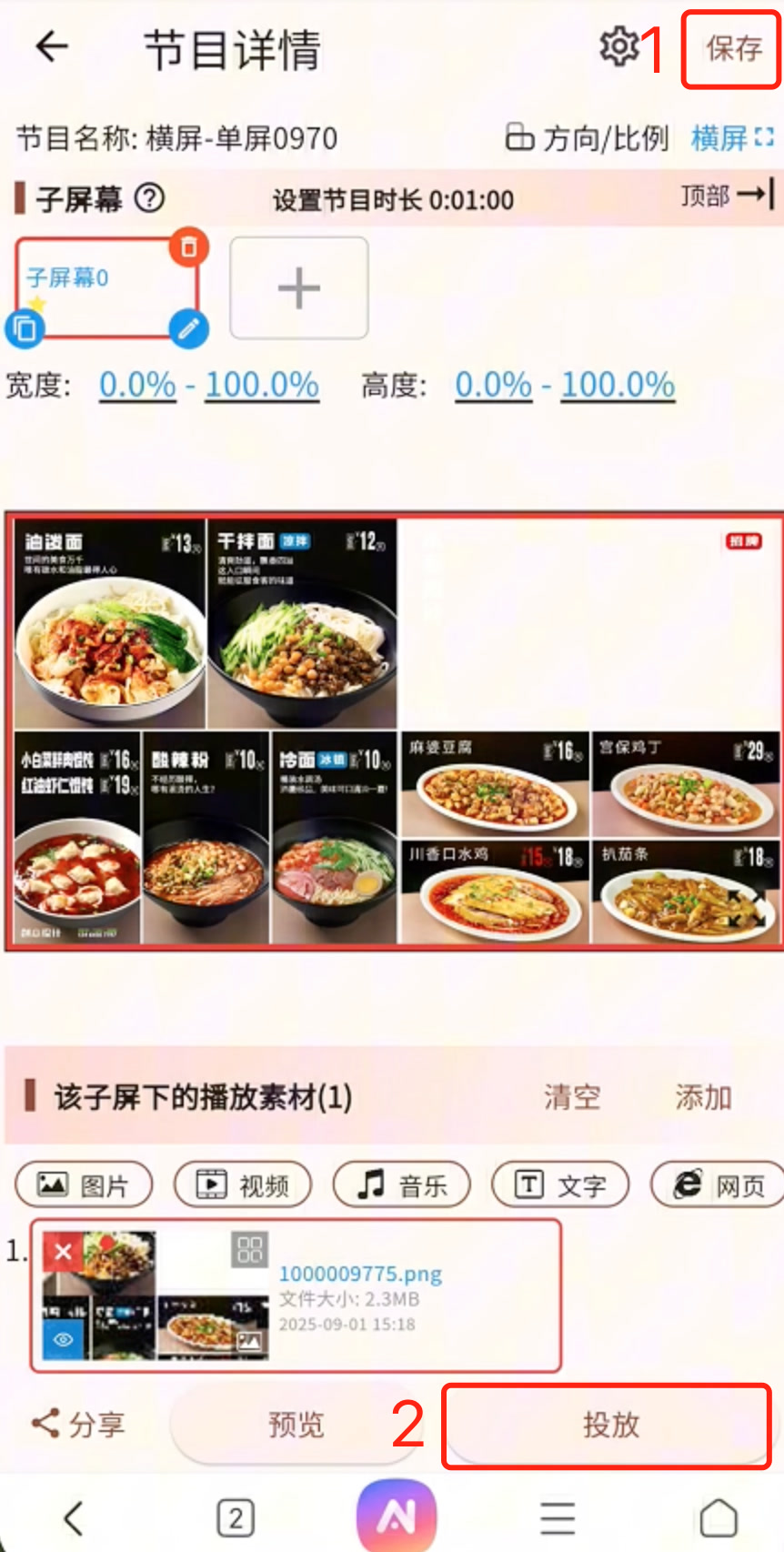
In the pop-up dialog, select "Cast to Selected Device." 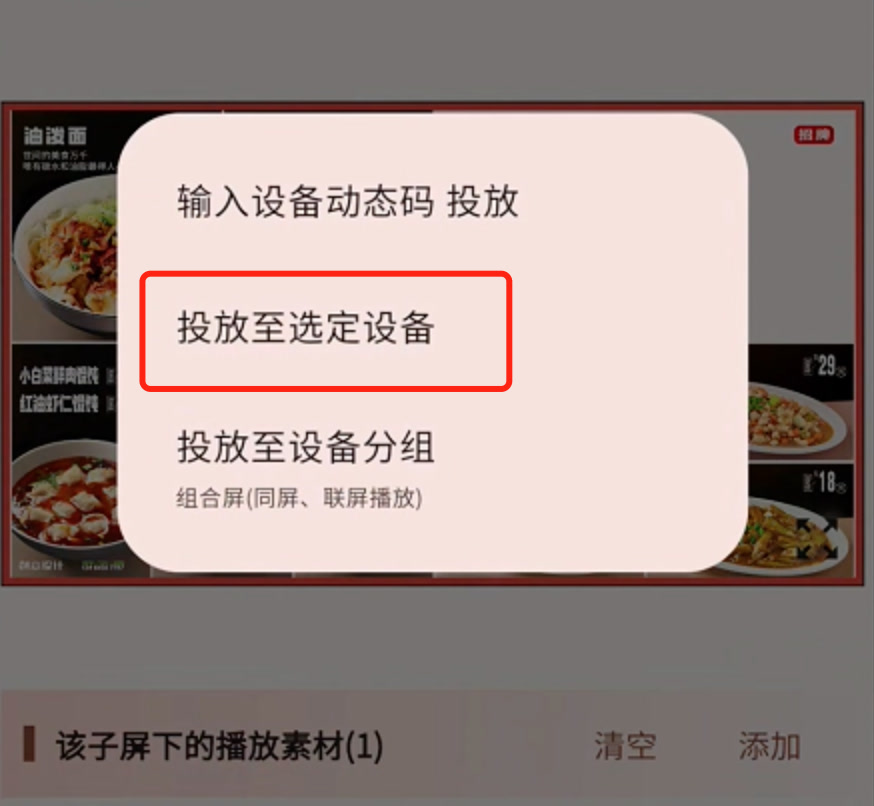
Select "This Device," then click the "Confirm Selection" button in the bottom right corner. 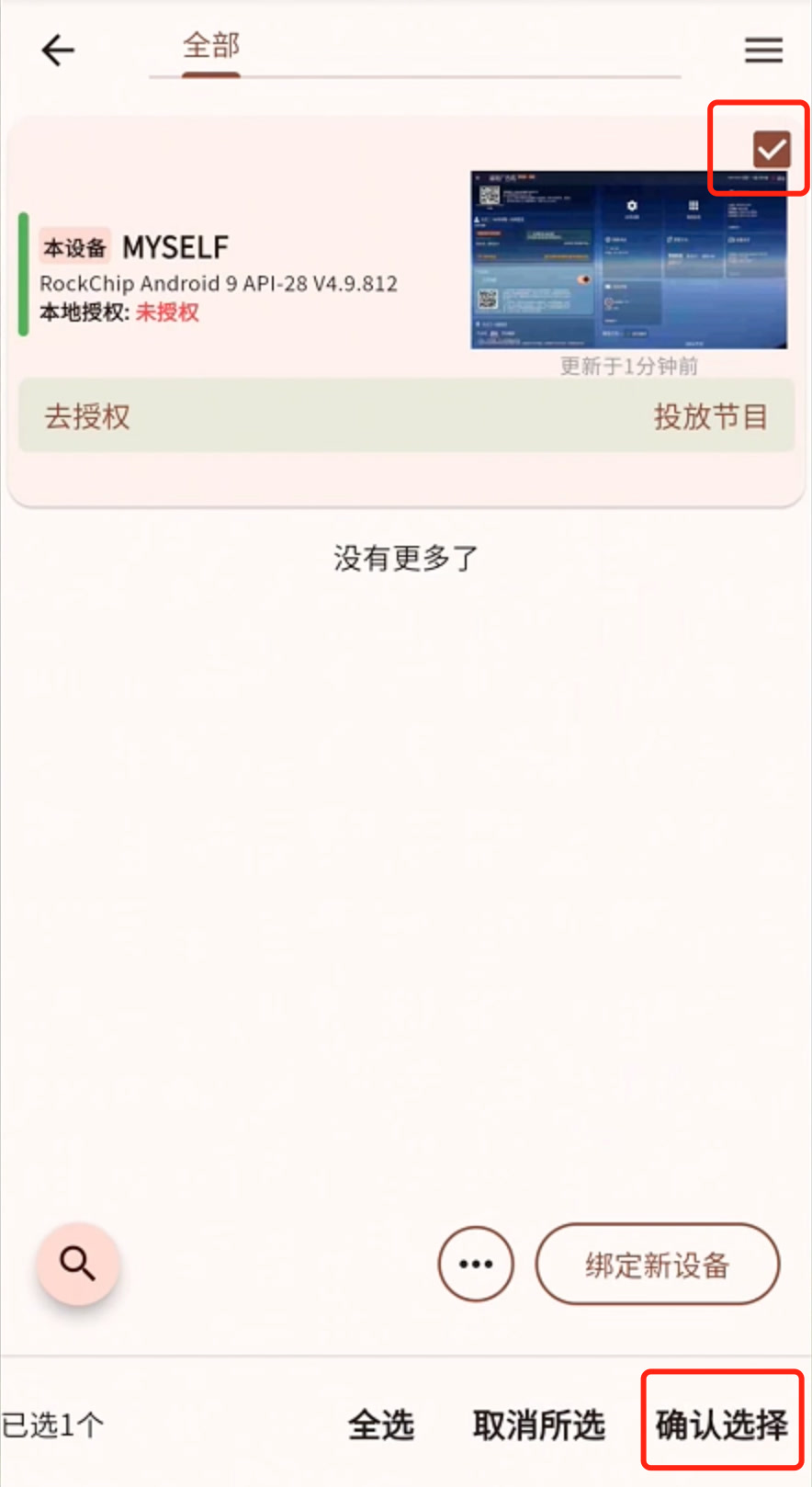
Click "Confirm" again in the pop-up dialog. 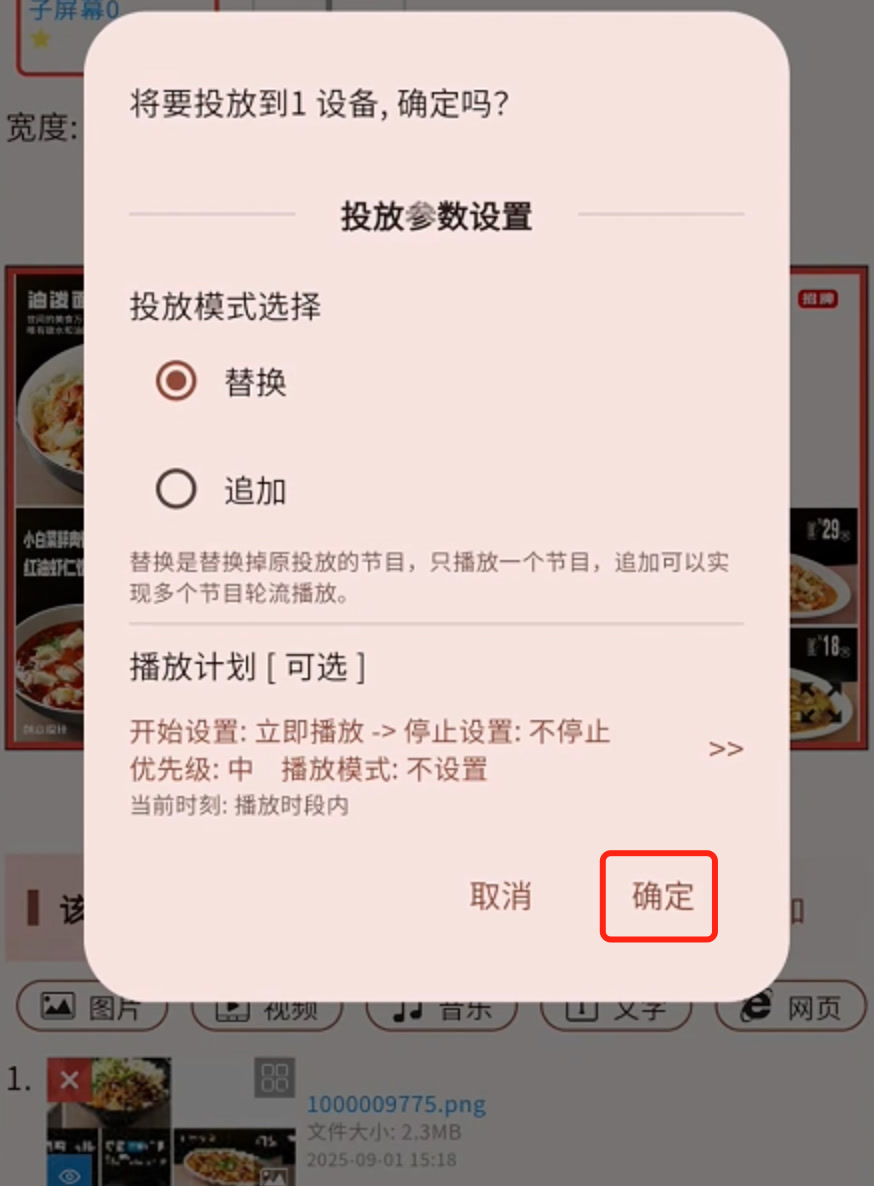
At this point, the display terminal device will play the image you just selected. 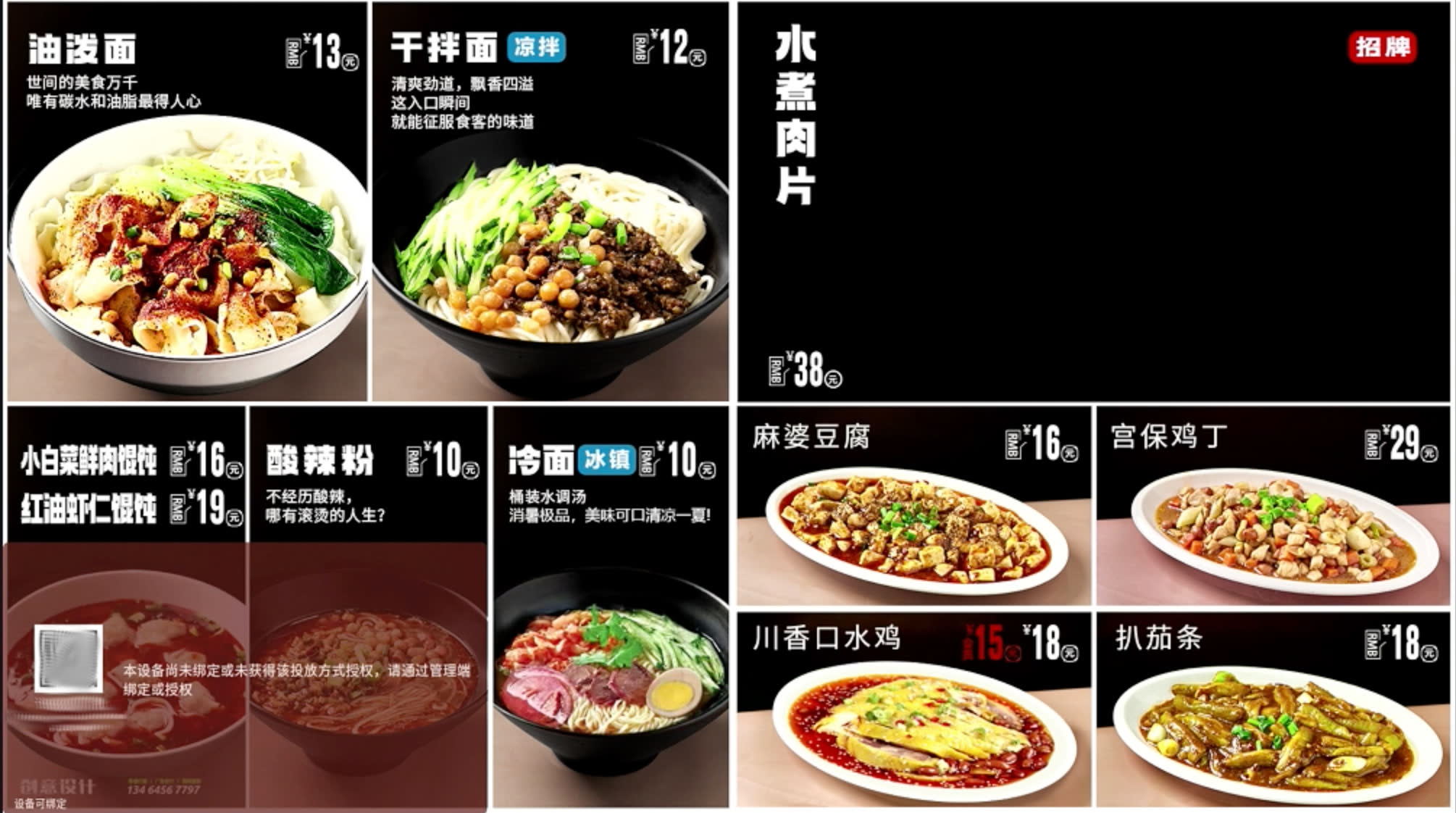
If the device is not authorized, an unauthorized prompt will appear. Complete local authorization to remove the prompt.
If the image you selected is now playing on the device, LAN Direct is working successfully.