
Private service backup and migration
Use this guide when replacing the computer running the local service in the Manager app, or moving a separately deployed server, including Docker. Private-service data resides on your own management computer or server. Signing in to a Cloud account does not restore it automatically.
Preserving device bindings and licenses comes first; programs come next. Back up while the old service is still accessible.
Back up device licenses first
The device-list JSON export includes device binding information, connection credentials and licensing data. It is the most important migration backup. Lost licensing data cannot be recovered without a valid backup.
A program export, device spreadsheet, screenshot or installer is not a license backup. Do not delete old service data, reinstall the old computer, unbind devices or cancel licenses until the new service has restored the data and every original license has been verified.
Migration order
| Stage | Action | Completion check |
|---|---|---|
| Old service: preserve licenses | Export the complete device list as JSON and copy it elsewhere | Correct device count; backup file safely stored. |
| Old service: preserve programs | Export each required program ZIP and record groups and schedules | All packages and original casting arrangements recorded. |
| New service: restore devices first | Start the service, sign in to the target account and import device JSON | Import results reviewed and original device records restored. |
| New service: restore content | Import programs and rebuild groups, casting relations and schedules | Correct content and device targets. |
| Players: switch and verify | Test one Player, then move the rest in batches | Every device's license and playback verified before retiring the old host. |
Keep both device JSON and program ZIP files outside the old computer. Store at least two copies in separate locations, such as a controlled backup drive and encrypted storage. Do not leave the only backup on a computer about to be reinstalled.
Step 1: Confirm the old service and scope
- Use a native Manager app on Android, Windows, macOS or Linux to connect to the old LAN service. Check the address and account in the page header. Program ZIP export/import is currently unavailable in the Web Manager.
- If the Manager computer runs the service, enter its local management interface. For a standalone server, connect the Manager to its old address through LAN Host or the corresponding host-selection entry.
- Record the device count, each device's name/ID, license status and expiration, and the programs to retain. License screenshots help with comparison but cannot replace device JSON.
- Record groups, customer/department assignments, program targets, start/stop times, priority and main/overlay layers.
- Schedule a migration window. Pause license changes, program edits and casting changes while preparing the backup so it represents one consistent state.
If you are only changing the computer used to access an unchanged standalone server, the data remains on that server. Normally, reconnect the new Manager to its existing address. The restoration steps below apply when moving or reinstalling the host that actually stores the service data.
Step 2: Export devices and licenses first
- Open My Devices on the old service using an account that can see all devices in scope.
- Select All and remove unintended search, online/offline or group filters.
- Scroll down toward the end of the list (swipe upward on a touchscreen) to load later entries until there is no more data. The first visible screen is not the complete device list.
- Open the three-dot menu beside Bind New Device and choose Export, not Excel.
- Check the confirmation count. If 50 devices are required but the dialog shows only 20, cancel, check filters and load the remaining entries before exporting.
- Save the generated JSON, for example
device-2026-10-29-10-30.json. Confirm that saving succeeded and that the file exists and is not empty, then copy it to the backup locations.
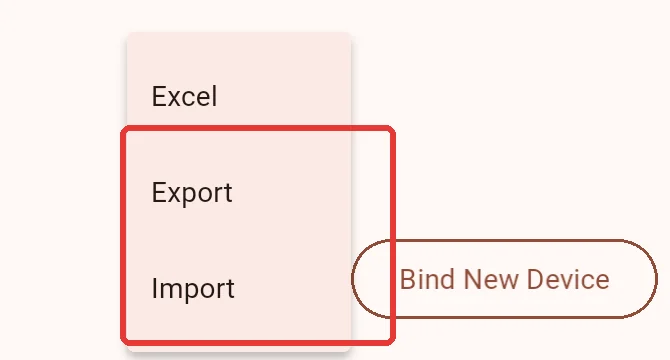
| Export | Purpose |
|---|---|
| Device JSON: Export | Restores original device records, binding credentials and licensing data. Preserve this first. |
| Device spreadsheet: Excel | For inventory and inspection; it is not the restore file for bindings and licenses. |
| Program ZIP | Restores a program and its directly used media; it does not contain device licenses. |
Device JSON contains credentials and licensing data. Restrict access and do not post it publicly. If exporting separate account or department scopes, identify each scope in the filename or backup inventory to prevent omissions.
Step 3: Export programs and record playback arrangements
- Stay connected to the old service and open My Program.
- Open each required program's card menu and choose Export.
- Wait for the program and media to be prepared, save the ZIP and check the names and package count.
- Copy every program ZIP and the device JSON outside the old computer. Retain original media files as additional backups.
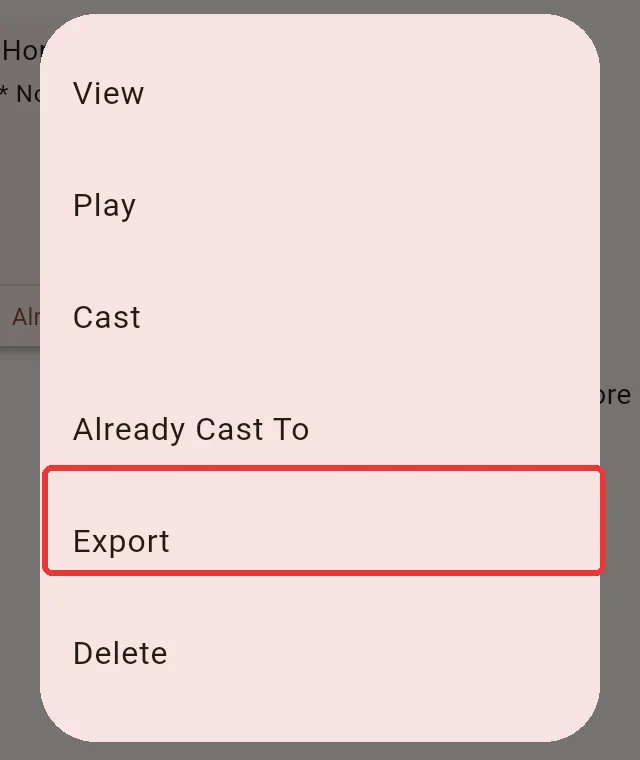
Device JSON and program ZIPs serve separate purposes; retain both. Device import does not restore programs, and program import does not restore licenses.
Program packages exclude original casting relations, device groups, customer/department structure, approval state and playback history. Record and check dependencies such as child programs, fonts, external web resources and click actions. Check more than the cover image after migration. See Program export and import.
Step 4: Prepare the new local service or standalone server
- Install and start the local service on the new host. Confirm its port, firewall access and address; see Private deployment.
- For a standalone server, connect a native Manager to the new server address. For a service running inside the Manager app, open local management on the new computer.
- Sign in as the target tenant administrator. Sub-accounts need device-creation permission. System administrators must switch to the appropriate tenant account.
- Plan resource ownership for multiple tenants, customers or departments. Device import assigns ownership using the account currently signed in; it does not recreate the old organization structure from the file. Import in appropriate batches or reassign resources afterward.
- Use compatible Manager and server versions. If device import is unsupported, upgrade the relevant service before continuing.
Import before connecting Players
Do not switch Players to the new service or create replacement device records using binding codes before importing the device JSON. If automatic onboarding/binding is configured, prevent it from creating records prematurely too.
When a device ID or connection credential already exists on the destination, import skips it instead of overwriting it. A prematurely created record can therefore prevent the original license from being restored.
Step 5: Import device JSON into the new service
- Verify the new LAN service address and target account.
- Open My Devices, then the three-dot menu and Import.
- Select the original device JSON from Step 2 and confirm. Do not select a spreadsheet, program ZIP or manually prepared table.
- Review imported, skipped and failed counts and details, comparing them with the backup device count.
- Open restored records and compare device IDs and licensing information with the old service. Each original license still belongs to the original display device; migration does not extend expiration or license different hardware.
| Result | Action |
|---|---|
| Imported | The device record was saved. Continue with license and actual connection checks. |
| Skipped | An ID or credential already exists. Verify that the existing record already has the correct original license; skipped does not by itself mean success. |
| Failed | Read the details, keep the original JSON and old service, resolve the issue and retry. |
| Result unconfirmed | A network interruption may have occurred after some devices were saved. Check connectivity and retry; existing records are skipped. |
For conflicts or missing licensing data, pause that device's migration and have the maintainer inspect the backup and old service. Repeated import does not overwrite an incorrect existing record. Avoid deleting/recreating devices, unbinding or cancelling licenses as an experiment.
Step 6: Import programs and restore playback arrangements
- On the new service, open My Program → Add Program → Import and select a program ZIP.
- Wait for media upload and program creation, then import the remaining packages.
- Preview every program and check images, video, text, fonts, web content and child-program dependencies.
- Rebuild device groups, customer/department assignments, casting relations and schedules from the old records.
- Check targets, Replace/Append, start/stop times, priority and main/overlay layers. When several programs must coexist, avoid replacing the arrangements restored earlier.
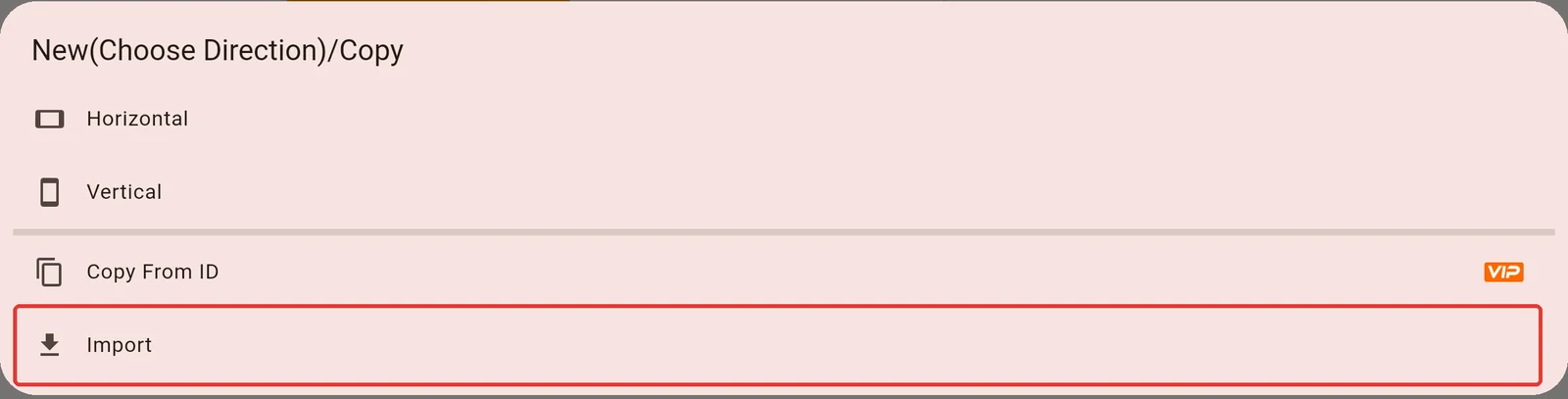
Import creates new programs and media, including new program IDs. Importing the same ZIP again creates another copy rather than updating the first. Recheck child programs and actions referring to old IDs. Groups and schedules are not automatically restored from these packages; see Playback schedule settings.
Step 7: Connect Players to the new service
Test one actual Player first:
- Press Back on the TV remote to open the Player home screen. Touch devices without a remote can use a double-tap.
- Find the Private Deployment/LAN service address and enter the new IP/domain and port.
- Wait for connection and confirm that the restored device record becomes online in the Manager.
- Check the original license, wait for program synchronization and inspect playback at the TV.
Keeping the old fixed IP/domain and port can reduce Player-side changes. Avoid address conflicts: the old service must release that address before the new one takes it. An unchanged address does not migrate data; restore devices and programs first.
Once the first Player is verified, move the remaining devices in batches. If something fails, retain the old service and backups and check the address, account, original ID, credentials and license. Do not buy replacement licenses instead of investigating the migration.
Step 8: Verify every device before retiring the old host
- [ ] The device count and original IDs match, and all devices connect to the new service.
- [ ] Every original license status and expiration is correct. No license was lost when changing the management service.
- [ ] Programs and media are complete and play correctly, including fonts, child programs and web dependencies.
- [ ] Groups, customer/department assignments, targets and schedules are restored.
- [ ] Scheduled content starts, stops and returns to regular content correctly.
- [ ] Service restart preserves devices, licenses and programs, and Players reconnect.
- [ ] Device JSON, program ZIPs and required configuration have independent backups. Old service data remains available until verification finishes.
Retire the old service only after these checks. Do not erase or format the old host before confirming the backups are usable. Refresh the relevant backups after adding devices, changing licenses or updating programs.
Common questions
Does changing only the management computer require import?
Usually not if the standalone server is unchanged. Reconnect the new Manager to that server. This guide addresses moving service data, replacing its host or reinstalling the machine that stores it.
Why does Cloud sign-in not restore local licenses?
Private-service data resides on your own management computer or standalone server. It is not Cloud data restored automatically by account sign-in. Lost licensing data cannot be recovered without a valid backup.
The old computer failed before export. What now?
Look for previous device JSON exports or a complete service backup. Avoid reinstalling the old machine or clearing its disk; retain files and ask the maintainer to check for readable valid copies. If the licensing data is lost and no valid backup exists, program ZIPs, spreadsheets and rebinding cannot recover it.
Devices imported, but licensing is missing
Pause the switch. Check that the correct backup was used, that the old service could read the original license before export, that import did not skip a conflicting record, and that the Player connected to the intended new service. Keep original files and old service data; do not cancel licenses or delete devices first. See Device authorization.
For maintainers: supplement with a complete service backup
Device JSON and program ZIPs are the core backups for the workflow above. Where possible, also preserve the complete service environment for accounts, configuration and other data:
- Pause writes and stop the old service cleanly. Back up the complete data directory, database and related files, media and startup configuration. Do not copy only a live SQLite file.
- Record service/application versions, actual data locations, working directory, port and address. Paths differ by deployment.
- For Docker, preserve persistent data such as
mhtdata. For peer-to-peer tasks, preserve the original instance's P2P master key and relevant configuration; the key may be outside the working directory. - Restore complete directories using a compatible service version and maintainer verification. Do not mix whole-database replacement and individual imports into the same destination without checking the outcome.
Installers, container images and media inventories do not contain actual service data. Backups may contain accounts, credentials, API keys and master keys; encrypt them and restrict access.