
Video Material
Video material plays uploaded videos or network video URLs. It is suitable for promotional videos, product videos, store activity videos, welcome videos, and other motion content.
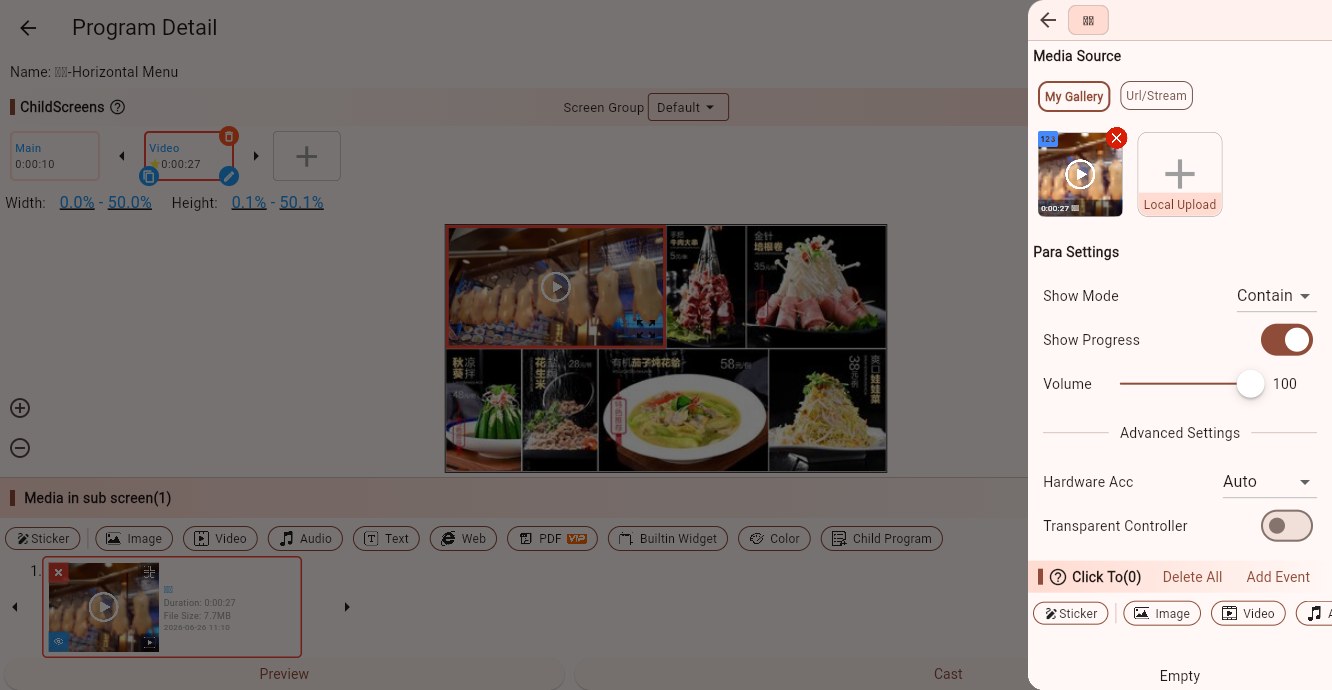
Media Sources
Video material supports:
- My Gallery: select an uploaded video, or upload a new local video.
- Network/Streaming: enter a video file URL or streaming URL.
When using a network or streaming URL, the Player end must be able to access that address. If the network is unstable, uploading the video to the gallery is usually safer.
Parameters
Display Mode
Controls how the video fits the child screen:
- Contain: shows the full video frame. Blank space or black bars may appear.
- Cover: keeps the aspect ratio and fills the child screen. Some edges may be cropped.
- Fill: stretches the video to the child screen size. It may distort the frame.
Use Cover for full-screen promotional videos. Use Contain when subtitles, screen recordings, or edge content must remain visible.
Streaming
When the source is a network URL, this option marks the media as a stream. Use it for live streams, camera streams, HLS, RTSP, and similar sources.
Show Progress Bar
Shows a playback progress bar. It is usually disabled for unattended signage, but can be useful for testing or interactive screens.
Volume
Controls video volume from 0 to 100. In multi-screen environments, test the volume on site to avoid audio interference.
Hardware Acceleration
Controls video decoding:
- Auto: recommended for most devices.
- Hardware: uses hardware decoding when possible, usually better for high-resolution video.
- Platform Rendering: on some newer Android devices, this can provide clearer and more stable playback.
If a video stutters, shows a black screen, or has decoding artifacts, try changing this option.
Transparent Controller
Controls whether the playback control bar is transparent. Ordinary loop playback usually does not need a visible controller.
Video Preparation Tips
Match the video aspect ratio to the screen whenever possible, such as 16:9 for landscape screens or 9:16 for portrait screens.
4K video requires stronger hardware. For low-performance devices, use 1080p or a lower bitrate.
For long-term loop playback, MP4 with H.264 video and AAC audio is usually the safest format.
Click Events
Video material supports click events. Use them for touch-screen presentations, showrooms, and interactive kiosks. Ordinary looped playback usually does not need click events.