
This page explains why some devices still cannot auto-start reliably even after the Player app is installed, and what ordinary users and technical users should do differently.
Start with the conclusion
The shortest answer is:
- The Player app itself supports auto-start
- But many TVs, TV boxes, and signage systems restrict third-party apps from auto-starting
- Pressing the power button on a remote usually puts the device into standby. Turning it back on is a wake-up, not a full reboot, so auto-start may not be triggered again
So installing the Player app does not necessarily mean it will auto-start in every situation.
If you want the most reliable result, use this order:
- Ask the TV, signage, or TV box vendor whether they can preset auto-start or the default launcher at the factory level
- If the system allows it, set the Player app as the default launcher
- Only if you already have Android debugging experience, consider using ADB
Recommended approach for ordinary users
If you are not a technical user, the first two methods are the best choices:
- Option 1: ask the vendor to preset it This is usually the easiest and most reliable approach. Many device vendors already support custom boot behavior.
- Option 2: set the Player app as the default launcher This means the device will enter the Player app first when it returns to the home screen, instead of going to the original system launcher.
If you are a store operator, admin, or installer, do not start with ADB commands.
Why auto-start may still fail even when it is supported
The most common reasons are:
- System restrictions Many TVs and TV boxes block third-party auto-start behavior for user experience or security reasons.
- Standby is not the same as reboot On most TVs, pressing the power button on the remote only puts the device into standby. Turning it back on wakes it up, but does not run the full boot process again.
When should you continue to the advanced method below?
Only continue with the ADB method if all of the following are true:
- Your device is an Android TV box, Android TV, development board, or another Android-based display device
- You know how to enable developer mode
- You are comfortable with basic command-line operations
- You accept the risk of launcher problems, black screens, or even having to restore factory settings if something goes wrong
If these conditions do not fit your case, stop here and contact the device vendor or support channel first.
Advanced method: handle the default launcher through ADB
The method below is only for users with Android debugging experience. Different brands and different systems may use different menu paths, package names, and permissions.
The example below uses a typical Android TV box. The same idea may apply to TVs or dedicated Android boards, but you should not assume every device can follow the exact same steps.
Step 1. Prepare the ADB tools
ADB is part of the Android development toolkit. If you have installed Android Studio, it is usually already included. You can also install it separately.
Official page: https://developer.android.google.cn/studio/releases/platform-tools?hl=en
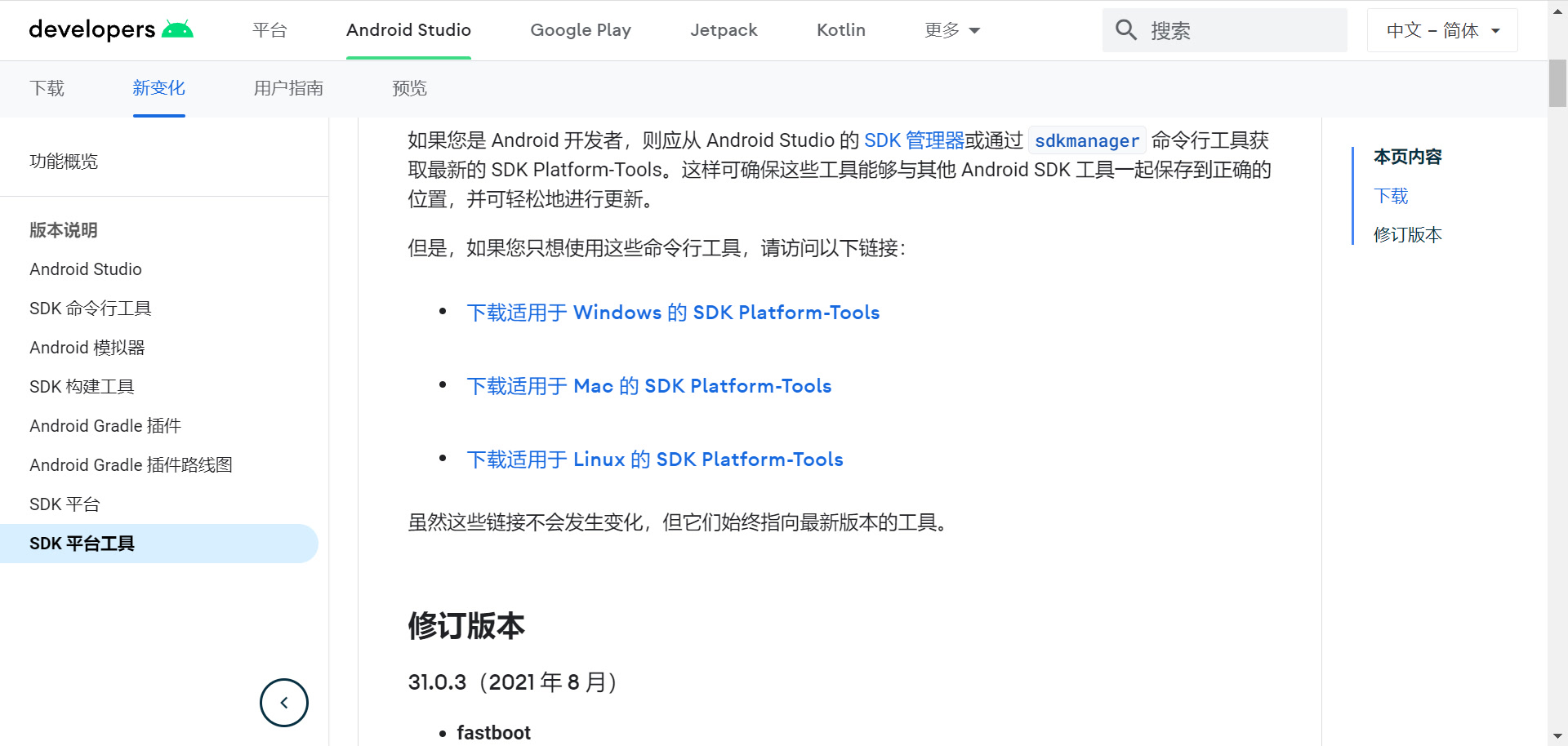
Download and extract it to a location you prefer, then add that directory to your system PATH so you can run adb directly in PowerShell or CMD.
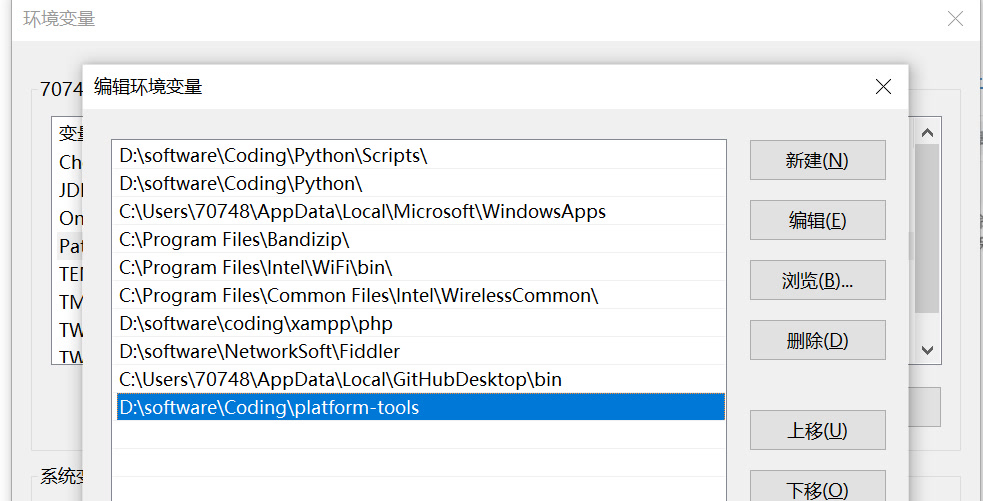
After installation, you can first run:
adbIf the command prints version information normally, ADB is ready.
Step 2. Find the device IP and enable ADB debugging
First, find the current IP address in the device network settings.
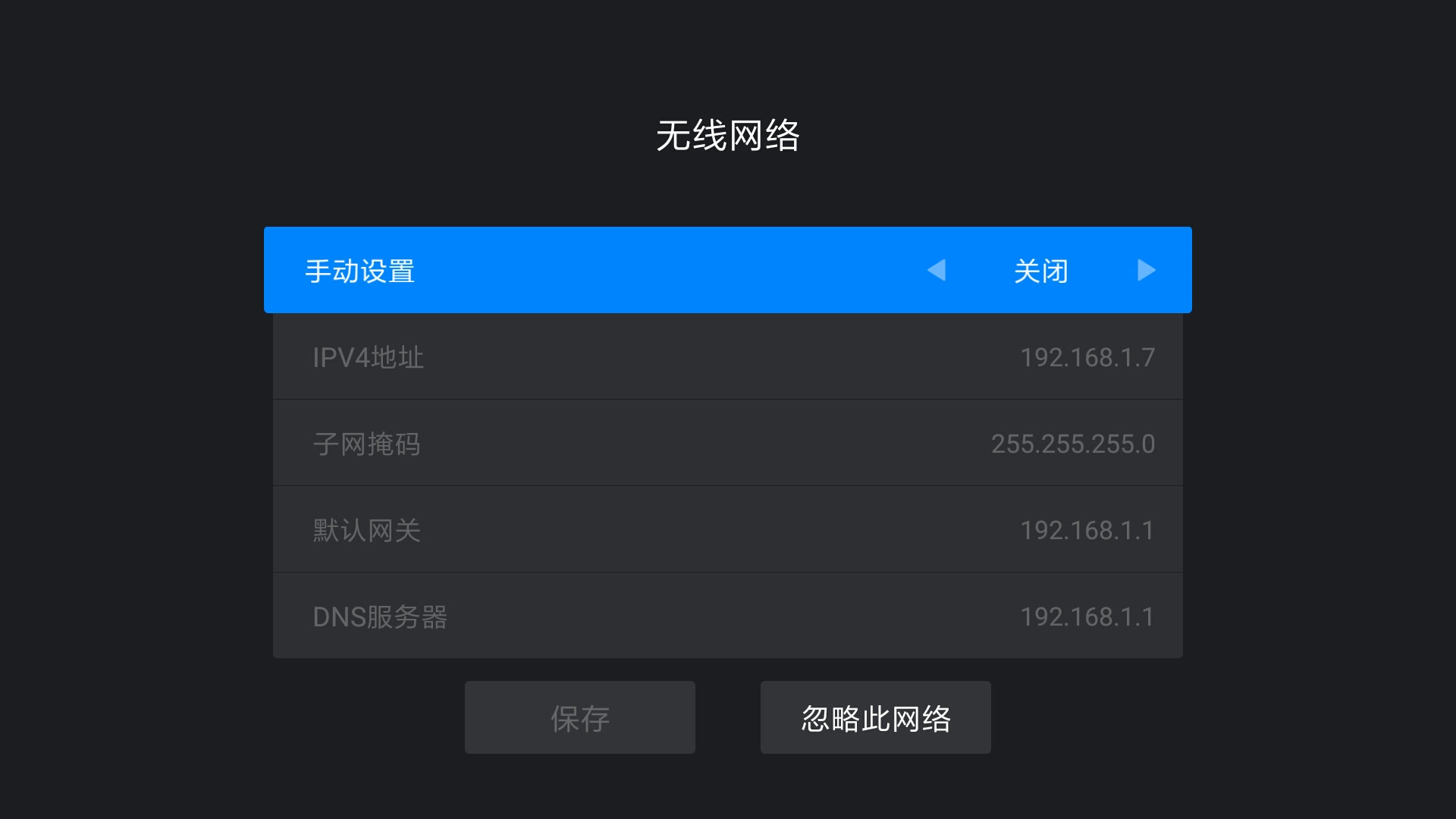
Then enable developer mode and ADB debugging on the device. The path differs by brand, but the example below uses a common Android TV box:
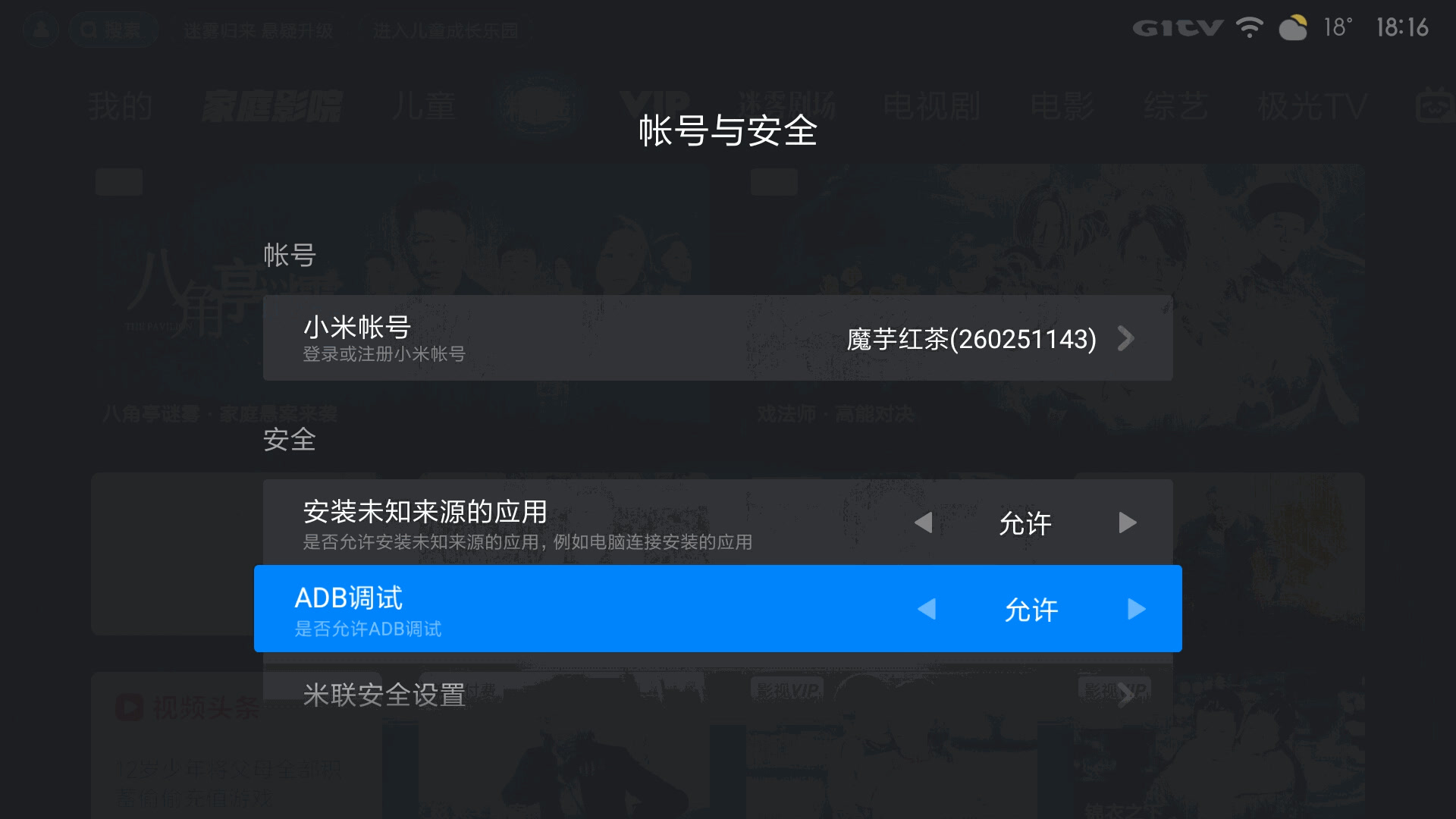
Usually, the process is:
- Open the device information or product model page and press the OK button on the remote several times to enable developer mode
- Then go to Account and Security, or a similar page, and turn on ADB debugging
Step 3. Connect to the device through ADB
Run this command:
adb connect 192.168.1.7Replace 192.168.1.7 with the actual IP address of your own device.
If the TV or TV box shows a prompt asking whether to allow debugging, make sure to approve it. Otherwise the connection may look successful, but the following commands may still fail.
You can then confirm the connection with:
adb devicesIf your device appears in the list and its status is device, the connection is working.
Step 4. Make sure the Player app is already installed
Before you change the launcher or disable the system launcher, make sure the Player app is already installed correctly and you have confirmed that it can open normally.
This is critical.
If you touch the system launcher before there is a working replacement, the device may end up with a black screen or no usable home screen.
Step 5. Handle the system default launcher
On some Android devices, technical users use ADB to disable or remove the original system launcher so the device falls back to the Player app or another installed launcher.
For example, on some Xiaomi TV boxes you may see a command like this:
adb shell pm uninstall --user 0 com.mitv.tvhomePlease note:
- This package name is only an example for a certain type of device. Different brands use different package names
- Before you run it, you must confirm that the replacement launcher is already available
- The device may go black for a few seconds after execution
- If it fails, you may need to restore factory settings
Some users also try:
adb shell pm disable xxxWhether this works depends on the permissions of the specific device. Many devices may require higher privileges before this command can succeed.
What if something goes wrong?
If you run into problems while trying the advanced method, for example:
- The device shows a black screen
- You cannot get back to the launcher
- The system no longer starts normally
Contact the device vendor, after-sales support, or your support channel first.
If you already have Android debugging experience, you may also try recovery mode and a factory reset, but this is a higher-risk recovery operation and is not recommended for ordinary users.
If you remember only one sentence
For the most stable auto-start result, do not start with commands. Start by asking the device vendor or the system side to set the Player app as the default launcher or boot app.