
If you already have an existing program and only want to create a similar version with small changes, this is the most efficient method.
It is especially useful in situations like these:
- One store template, but only the prices or promotion text need to change
- One campaign screen, but only a few images need to be replaced
- You want to keep the existing structure and avoid rebuilding everything from scratch
The whole process has two steps:
- Get the ID of the original program
- Create a new program by copying from that ID
Step 1: Get the Original Program ID
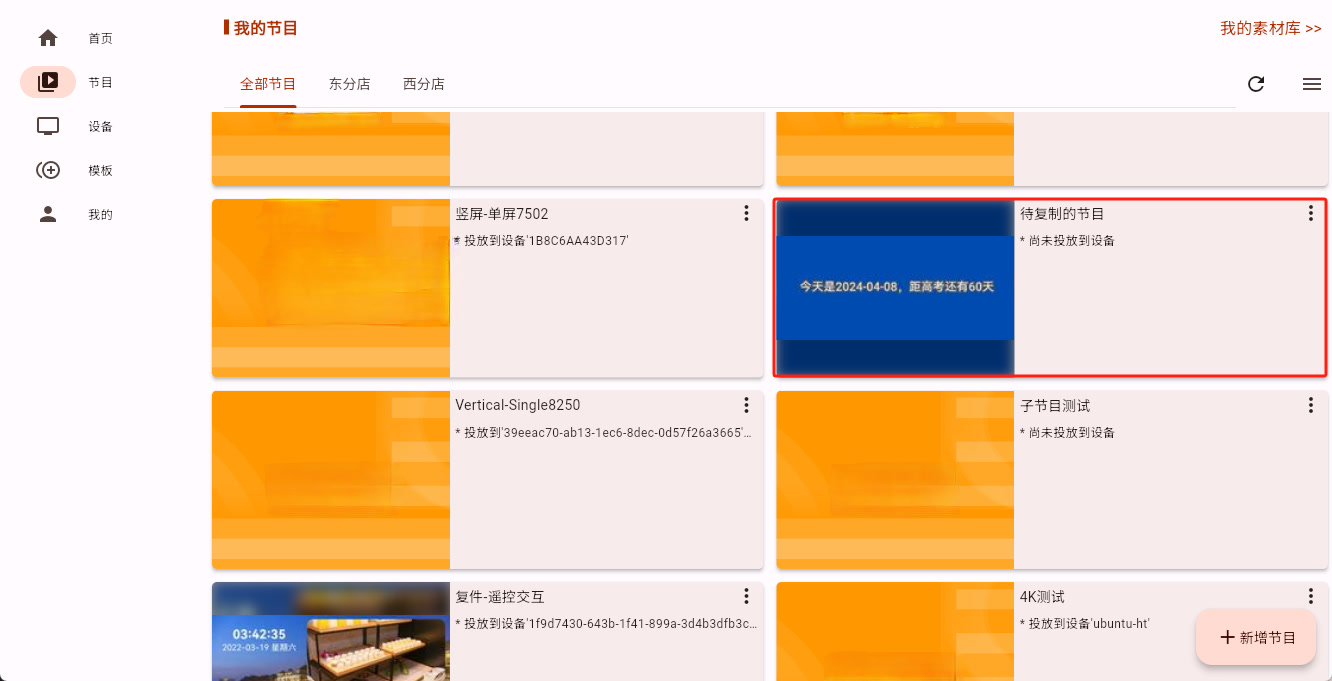
- Open the Admin End, switch to the program main page, and enter the program you want to copy.
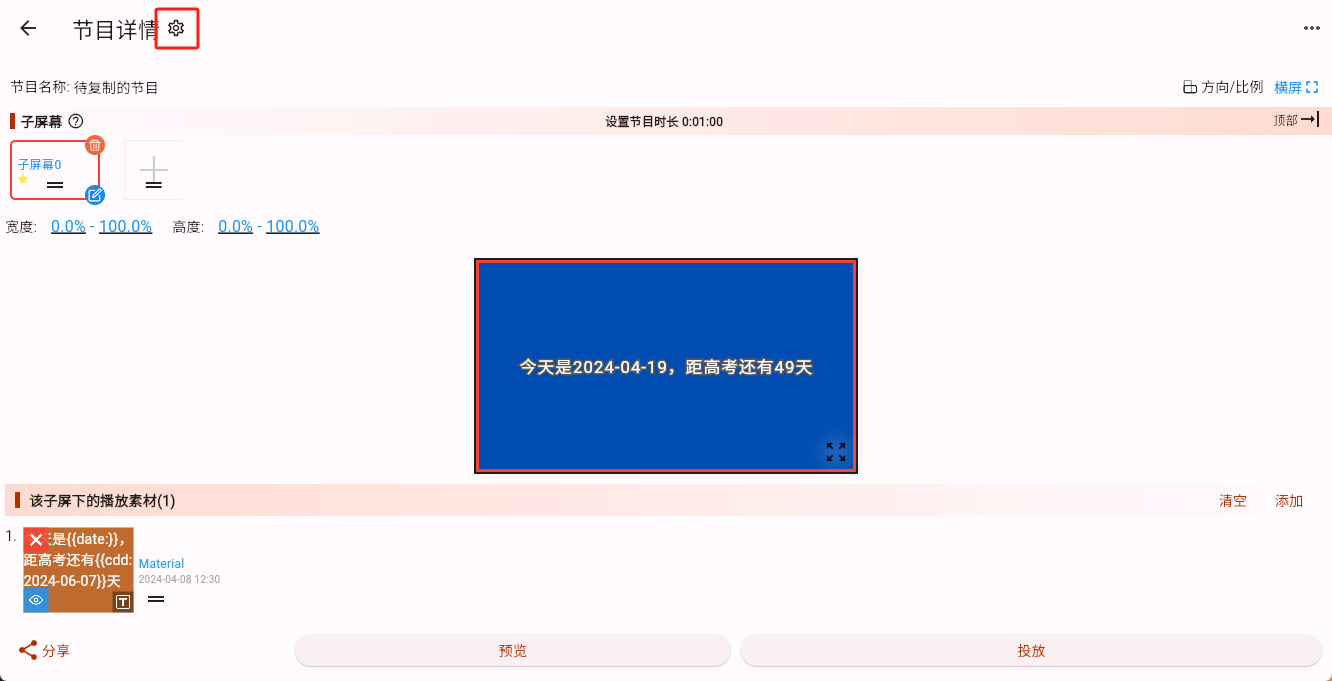
- In the program editing interface, click the settings icon next to the program details to open More Program Settings.
- Copy the program ID from that page.
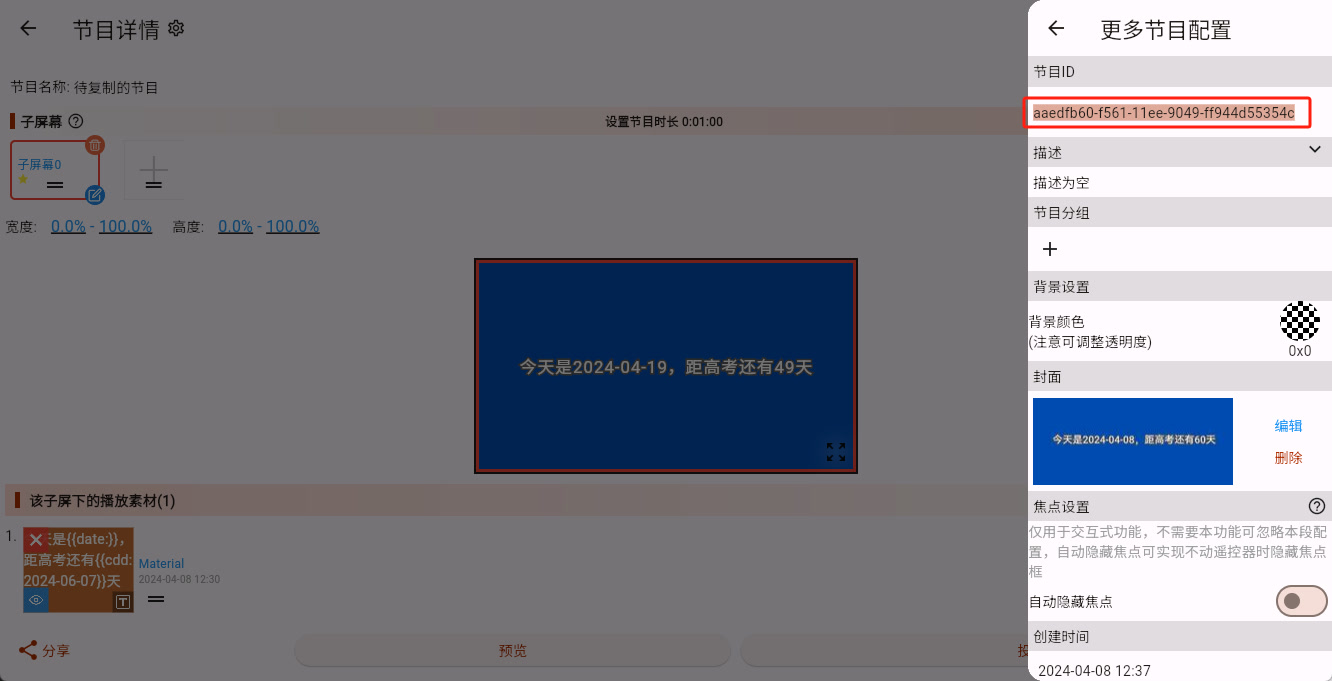
At this point, the original program ID has been copied to the clipboard.
Step 2: Copy the Program from the ID
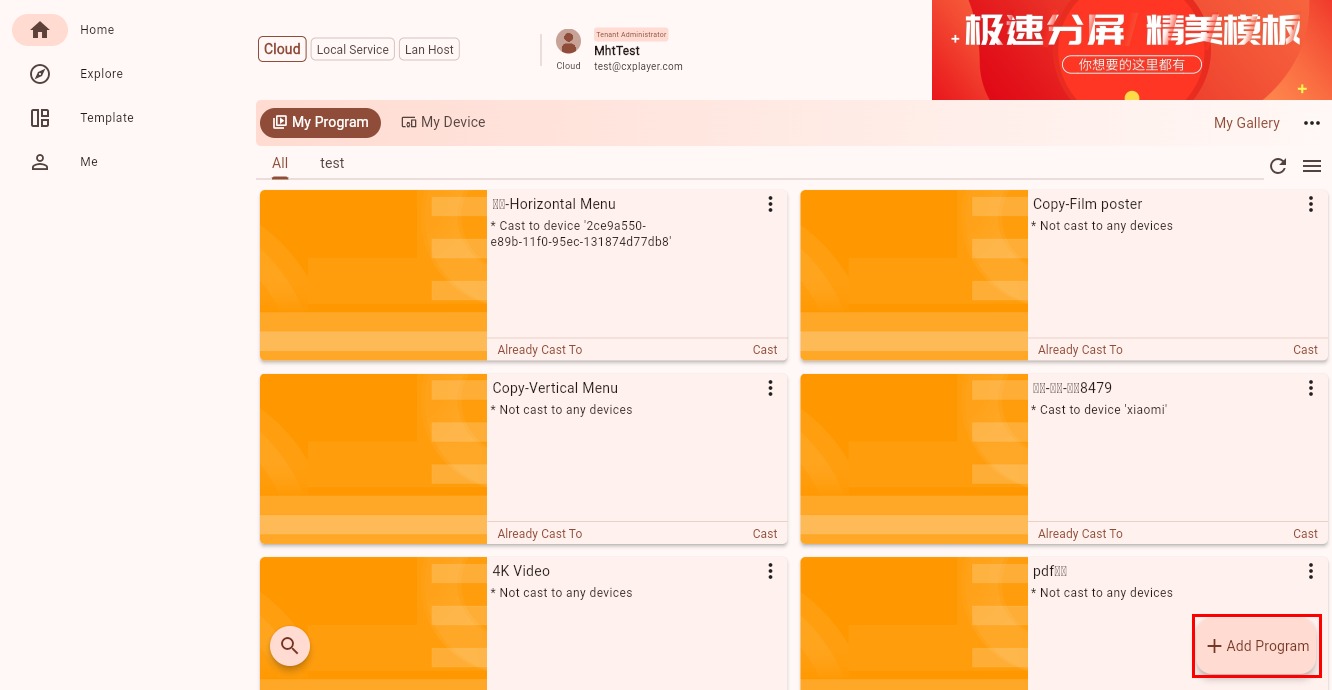
- Go back to the program main page and click the "Add New Program" button in the lower-right corner.
- Choose "Copy from ID."
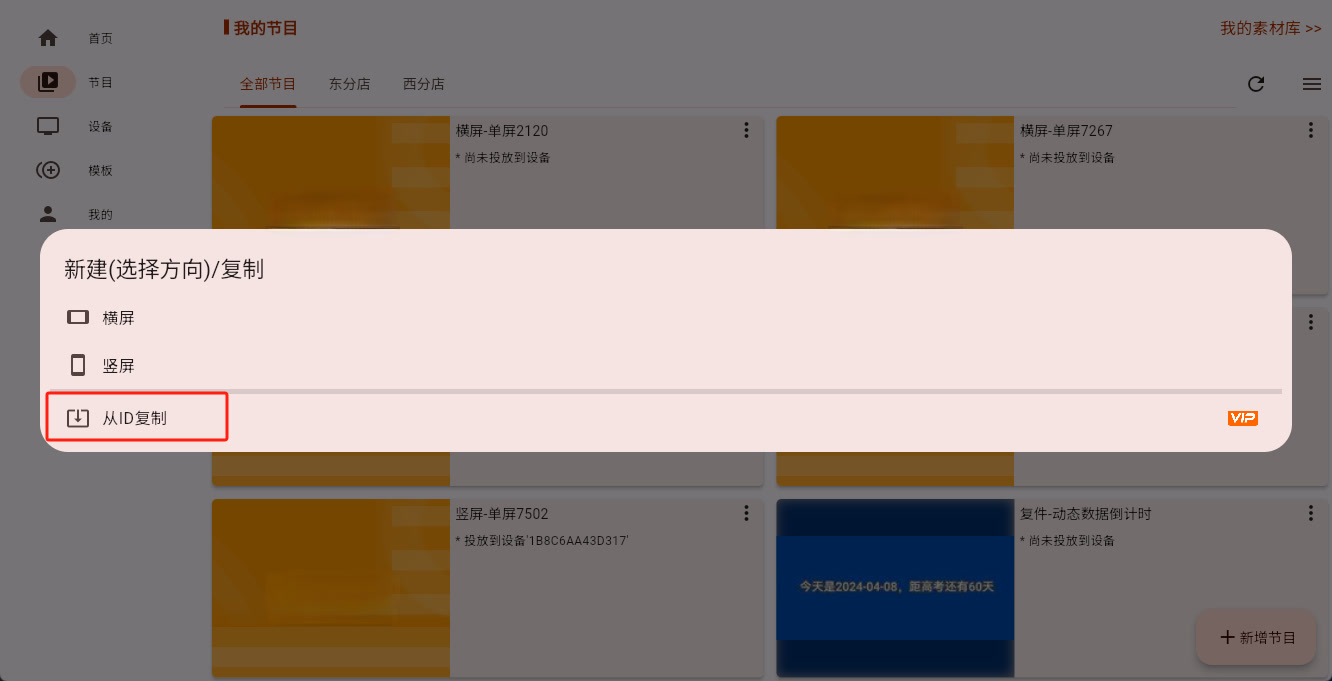
- Paste the program ID you copied just now, then click Confirm.
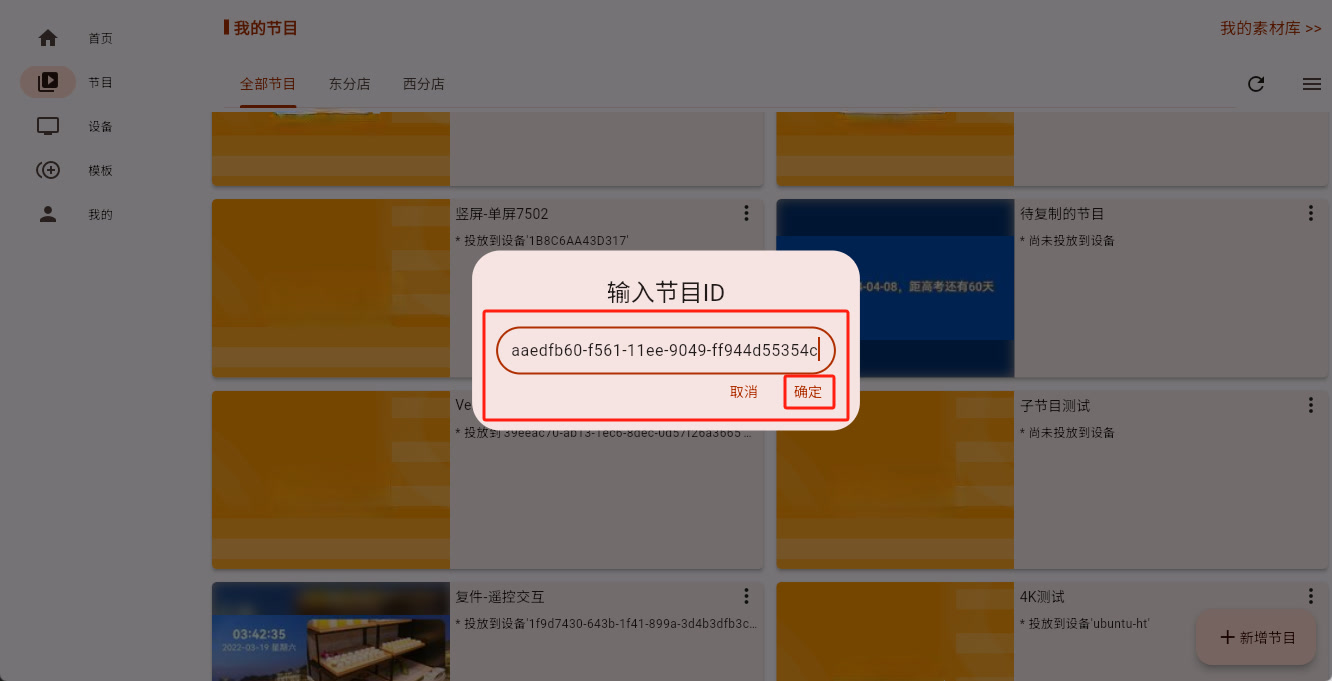
If you are on a computer, you can usually paste by right-clicking or using the normal keyboard shortcut. If you are on a phone, use the normal paste action for that device.
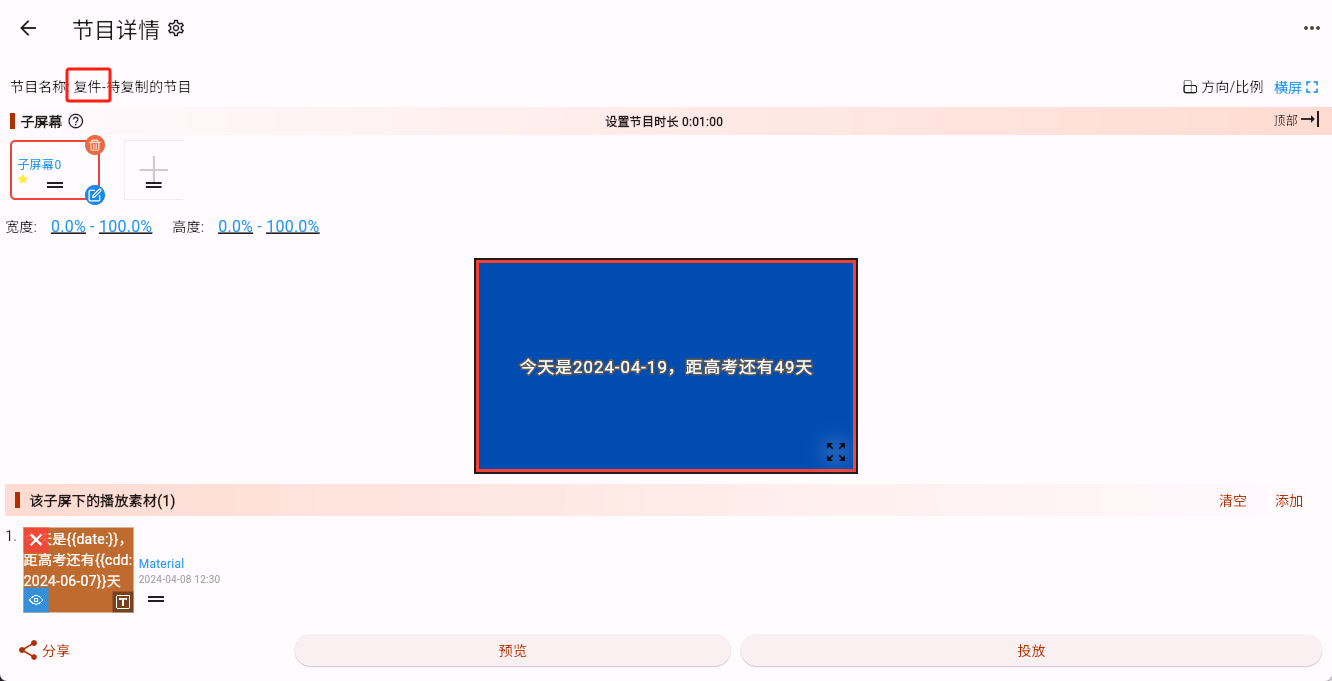
- Wait a moment and the new program will be created. The system automatically adds the prefix "Copy-" to the new program name so you can distinguish it from the original.
What to Do Next
If you can already see the new copied program, the copy operation succeeded.
Next, you can:
- Continue adjusting the layout: see Sub-screen Editing
- Directly modify the content: see Material Editing