
Multi-screen playback means multiple devices each play one part of the same large visual, and together they form one complete image on site.
It is suitable for video walls, horizontal multi-screen layouts, vertical multi-screen layouts, and similar large-display effects.
If you only want multiple devices to play the same complete program, and not form one combined image, see Same-Screen.

Before you begin, make sure:
- All devices are already bound
- The physical layout of the devices has already been fixed on site
- You already know which device is left, center, right, top, bottom, and so on
- You have already split the original large image or video into multiple media files that match the number of devices
If the media has not been split yet, prepare that first before continuing. Multi-screen playback does not automatically stretch one full image across multiple devices. Each device plays only the part that belongs to it.
Understand the Current Matching Logic
Multi-screen playback no longer relies on "multiple programs + program groups + program labels" to match devices.
The correct workflow is:
- Create a device group and set it as a combined screen
- Set a device label for each device in the combined screen
- Create child-screen groups with the same names inside one program
- Publish this one program to the combined screen
The key rule is:
When a device label matches a child-screen group name, that device plays that child-screen group.
For example, in a three-screen layout from left to right, you can use:
- Left device label:
Left - Center device label:
Center - Right device label:
Right
Then create three child-screen groups in the program: Left, Center, and Right. Put the matching visual part into each group.
Step 1: Create the Combined Screen and Set Device Labels
First bind the devices normally. Then create a device group and set that group as a combined screen.
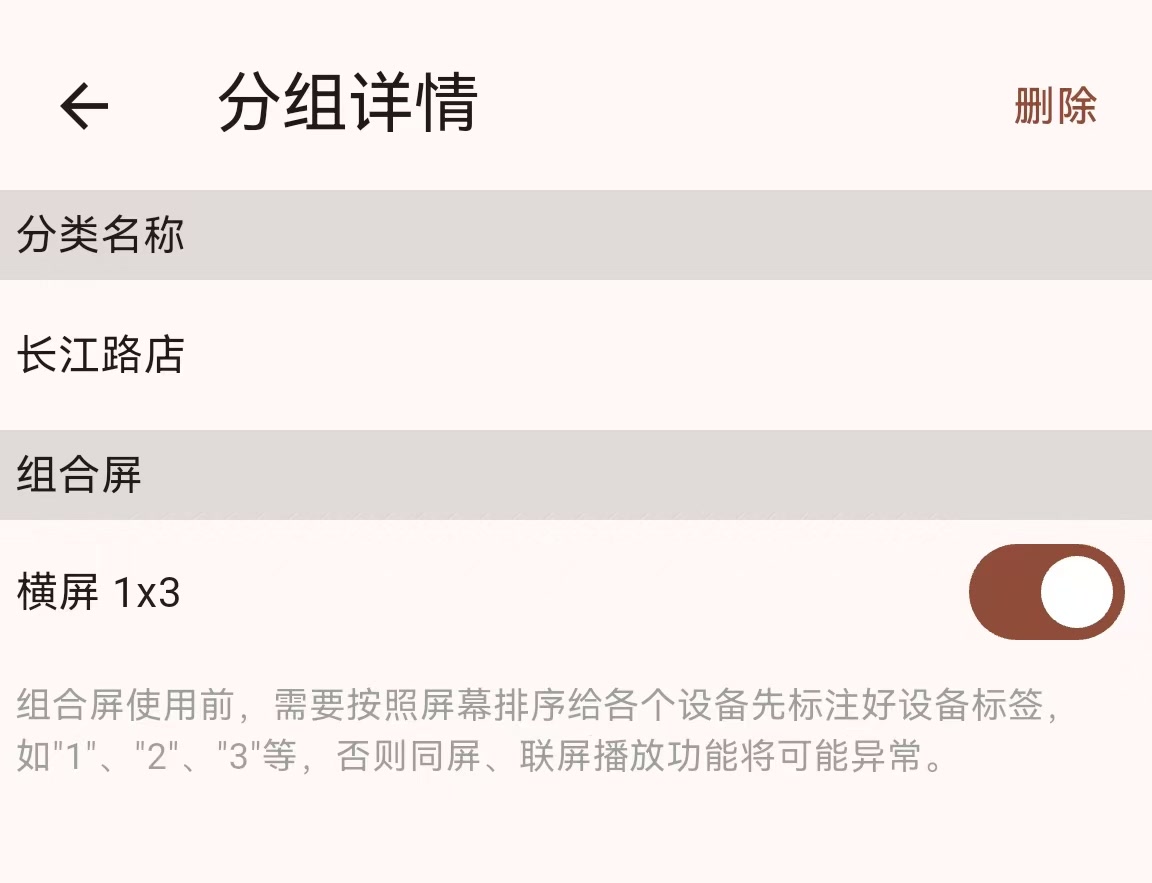
Next, set the device label for each device according to its real physical position inside the combined screen. This step is important because the Player uses this label to select the child-screen group with the same name.
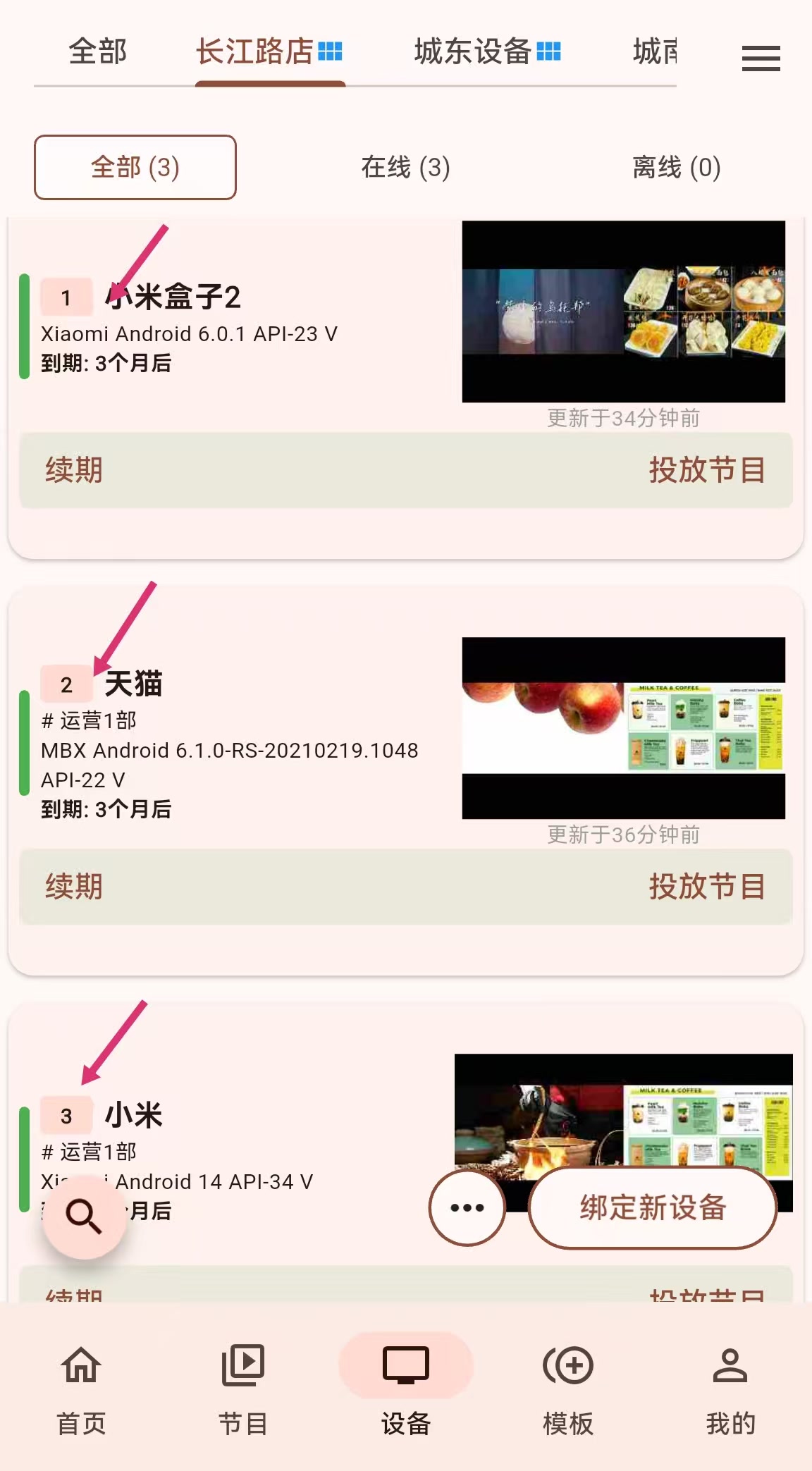
Use simple and stable labels, such as:
Left/Center/RightTop/Bottom1/2/3
When you create child-screen groups in the program editor, use exactly the same names.
Step 2: Create Child-Screen Groups in the Program
Multi-screen playback only needs one program. In this program, create child-screen groups that use the same names as the device labels, such as Left, Center, and Right.
For the full workflow, including creating, copying, renaming, and deleting groups, see Child-Screen Groups.
Step 3: Edit the Visual for Each Position
Switch between groups in Child-Screen Groups, then add each split media file to the matching group:
Leftgroup: put the left-side split content hereCentergroup: put the center split content hereRightgroup: put the right-side split content here
This means you only maintain one program. You no longer need to create multiple programs, program groups, or program labels for this scenario.
Step 4: Publish This One Program to the Combined Screen
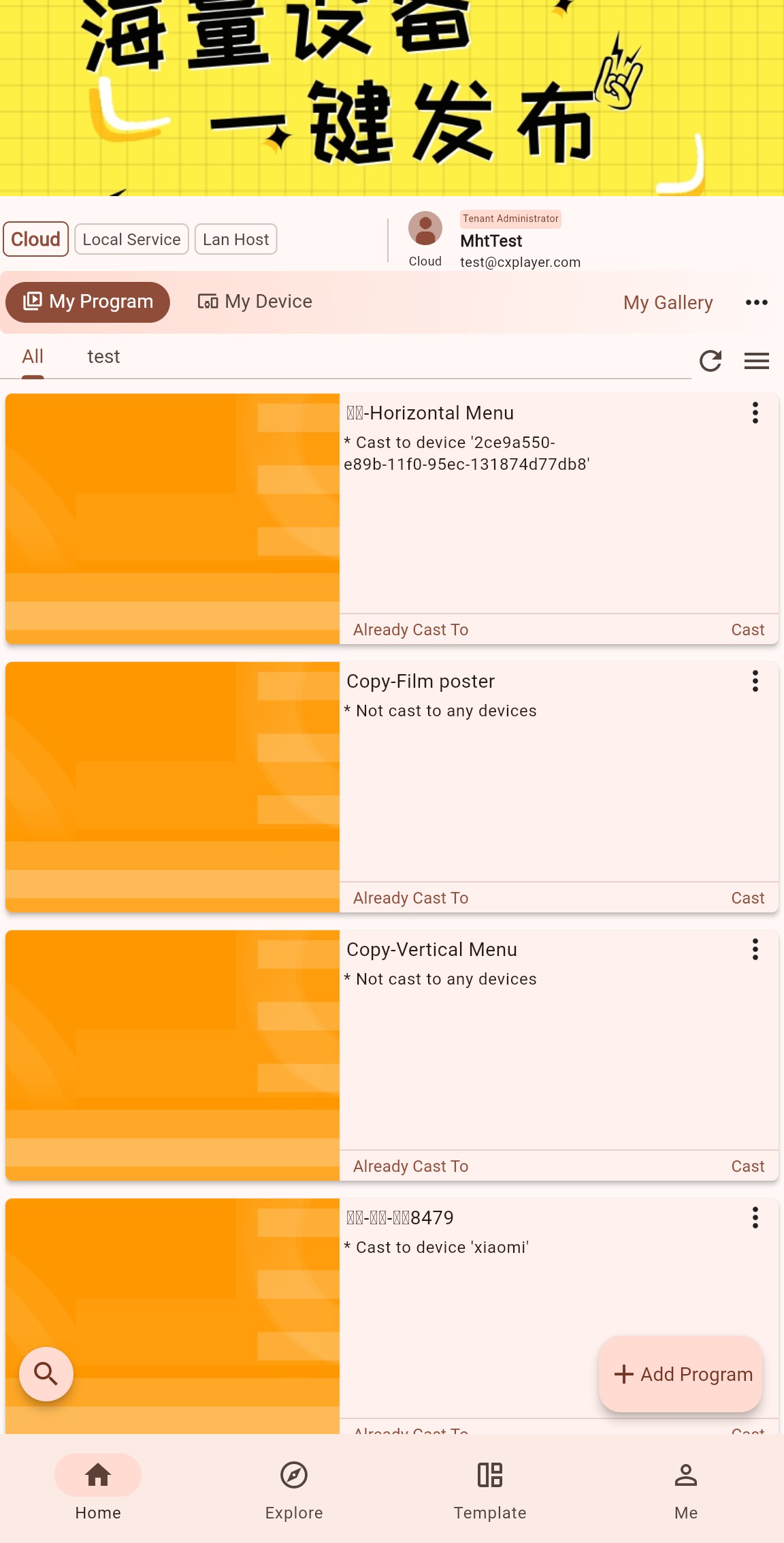
After saving the program, return to the program list and click the normal Cast button on this program card. This is the normal single-program publish entry. You do not need program-group publishing.
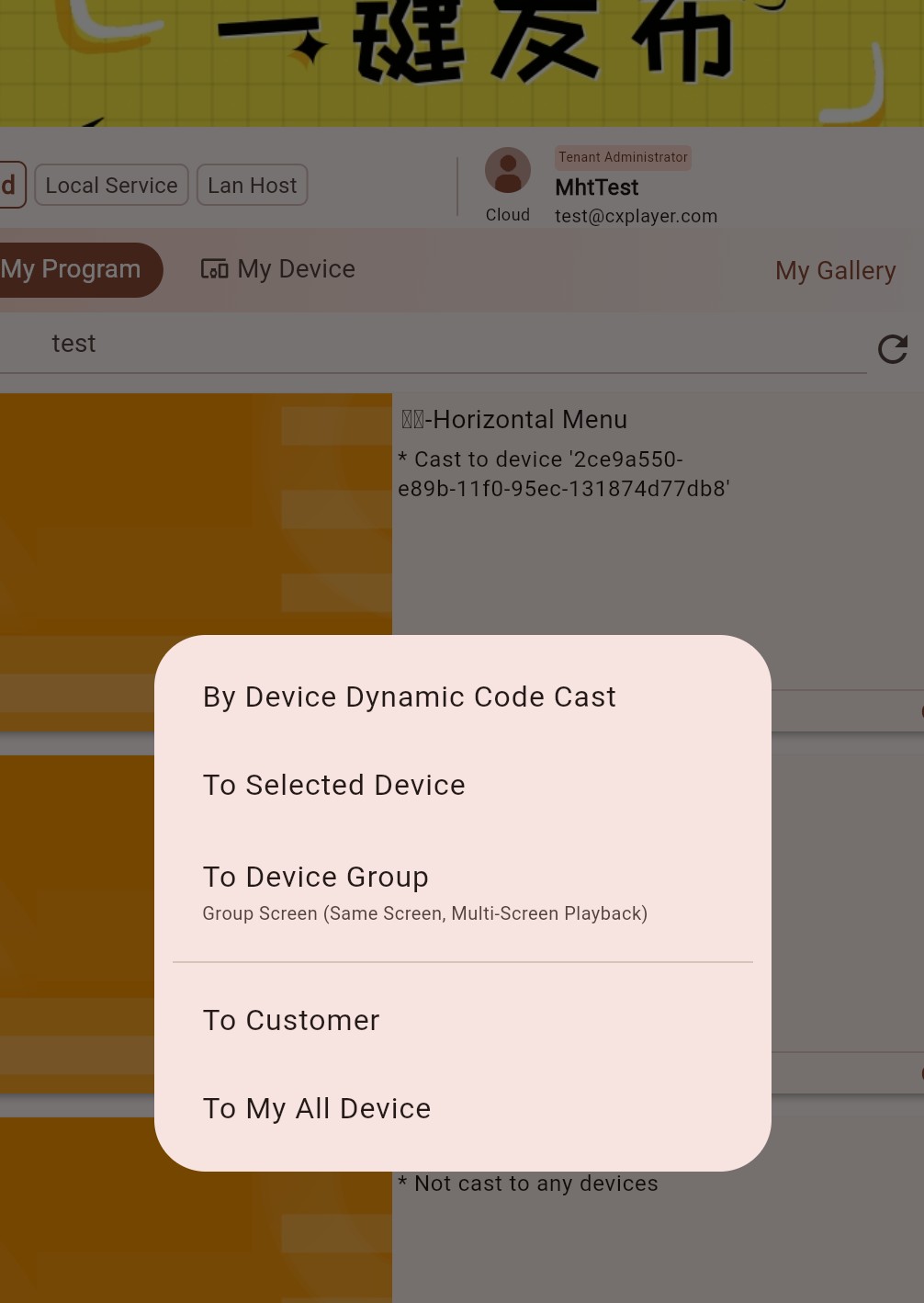
In the publish target menu, choose "To Device Group", then select the combined-screen device group created earlier.
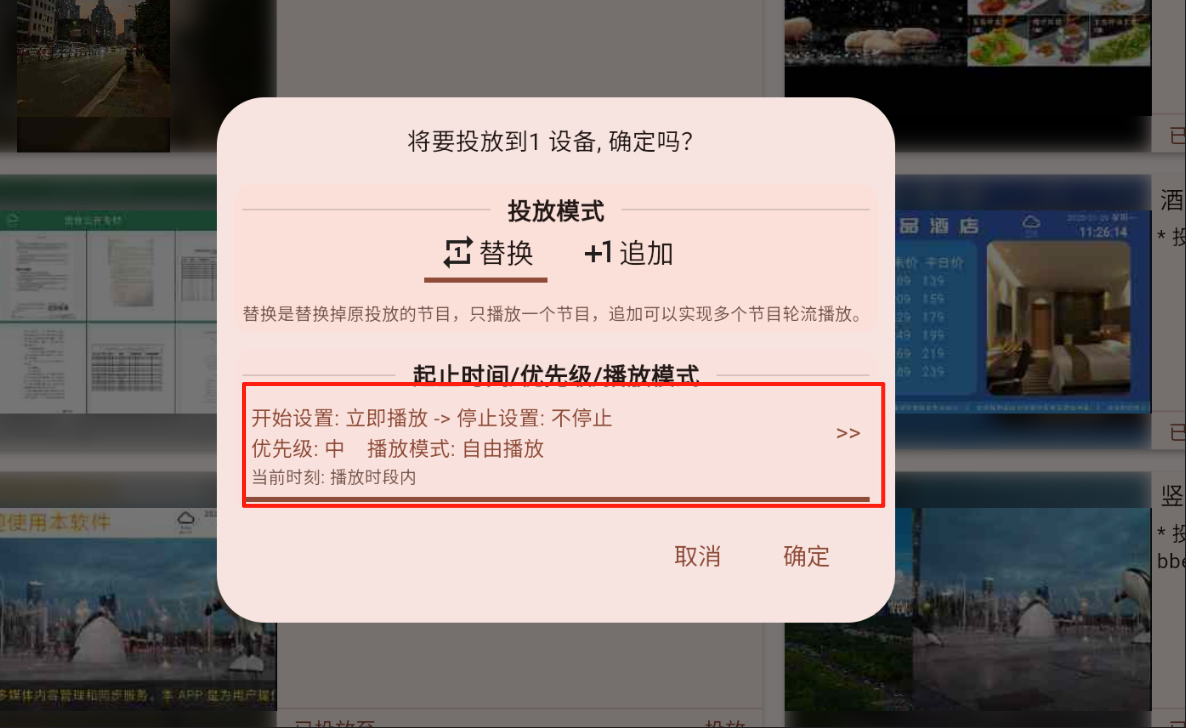
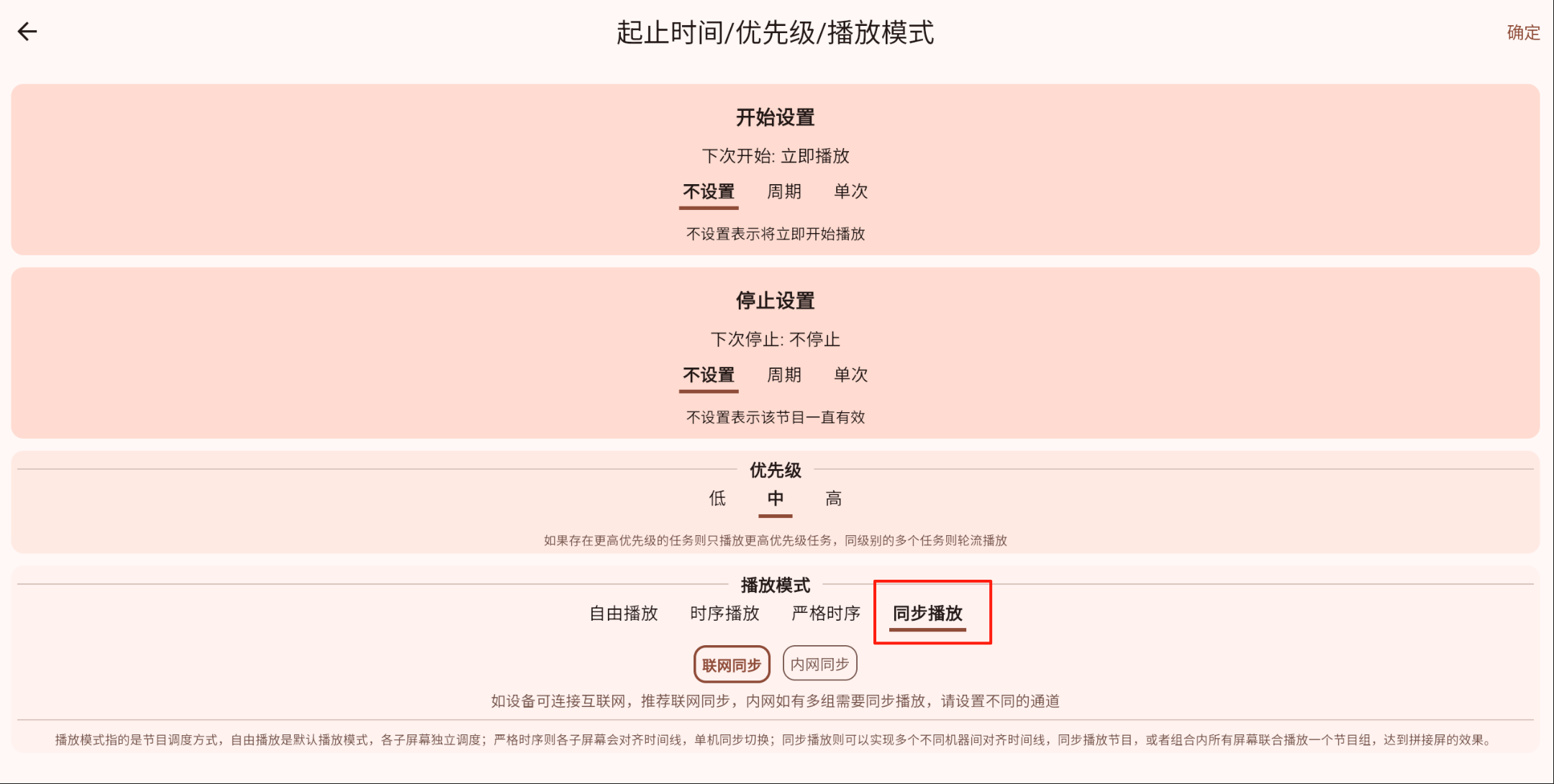
In the publish dialog, open More Parameters to configure "Start/End Time / Priority / Playback Mode".
Set Playback Mode to "Synchronized Playback" so multiple devices try to stay on the same timeline when playing this program. Confirm to complete the publish.
What Counts as Success
If every device plays the child-screen group that matches its own device label, and the screens together form one continuous complete image on site, multi-screen playback is working successfully.
If one device shows the wrong content, check:
- Whether the device is in the correct combined-screen device group
- Whether the device label exactly matches the child-screen group name
- Whether the matching child-screen group already contains media
- Whether you published to the correct combined-screen device group