
Update the Player App (Android)
If support asks you to update your Player app, follow this guide on the TV, signage screen, or TV box. Updating the Admin app on your phone or selecting “Update Program” does not update the Player software.
The recommended method is to update at the TV, signage screen, or TV box using its remote control. This is the basic update procedure. Follow the five steps below.
Keep the Player device connected to the Internet and power, and choose a time when playback can be interrupted. A normal update installs over the existing app and usually keeps its binding and settings. Do not uninstall the app, clear its app data, or reset its settings before updating.
Images show the relevant controls. Select an image to view it at full size.
Update at the TV (recommended)
1. Press Back on the remote to open the Player home screen
During playback, press Back on the remote control to open the Player home screen. This is the usual method for TVs.
If you do not have a remote control, you can double-tap the playback screen by default. Use your finger on a touchscreen, or connect a mouse and double-click. If you changed the “Way Home” setting, use your configured method instead.
Enter the password if one is set.
2. Select “Check Update” and note the current version
Use the remote's arrow keys to select the “Check Update” card on the home screen, then press OK / Confirm. With a touchscreen or mouse, tap or click the card instead. “Software Version” at the bottom of this card is the version currently installed on this Player device.
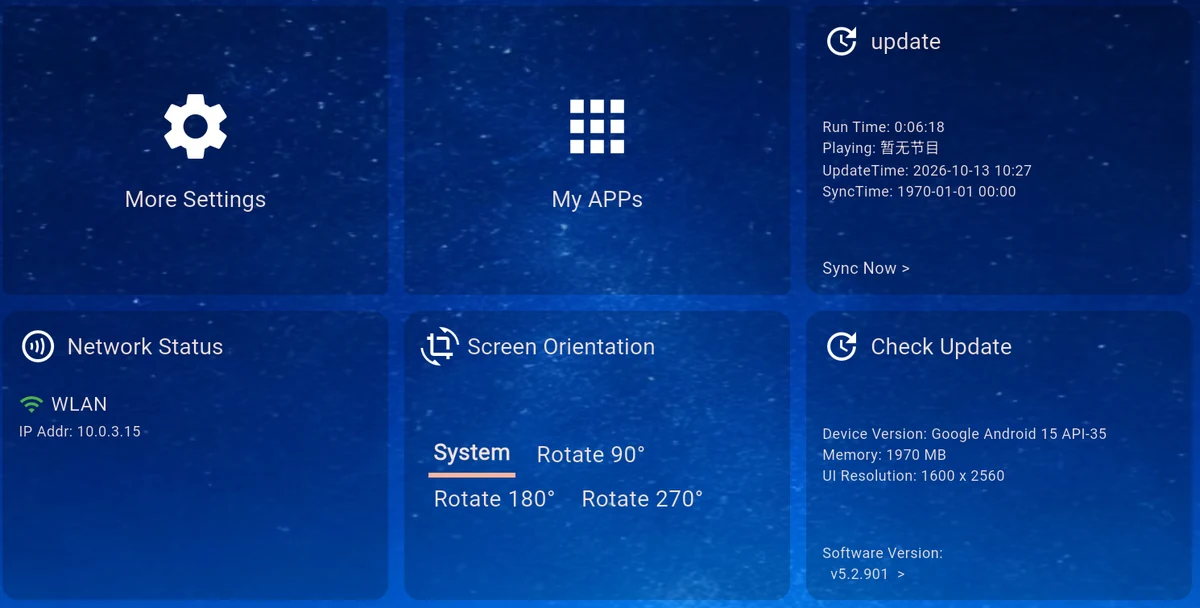
This image shows the controls on the right of the home screen. “update / Sync Now” updates program content. Use “Check Update” to update the software. Some older versions also provide “Check Update” in the settings page.
3. Follow the result of the check
- A newer version is available: check the target version, select “Upgrade Now,” press OK / Confirm, and wait for the APK download to finish. Keep the device connected and avoid repeatedly selecting the button or quitting the app.
- “Already The Latest Version”: no newer version is currently offered through this installation's update channel. No download or installation is needed.
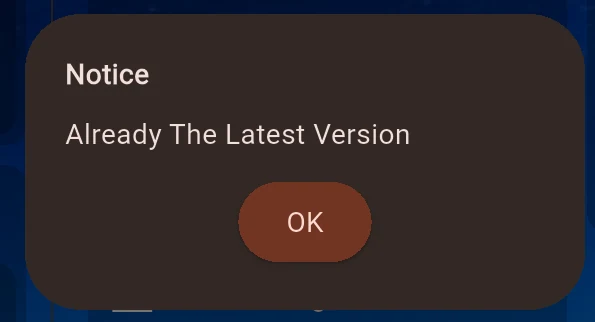
The version shown in these images is an example, not a statement of the latest release. Standard, Compatibility, and device-specific builds may use different update channels. If support has named a version that the check does not offer, send them a screenshot of “Software Version” to confirm the correct package.
4. Confirm installation on the Player device
After the download, Android normally opens its installation window. Reaching 100% download does not complete the update. Use the remote to select “Install” or “Update,” press OK / Confirm, and follow the system prompts to finish installation.
If Android blocks installation from this source, follow its prompt to open settings and allow the Player app or file manager you are using to install apps. Return to the installer afterward. If the installer does not reopen, start the update again from “Check Update.” Button names vary between TVs and boxes.
When installation finishes, select “Open” or reopen the Player from the device's app list. Some devices return to the app or playback automatically.
5. Verify that the update succeeded
Return to the Player home screen and read “Software Version” in the “Check Update” card:
- It should match the new version you chose to install.
- Existing programs should still play.
- If you publish over the Internet, confirm that the device comes online again.
An unchanged version may mean that only the download finished, installation was cancelled, or Android rejected the installation. Read the message on the Player device and use the troubleshooting table below.
Keep “Auto Check Update” enabled
Open “More Settings” on the Player home screen and keep “Auto Check Update” checked.
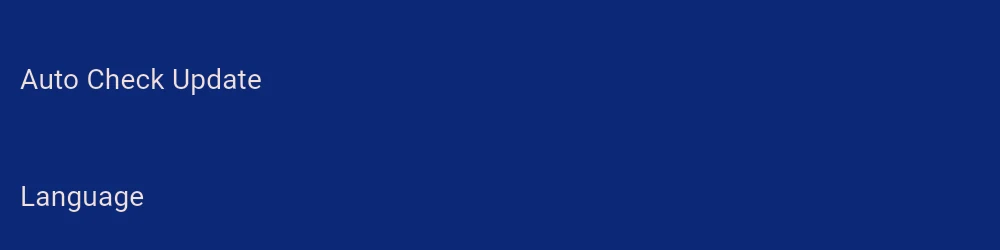
The image shows the setting names on the left. Their checkbox and language choices are on the right of the same rows.
This enables automatic checks; it does not guarantee automatic system installation. Follow any update prompt that appears.
You can change the interface language using “Language” on the same settings page. More details are in Player Settings.
Manual installation if the in-app update fails
- Obtain an Android Player APK suitable for this device from your software's official distribution channel or support team.
- Keep the same build type and package source. Android 4.4 through 6.x devices need the Compatibility Version. For non-default launcher builds or OEM packages, ask the supplier before switching to another build.
- Download on the Player device, or download on a computer, copy the APK to a USB drive, and open it with the TV or signage device's file manager.
- Install over the existing app, reopen the Player, and verify its software version as described above.
Make sure you have a Player package. An Admin APK manages content and cannot update the Player app on your TV. If you are unsure which architecture is required, send support the device model, Android version, and current Player version.
Troubleshooting
| What you see | What to do next |
|---|---|
| Cannot find “Check Update” | Press Back on the remote during playback to open the Player home screen, then look for the card on the right; older interfaces may also put it in settings |
| Download fails, stalls, or reports a directory/storage error | Check the connection and free storage, then retry; if it still fails, send support the full message or use a suitable APK |
| Android blocks installation | Allow installation from the source named in the system prompt, then return to the installer |
| “App not installed” or incompatible package | Confirm it is a Player APK with the correct build type and architecture; send support the exact Android error and avoid uninstalling just to retry |
| Support says there is an update, but the check says latest | Send the current version and Standard/Compatibility build information so support can confirm the update channel and target version |
| The version has not changed | Complete system installation and reopen the Player; in the Admin app, wait for it to reconnect and reload the device details |
If you still need help, send support the device model, Android version, current Player version, the step where you got stuck, and a screenshot of the full error.
Advanced: start an update check from the Admin app (optional)
This is an optional advanced operation and is not recommended for routine updates. Most users should follow the recommended procedure at the TV above.
The Admin app can start a remote check, but someone at the TV must still confirm the update and system installation. The Admin app alone cannot complete the entire update.
The device must be bound, online, and eligible for remote operations. See Bind a Device if it is not bound yet. For offline devices or unavailable remote permissions, use the recommended procedure above.
- Open the Admin app, go to “My Device,” and select the correct Player device. Check its name.
- In “Device Detail,” find “Device Status,” confirm it is online, and select “Remote/Settings/Screenshot.”
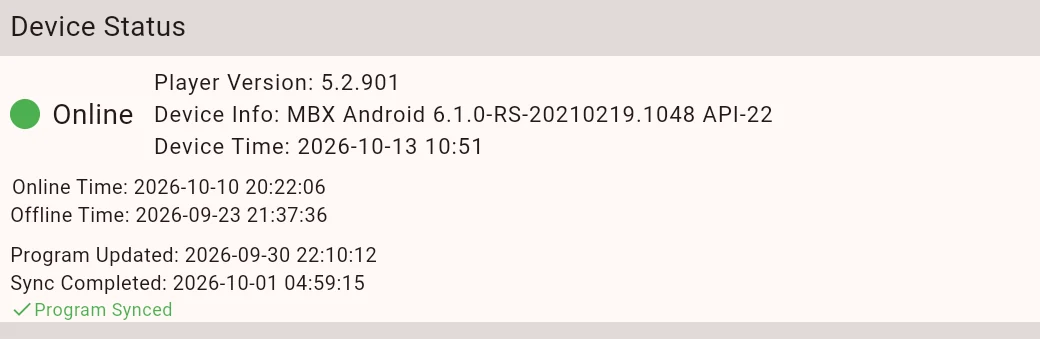
Select the entry on the right of the same section:

- On the remote operations page, select “RemoteSet” (remote settings).

- Select “Check Update” on the settings page.
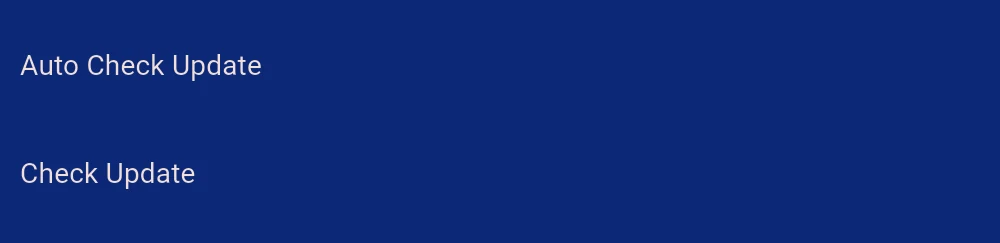
- Read the update prompt on the TV or signage screen and complete the earlier steps: upgrade confirmation, download, Android installation, and version verification.
“Command Sent” in the Admin app confirms the request, not a completed installation. Someone at the Player device still needs to confirm the update and system installation. You can also check the reported Player version by reopening its details in the Admin app after it reconnects; an old details page may not refresh immediately.
The “update” button on the remote page only updates program content. A normal software update does not require “Send Command” or entering parameters in “Push New Version.”