
How to Edit a Program
Creating a program only gives you a blank canvas or a starting template. To turn it into playable content, you usually need to edit the layout, add media, adjust playback settings, save the program, and then publish it.
If you have already created a program but are not sure what to do next, follow this page step by step.
What You Are Editing
A program usually has three layers:
- Program: the overall item, including name, orientation, background, and general settings.
- Child screen: a content area inside the program, such as a top image area, a center video area, or a bottom ticker area.
- Media: the actual content placed inside a child screen, such as images, videos, text, web pages, PDFs, or music.
Most program editing tasks fall into a few categories:
- Change the program name, orientation, background, or other overall settings
- Adjust the position, size, and number of child screens
- Add, replace, or delete media inside a child screen
- Configure media duration, transition, volume, and display behavior
- Save the program and let devices synchronize the latest content
Where to Open Program Editing
Common entry points:
- Find the program in the program list and open it for editing.
- After creating a new program, the system opens its editing page automatically.
- After creating from a template or copying from an ID, the new program also opens in the editing page.
After entering the editing page, first check which child screens are already in the program. When you select different child screens, the media area at the bottom shows the media inside that selected child screen.
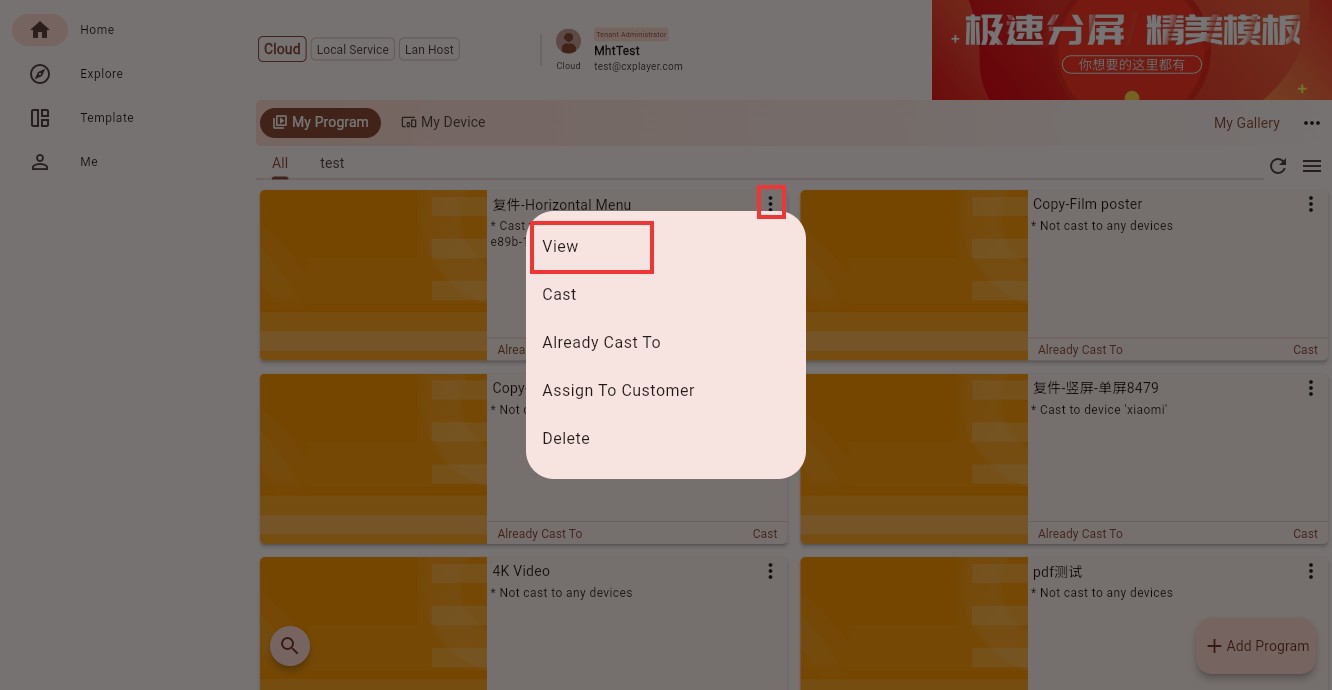 Open the editing page from the program card menu
After opening program details, the upper area shows the child-screen list, the center area shows the program canvas, and the lower area shows the media list of the selected child screen. The upper-right settings entry opens program settings, and the bottom buttons are used for previewing or casting.
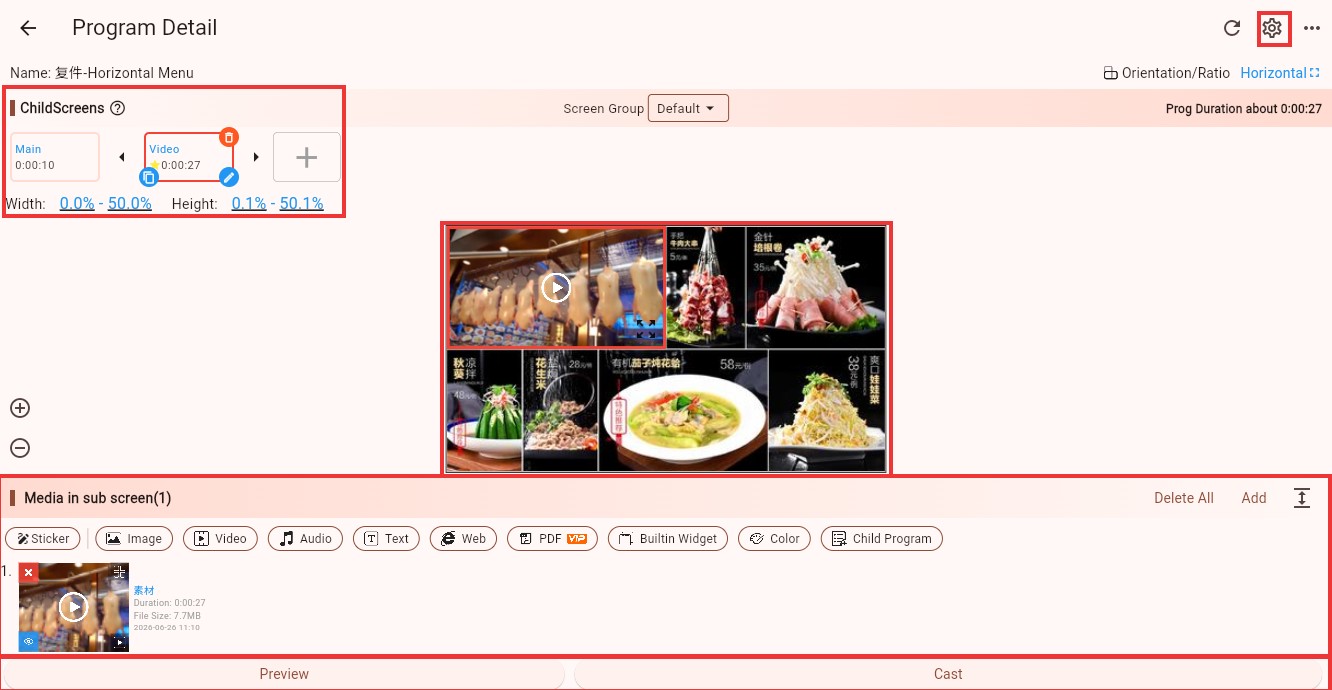 Program editing page overview
Recommended Editing Order
1. Decide the Purpose and Overall Direction First
Start by confirming what the program is for:
- Is it for a horizontal TV or a vertical signage display?
- Is it a full-screen video, or should the screen be divided into multiple areas?
- Is it a looping display, or should users be able to tap and search?
- Is it a normal main program, or should it be used as an overlay program?
If the orientation, size, or purpose is wrong from the beginning, it becomes harder to fix after adding many media items.
Overall settings can be adjusted from the settings entry next to the program details. For more details, see Program Parameters.
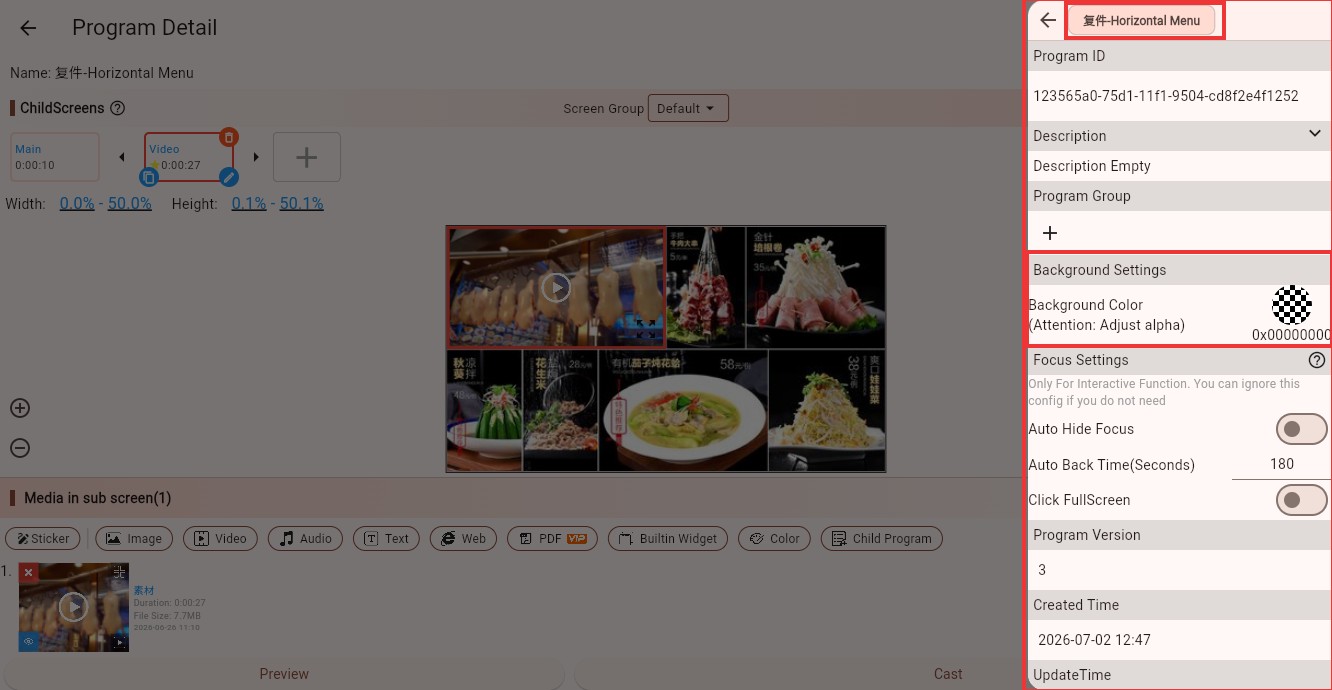 Program settings panel
2. Adjust the Child-Screen Layout
Child screens decide where content appears on the display.
Common patterns:
- Full-screen playback: keep one full-screen child screen and place an image, video, web page, or PDF inside it.
- Menu board: top area for promotion image rotation, center area for menu content, bottom area for scrolling announcements.
- Information screen: left area for notices, right area for video or web content, bottom area for time, weather, or tips.
- Guide screen: left area for category buttons, right area for changing content.
If you only need to play one image or one video, do not create too many areas.
If the screen needs to show several pieces of content at the same time, organize the child-screen layout first.
For adding, deleting, and adjusting child screens, see Child Screen Editing.
3. Select a Child Screen, Then Add Media
Always select the target child screen before adding media.
A child screen can contain one media item or multiple media items. If it contains only one item, that item stays visible or keeps playing. If it contains multiple items, they play one after another inside that child screen. Each media item can have its own duration, such as showing an image for 10 seconds, playing a video by its own length, or keeping text on screen for 15 seconds.
The usual process is:
- Select the child screen where the content should appear.
- Click Add in the media area at the bottom.
- Choose a media type, such as image, video, text, web page, PDF, or music.
- Select existing media from My Media Library, or upload a local file.
- Adjust the media settings.
- Save the program.
For detailed steps, see Media Editing.
How to Add Background Music
This is a common requirement. For example, a store menu board, welcome screen, or exhibition page may mainly show images or videos while also playing background music.
The recommended approach is: create a dedicated child screen for background music, and then add one or more music media items into that child screen.
This music child screen does not need to occupy the main visual area. In real projects, you can make it small and place it near the bottom, in a corner, or somewhere that does not affect the main visual content. Its main purpose is to carry audio playback, not to display visual content.
Suitable Scenarios
- A store menu board plays light background music while showing product images and prices.
- A hotel lobby welcome screen plays music while showing greetings, weather, and event information.
- An exhibition screen plays narration while showing product images or videos.
- A campus or office information screen plays an audio notice while showing announcements and schedules.
Steps
- Open the program editing page.
- Create a dedicated child screen for background music.
- Resize this child screen to a small area and place it near the bottom, in a corner, or somewhere that does not affect the main content.
- Select this music child screen and click Add in the media area at the bottom.
- Choose "Music."
- Select an audio file from My Media Library, or upload a local audio file.
- If multiple tracks are needed, continue adding more music media items into this music child screen. They will play one after another.
- Open the music settings and adjust volume, control bar, display behavior, and other options as needed.
- Save the program.
- Preview or play it on the Player device and confirm that the volume works well with the visual content.
TIP
If you want the music to continue playing, do not mix music with visual media such as images or videos in the same child screen. A safer approach is to let the visual child screens handle what users see, and let the music child screen handle audio playback only.
WARNING
Background music is still a music media item. If the device is muted, the volume is too low, or the audio format is not supported by the current device, you may hear no sound. When troubleshooting, check the device volume first, then check the music media settings.
For more music settings, see Music Media Parameters.
Practical Examples
Example 1: Store Digital Menu
Goal: show menu content, promotion posters, and bottom announcements on a TV.
You can edit it like this:
- Create a horizontal program.
- Divide the screen into three child screens:
- Top: promotion image rotation
- Center: menu image or PDF
- Bottom: scrolling text announcement
- Add multiple images to the top child screen and set the switching interval.
- Add a menu image, PDF, or web page to the center child screen.
- Add text media to the bottom child screen and configure scrolling behavior.
- Add music and adjust volume if background music is needed.
- Save and publish the program to store devices.
This is suitable for restaurants, retail stores, and checkout-area menu boards.
Example 2: Full-Screen Promotion Video
Goal: let the device loop one promotion video after startup.
You can edit it like this:
- Create a single-screen program.
- Keep one full-screen child screen.
- Add a video media item.
- Adjust the video display mode and volume.
- Save and publish.
If you later need multiple videos, add more video media items into the same child screen and let them play in sequence.
Example 3: Company Lobby Welcome Screen
Goal: show a welcome message, company visuals, weather/time widgets, and background music.
You can edit it like this:
- Create a horizontal program.
- Use a company image or video as the main visual.
- Add text media for the welcome message.
- Add built-in widgets such as time and weather.
- Add music as background audio and keep the volume moderate.
- Save and publish it to the lobby device.
This type of program should be clean and stable. Avoid too many fast-changing elements.
Example 4: Exhibition Touch Screen
Goal: users tap different buttons to view different products or exhibits.
You can edit it like this:
- Create a horizontal or vertical program.
- Put category buttons or images in the left child screen.
- Put product images, videos, or web pages in the right child screen.
- Add click events to the left buttons so that the right child screen jumps to the corresponding content.
- Save and test the interaction on a touch device.
This is an interactive program. For details, see Interactive Program Creation.
Example 5: Overlay Notice Bar
Goal: show a scrolling notice on top of the main program, such as temporary announcements, event reminders, or queue messages.
You can edit it like this:
- Create a program with a transparent background.
- Keep only a narrow child-screen area at the top or bottom.
- Add text media and configure scrolling behavior.
- When publishing, choose "Overlay Program."
- When the device plays the main program, this notice bar appears above it.
For overlay playback rules, see Overlay Program Playback.
Save and Publish
After editing, always click Save.
You can think of it like this:
- Not saved: changes only exist in the current editing page and are not effective yet.
- Saved but not published: the program is ready, but devices will not play it yet.
- Saved and published: devices will play the latest content after synchronization.
If the program has already been published to devices, saving it lets devices synchronize the updated content. If the network is slow or the media files are large, devices may need some time to download the latest media.
FAQ
I added media. Why can't I see it on the screen?
Common reasons:
- The wrong child screen was selected before adding media.
- The child screen is too small, or it is covered by another child screen.
- The program has not been saved.
- Video, PDF, or other media is still synchronizing or downloading.
- The Player device has not received the latest program yet.
First confirm that the media appears inside the target child screen in the editing page, then save and wait for the device to synchronize.
Why is there no sound from background music?
Check these items in order:
- Whether the Player device volume is low or muted.
- Whether the music media volume setting is too low.
- Whether the audio file can be played in a normal player.
- Whether the music was placed in a media list that switches frequently.
- Whether the device has synchronized the latest program.
I saved the program. Why hasn't the device changed?
Common reasons:
- The device is offline.
- Media files are large and still downloading.
- The program has not been published to that device.
- The device is currently playing another valid program with higher priority or schedule.
You can open the device details page to check online status and current playback.
When should I create a new program instead of editing the old one?
Use this rule:
- Only replacing images, changing text, or adding background music: continue editing the existing program.
- Completely different layout or purpose: create a new program.
- Want to keep the old version and make a new version: copy from ID and edit the copy.