
Open this page when the program appears in the wrong direction, or when the device is installed vertically.
The simplest decision order is:
- Set the program to horizontal or vertical first.
- If that still does not work, adjust 90 / 180 / 270 in the Player app.
Step 1: Set the Program Orientation First
When creating a program in the Admin End, you can choose horizontal or vertical orientation first.
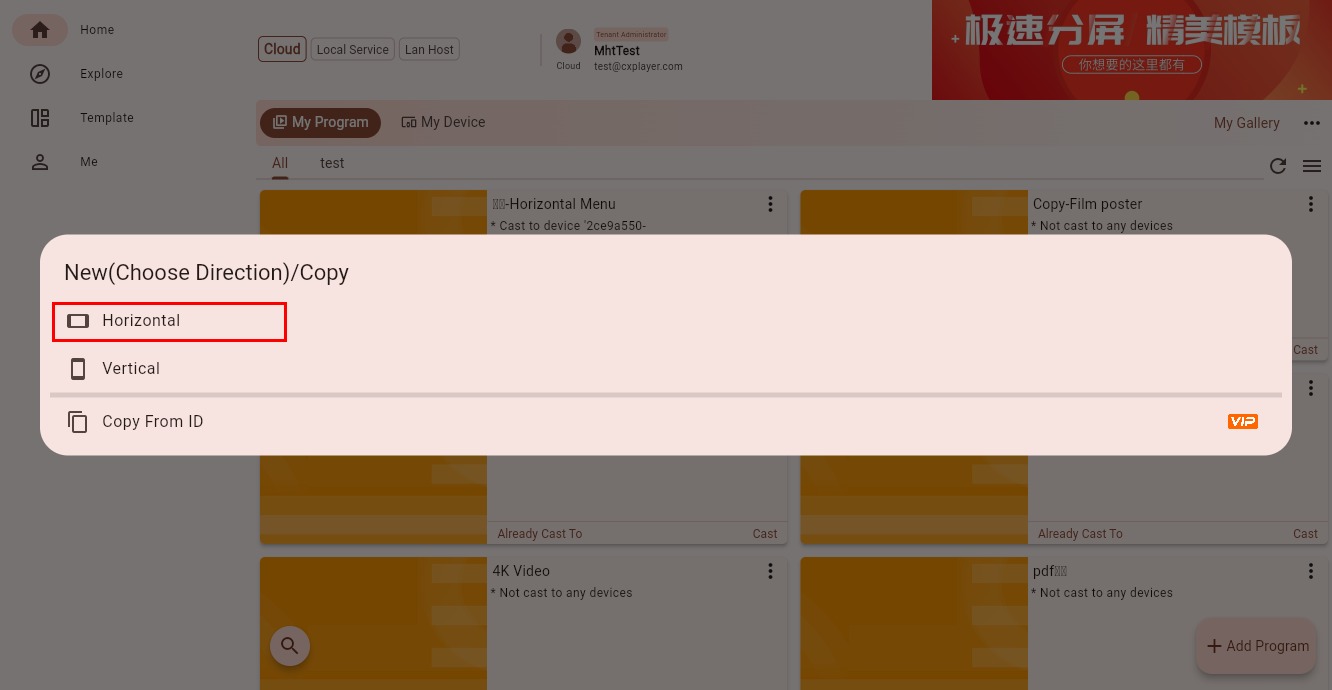
If the program already exists, you can still adjust the orientation in the program editing interface.
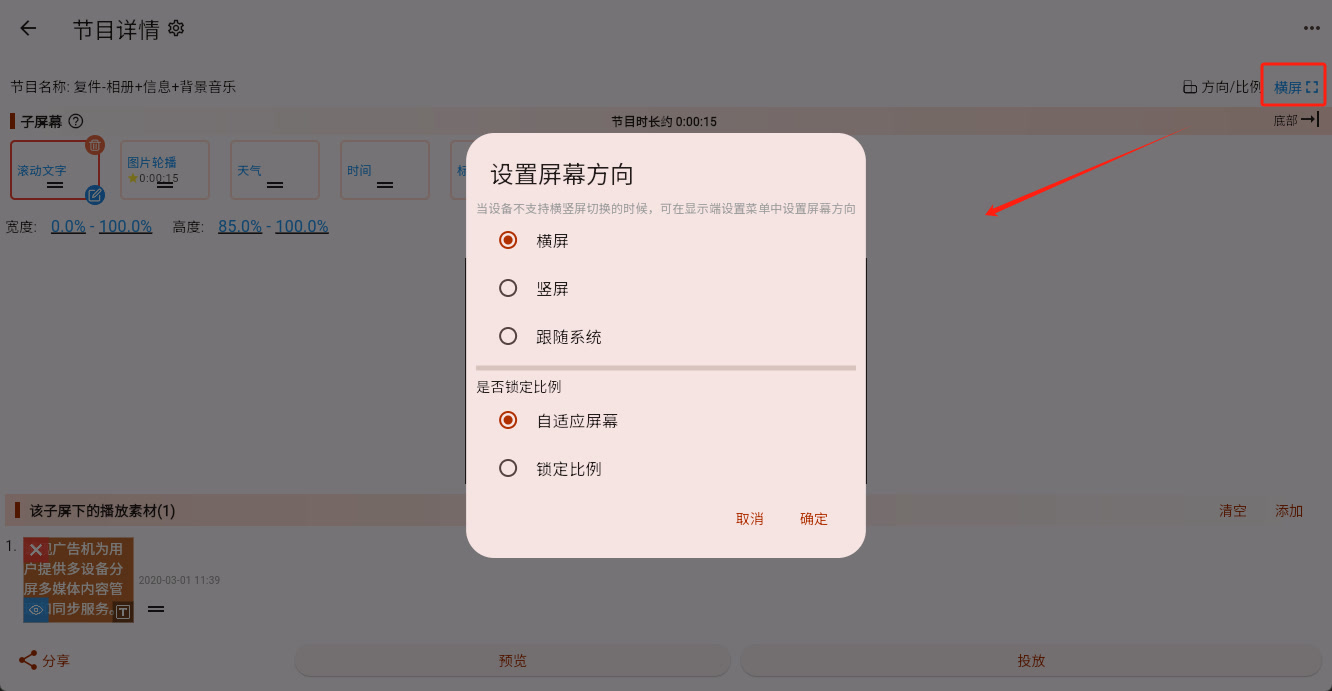
There are usually 3 options here:
- Horizontal: for normal landscape installation
- Vertical: for portrait installation
- Follow System: the program does not force an orientation and instead follows the current device orientation
If the device system itself supports orientation switching, this setting is usually enough.
Step 2: If the Program Setting Does Not Work, Adjust It in the Player App
Some older TVs or special devices are fixed to horizontal mode at the system level. In that case, changing the program orientation alone will not work, and you need to adjust the direction in the Player app.
The Player-side orientation setting looks like this:
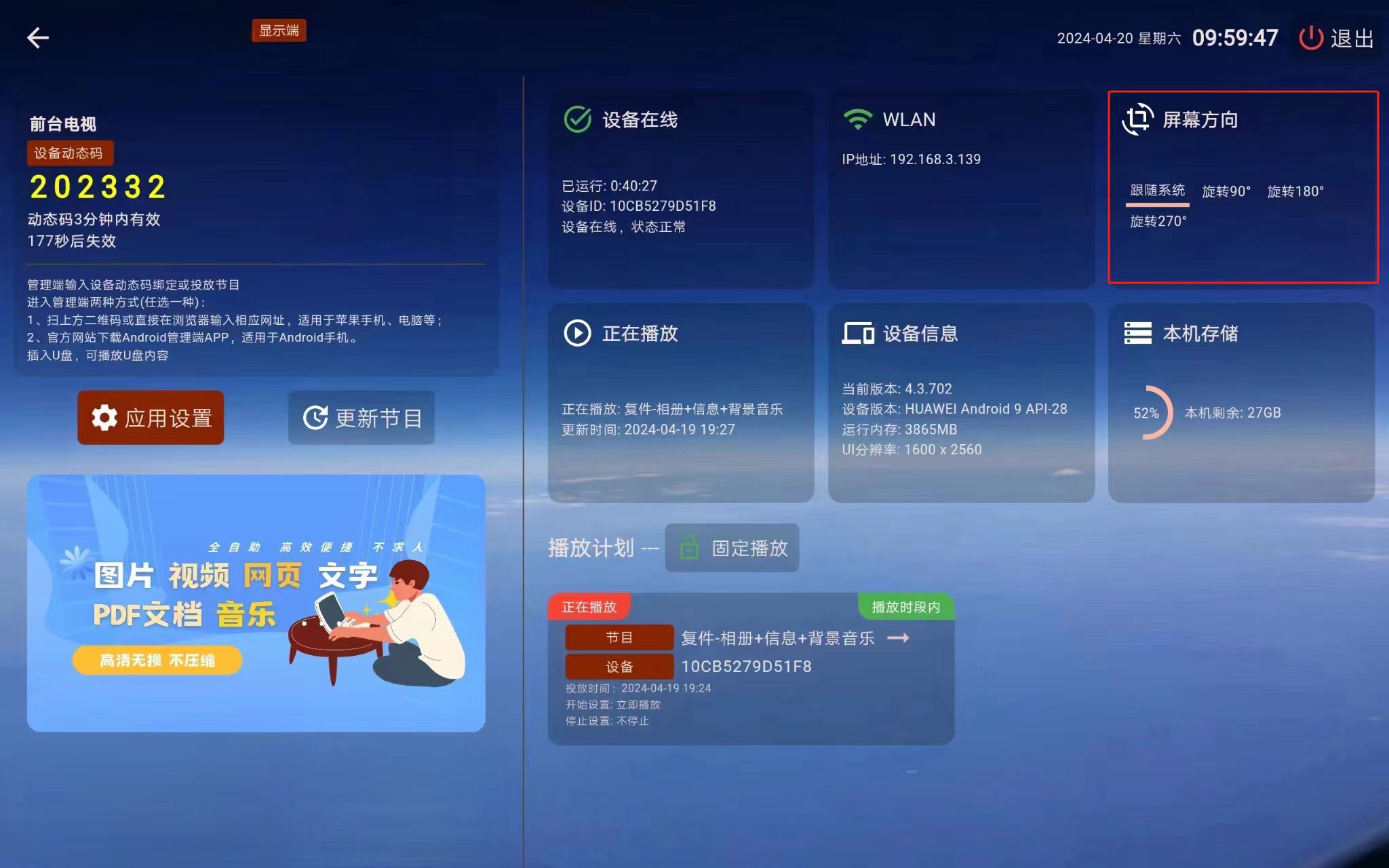
After selecting it, press OK on the remote control to switch between:
- Follow System
- 90
- 180
- 270
You can think of it like this:
- If the device is installed normally in landscape mode, try Follow System first
- If the device is installed vertically, you will usually switch between 90 and 270
- If the picture is upside down, try 180
You do not need to memorize these numbers. The only thing that matters is whether the content now appears in the correct direction.
What Counts as Success
If the text, images, and videos in the program all display in the direction you expect, and nothing is sideways, upside down, or obviously distorted, the orientation has been set successfully.