
Restaurants: Menus and Dayparts
For cafes, tea shops, fast-food counters and restaurants. Start with the existing milk-tea menu template, replace its prices and rotating product images, then add scheduled breakfast and lunch programs if needed.
What you will build
- A persistent store title and price list, so customers do not have to wait for a price to reappear.
- Product images rotating in their own region while prices stay visible.
- A bottom strip for hours or offer details.
- Optional daily switching between breakfast, lunch and a regular menu.
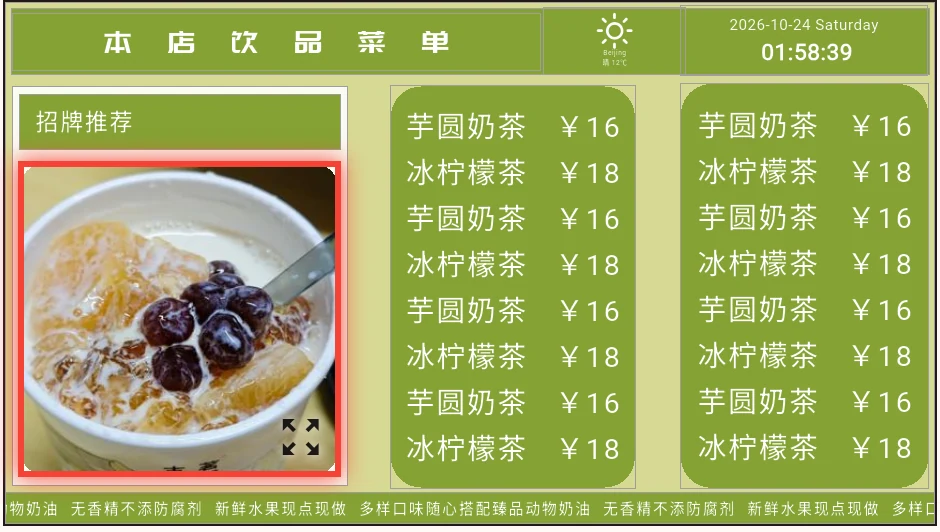
This is the current template preview. Products, prices and names are examples to replace with your own content.
1. Prepare your store content
| Content | Example preparation |
|---|---|
| Title | Our Drinks Menu, or your store name |
| Two price columns | Start with 4–6 items per column; include names, sizes and prices |
| Product images | Two images with a shape close to the product-image region |
| Reminder | Hot or iced available · Large size +3 · Open 08:00–22:00 |
Prices below are editing examples. Replace them with your store's actual information. Readability from the ordering position matters more than squeezing every product onto one page.
2. Find and use the template
- Open Template in the Admin app.
- Choose 酒店餐厅 (hotel/restaurant) and open 奶茶店菜单 (milk-tea shop menu).
- Check the orientation and regions, then select Use This Template at the bottom right.
- Wait for your personal copy and confirm it is under My Program. Rename it
Store A - Drinks Menu.


These are actual template-preview screenshots. Create your own copy before editing. Catalog program names and content may remain Chinese when the app language is English; use the visible region names below to identify the relevant items.
3. Replace content by region
The example includes 标题 (title), 价格表1 (price list 1), 价格表2 (price list 2), 轮播图 (rotating images) and 滚动字幕 (scrolling text). If the template changes, check both the names and their positions in the preview.
| What to change | Select this sub-screen | Then edit |
|---|---|---|
| Store/menu title | 标题 | The text media below the region list |
| First price column | 价格表1 | The text in this region |
| Second price column | 价格表2 | The other price column |
| Product pictures | 轮播图 | Select each existing image and choose your own file; add more if needed |
| Bottom reminder | 滚动字幕 | Its text and scrolling settings |

The two crops enlarge separate areas of the interface: ① select 价格表1; ② click its text media below the canvas.
For example, enter a short first column:
Classic Milk Tea  Medium  12
Jasmine Milk Tea  Medium  14
Lemon Tea        Large   15
Signature Latte  Medium  18
Use your actual currency, prices and sizes. Check the whole list fits, then adjust text size, line spacing and alignment for the viewing distance. See text media.
Use Contain when labels or packaging details must remain visible. Use Cover only when cropping is acceptable. Avoid stretching product images to a different shape.
Backgrounds and title panels are separate regions; keep them unless you need to change their design. Remove optional areas such as weather from your own copy if unnecessary, and tidy the resulting space. Editing a price does not require deleting the entire price-list region.
4. Rotate images while keeping prices visible
- Keep or add two images in 轮播图.
- Set each image's display duration to
10seconds. - In that sub-screen's settings, choose fading or no animation. Start with the default transition duration.
- Keep Random Play and Fixed Play off to play the list in sequence.
- Keep one text item in each title/price region. An ordinary menu does not need focus navigation or click-to-fullscreen.
The 10 seconds belongs to the image's display duration. The sub-screen's Slide Duration is measured in milliseconds and controls the transition. See sub-screen settings.
No matching template? Build four regions
Create a landscape 16:9 program with one region, then add the other regions below. This simplified teaching layout does not need to match the real template exactly.

| Region | Horizontal range | Vertical range | Content |
|---|---|---|---|
| Title | 0% → 100% | 0% → 12% | Store/menu title |
| Price list | 0% → 62% | 12% → 90% | Multiline text or a complete price-list image |
| Product images | 62% → 100% | 12% → 90% | Two rotating product images |
| Store reminder | 0% → 100% | 90% → 100% | Static or scrolling text |
Use contrasting text and background colors and a little internal padding. Check background A is above 0%; a fully transparent color remains invisible.
5. Save and send to the menu display
- Preview at least both product images and their transition. Prices should remain visible.
- End Preview and select Save. Wait for success.
- Cast to one test Player and check readability and image shape before using more displays.
A single permanent menu can usually use the default play plan. See cloud casting, LAN direct or USB playback as appropriate.
Advanced: breakfast and lunch dayparts
Create separate programs with scheduled casting relations. Three menu images in one region only form a slideshow; they do not automatically become breakfast, lunch and dinner schedules.
Copy or create breakfast, lunch and regular menus. Cast all as main programs, using Append to preserve the other schedules. Open the start/stop/priority settings:
| Program | Start | Stop | Priority |
|---|---|---|---|
| Regular fallback menu | No restriction | No restriction | Low |
| Breakfast | Recurring: daily 06:00 | Recurring: daily 10:30 | Medium |
| Lunch | Recurring: daily 10:30 | Recurring: daily 14:00 | Medium |
Breakfast and lunch take precedence in their windows; the regular menu remains available outside those windows. Repeatedly using Replace can remove earlier main-program relations, so append each scheduled menu instead.
Check the Player's time and time zone. First use a short test window to verify both start and stop, then apply the real business hours. See play-plan settings.
On-site checks and price updates
- Names, sizes and prices are readable from the ordering position.
- Images change while the price list stays visible.
- Both price columns and offer terms contain your own current information.
- Regular content remains available outside the breakfast/lunch windows.
For later price changes, edit your personal program, save and confirm the Player has synchronized. Local copies received through point-to-point casting or USB must be sent/imported again. Your copy also does not automatically follow later changes to the original template.