
Serial and TCP / UDP communication
Communication widgets support control panels and device integration. Obtain the device vendor's protocol first: connection type, port settings, command bytes, terminators and checksum rules. The application does not discover the protocol automatically.
The workflow is Communication Init opens a connection → Communication Send targets it → a reply or device action confirms the result. Configure in the Manager; the connection originates from the Player running the program.
Choose a connection
| Type | Typical use | Configuration |
|---|---|---|
| TCP | Network controllers and devices | Remote address and port; the Player initiates the connection. |
| UDP | Devices using LAN datagrams | Remote address and port; check routing, firewall and protocol. |
| System serial | Built-in ports or adapters exposed by the operating system | Port path, baud rate and other serial parameters. |
| Android USB serial | Supported adapters connected to an Android USB Host | USB matching, serial parameters and system permission. |
Serial execution requires a capable Android, Windows, Linux or macOS Player, appropriate drivers, hardware and access permissions. Web and iOS Managers can edit parameters; this does not enable serial execution in Web/iOS playback.
1. Add Communication Init
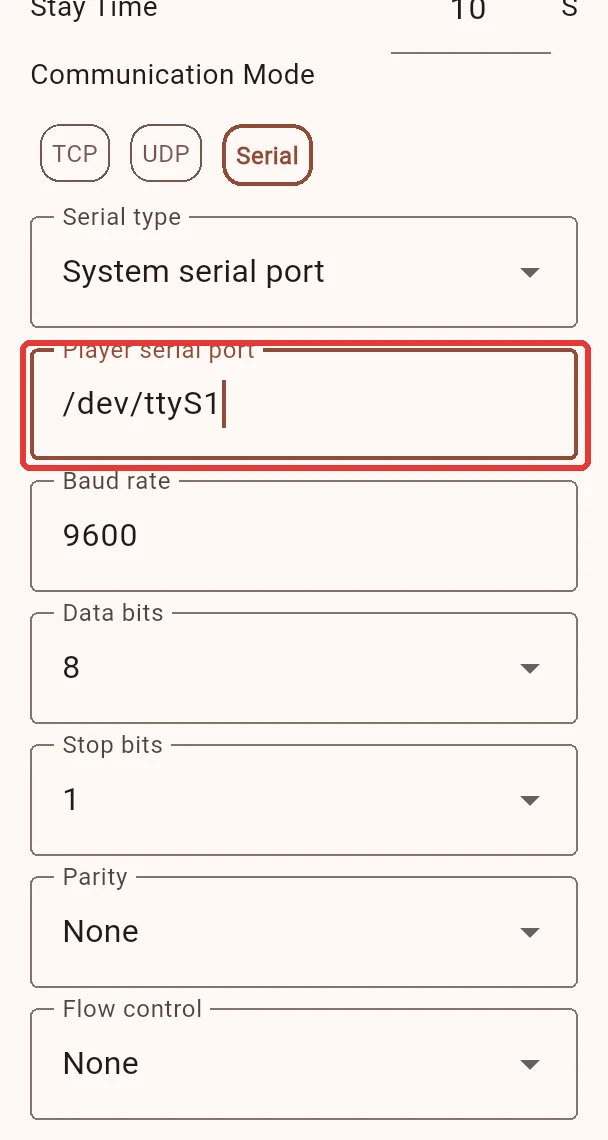
Add the built-in Communication Init widget to a screen region. Give it a recognizable name, such as Hall Controller. Select TCP, UDP or Serial and enter the settings. Keep the initialization widget active while communication is required. Leave a visible region if you want to see received data. Place initialization and the control buttons in different regions so they remain active together. Rotating them in the same region can unmount the initialization widget and close its connection.
TCP / UDP
Use an address reachable from the Player's network. An address reachable from the management computer is not necessarily reachable from the Player. 127.0.0.1 means the Player itself; use it only if the destination service actually runs there.
System serial
Examples include Windows COM3, Android/Linux /dev/ttyS1 and macOS /dev/cu.usbserial-.... Replace these examples with the actual port.
| Parameter | Meaning |
|---|---|
| Baud rate | Defaults to 9600; match the vendor's protocol. |
| Data bits, stop bits, parity and flow control | Defaults are 8, 1, None and None. Both ends must match. |
| Access | Android/Linux must allow access to the device node. The app does not elevate privileges or change system permissions. |
Use one initialization widget per port. Multiple send actions can share that connection.
Android USB serial
Use an Android device with USB Host support and a supported adapter. Allow the USB permission prompt on site. Optional VID/PID values are decimal integers from 0 to 65535; interface -1 selects automatically. Automatic matching requires a unique eligible device; provide explicit filters when several devices are connected.
Editing parameters in the Manager does not enumerate Player hardware or request its USB permission. Genymotion screenshots demonstrate configuration only, not physical serial compatibility.
2. Configure Communication Send
Add a Communication Send click action to an interactive media item. Select the initialization widget as the communication target, then enter the payload. It reuses that connection rather than opening another connection with a separate address.
| Format | Example | Bytes sent |
|---|---|---|
| Text | PING | Those four characters in UTF-8. |
| Hex | 50 49 4E 47 0D 0A | PING followed by carriage return and line feed. |
These demonstrate formatting, not a universal device command. Spaces make Hex easier to read. The app does not append line endings or CRC automatically; include every required byte from the vendor protocol.
3. Display replies
Enable receive display on the initialization widget and select Text or Hex. Received data appears in that widget's region, retains the latest approximately 8 KiB and scrolls as data arrives. It can be cleared.
This is session data, not permanent logging. Exiting playback or changing connection parameters clears it. TCP and serial are byte streams; one displayed chunk need not equal one complete protocol message. UDP receives replies from the configured remote to the current sending port, not through an independent fixed-port listener.
4. Test on the actual Player
- Start with a harmless test command and verify wiring, network and settings.
- Cast the program, let initialization run and trigger the send action.
- Check the device's physical response or protocol-defined acknowledgement. Use Hex to inspect raw bytes if needed.
- After a disconnection, reconnect and trigger again; do not depend on offline commands being replayed.
A successful send means data was handed to the connection or driver, not that the device performed the action. For no response, check the target, port access/ownership, settings, terminators and vendor protocol. See Remote maintenance for logs.