
Scheduling examples
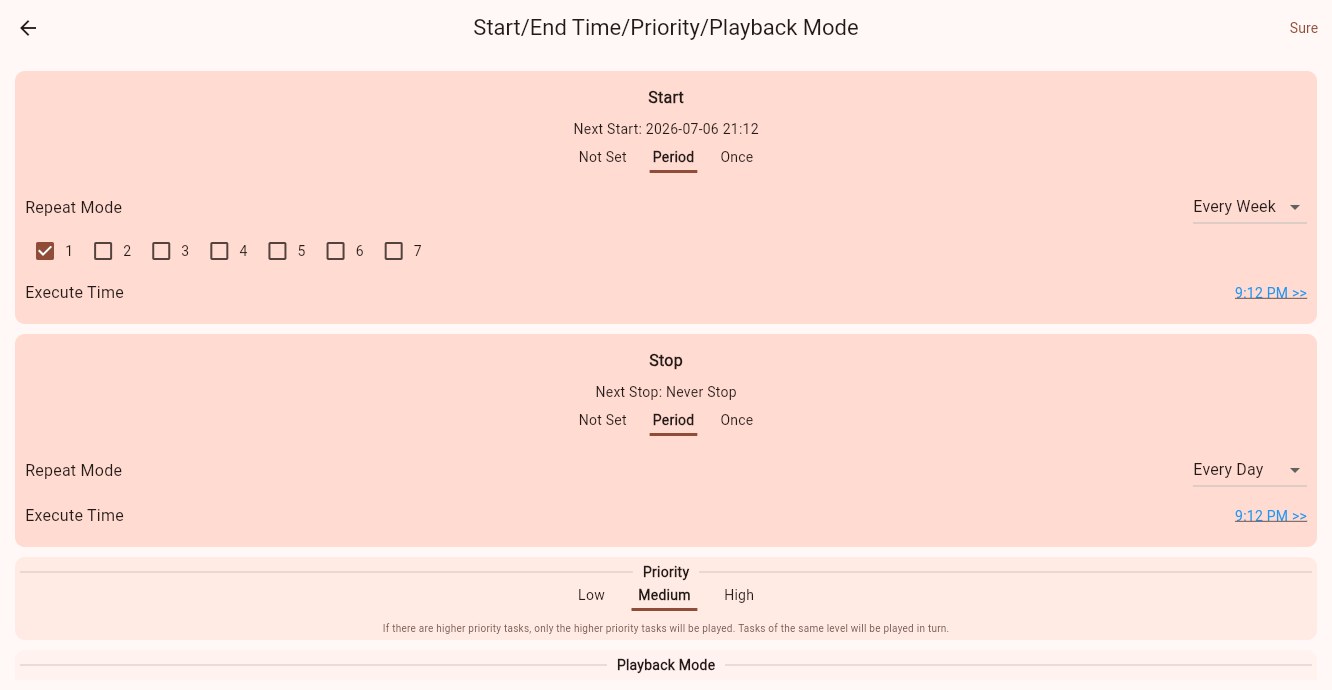
A program defines what plays; its casting schedule defines when it plays. Save the programs first, select Cast and the target, then open the start/stop, priority and playback mode settings. See Schedule parameters for each option.
Example 1: Breakfast, lunch and dinner
Prepare three separate programs for the same device. Use Replace for the first only if you intentionally want to clear the existing arrangement. Append subsequent programs so earlier schedules remain.
| Program | Start | Stop | Layer / priority |
|---|---|---|---|
| Breakfast | Periodic → Daily 06:00 | Periodic → Daily 10:30 | Main / Medium |
| Lunch | Periodic → Daily 10:30 | Periodic → Daily 17:00 | Main / Medium |
| Dinner | Periodic → Daily 17:00 | Periodic → Daily 22:00 | Main / Medium |
Set both start and stop for every program. Check for overlaps or gaps and verify the Player's date, time and time zone.
This table leaves 22:00–06:00 uncovered. If content is needed overnight, append a low-priority fallback with no time restriction. Eligible medium-priority menus take precedence during opening hours. Test schedules crossing midnight on the actual device, or split them into explicit intervals before and after midnight.
Example 2: A temporary full-screen announcement
For an announcement today from 14:00 to 14:30:
- Keep the regular program and its casting relation. Confirm it is eligible during this period and uses Medium priority.
- Create and save the announcement, then Append it to the same target.
- Select Main program and High priority.
- Set a One-time start of today at 14:00 and a One-time stop at 14:30. Check the dates too.
- Confirm both regular and announcement relations remain in the relation list.
The high-priority announcement takes precedence while eligible. After it stops, regular content resumes if it is still eligible. Replacing and removing the regular relation leaves no previous schedule to resume.
For immediate interruption, leave the start unset but still set an explicit stop. Avoid leaving a high-priority announcement active indefinitely.
Example 3: Add a scrolling notice over the picture
Create a transparent program containing only the notice text. Select Append and Overlay program, then set its schedule. This adds the notice over the main program without rebuilding it.
Do not add an opaque full-screen background to the overlay or it will cover the picture. See Overlay programs.
Test a complete cycle before deployment
On a test device, set start a few minutes ahead and stop a few minutes later. Observe the full sequence: regular content → scheduled content → end → regular content restored. Then restore the intended dates and times and recheck targets.
| Symptom | Check first |
|---|---|
| Announcement never ends | Stop setting, and whether the regular relation remains eligible. |
| Programs alternate unexpectedly | Overlapping schedules at the same priority; multiple eligible programs can rotate. |
| No program in the current period | Schedule gaps, device time/time zone and synchronization. |
| New schedule does not apply | Save/submission, approval when required, and connection to the correct service. |
For complete designs, see Restaurant menus, Retail campaigns and Notice boards.