
AI Assistant Setup (MCP)
Give your agent an API Key and a link to this page, and let it configure MCP. You can then manage devices, programs, and media using natural language.
Use the hosted cloud MCP service (Streamable HTTP). No MCP download or local service is required. Your agent can also upload local images and videos directly to object storage and add them to the media library.
What is an agent? Which tools are common?
An AI agent understands your request and uses tools to carry out tasks. Think of it as an AI assistant that can use tools. For example, when you ask which devices are offline, it can connect to this system through MCP, query the devices, and explain the results.
You may already know some of these AI assistants or agent tools:
- ChatGPT and Claude: AI assistants you interact with through conversation.
- WorkBuddy, Claude Code, and Codex: AI work assistants or task execution tools you can use on your computer.
- Cursor, TRAE, and Cline: coding tools with agent capabilities.
When this guide says to send information to your agent, it means sending a message in the tool you use. Connecting to this system requires a client or version that supports Streamable HTTP MCP and the API Key authentication described here. Automatic configuration and local file access also vary by client.
Screenshots show only the relevant controls.
Step 1: Get an API Key
1. Sign in and open API keys
Open your usual web Admin Console and sign in to your online account. Click the account avatar and choose API keys. You can also find this entry in Account Settings.
Make sure you are using an online account. A key created by a LAN service account cannot access your cloud account's data.

2. Click Generate and choose a purpose and expiration
On the API keys page, click Generate at the bottom right to open the form:

- Description: enter a recognizable purpose, such as
MCP Agent. Create separate keys for different agents if needed. - Expiration time: choose a period that matches your use, such as 30 days, or a shorter period for a trial.
- Enable API key: leave this on.
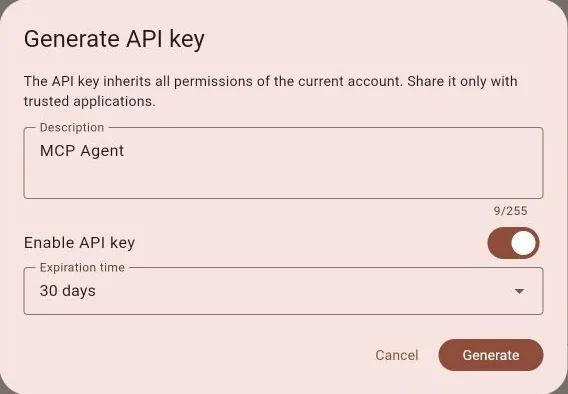
Click Generate to confirm.
3. Copy and save the complete key
In the API key generated dialog, click Copy API key. Save it before clicking I've saved it, close.
The complete key is shown only once. The list lets you manage keys but does not reveal the full value again. If you did not save it, generate another key and disable the unused one.
Share only with a trusted agent
An API Key inherits its owner's permissions. Give your trusted agent this dedicated key; you do not need to provide your account password. Keep keys out of public documents, screenshots, and repositories. Disable or delete the key on this page when it is no longer needed.
Step 2: Send your agent the key and this page's link
Open your agent, such as WorkBuddy, Claude Code, or Codex, and check that it supports Streamable HTTP MCP and the API Key authentication described here. Send it the following message after replacing the two placeholders:
Please configure the cloud MCP service for this information publishing system.

Setup guide: <paste the complete URL of this tutorial page>
API Key: <paste the complete key you just copied>

Read the guide first, then configure MCP using your client's supported format.
Use Streamable HTTP with the service URL and authentication headers from the guide.
Preserve other existing MCP configurations. Do not show the full key in replies or logs.
After configuration, verify the connection and query the current account and device list.
Share this tutorial's complete URL, rather than the Admin Console URL or the MCP endpoint. Do not put the API Key in the URL.
The agent will configure its own client. If it cannot edit the configuration, it can provide the configuration for you to paste. Some clients require an MCP reconnect or a restart to load the new settings.
Step 3: Verify and start using MCP
After setup, try asking:
- "List my devices and tell me which ones are online."
- "Check this device's software version and current program."
- "Which devices is this program deployed to?"
- "Upload this local image to the media library and tell me its resource ID."
Connection verification only needs read operations. It does not require device binding, program changes, or deployment. Results follow the API Key owner's permissions. An empty device list is valid if the account has no devices yet.
Upload local images, videos, and other media
Tell the agent the file location and the name you want to use. For example:
Upload poster.jpg from my local Downloads folder to the media library as "Store poster".
Return the media resource ID. Do not create or deploy a program yet.
The agent must be able to read the file and run curl or an upload script where the file is available. File bytes go directly from the agent's environment to object storage, without passing through MCP. You do not need to provide object-storage AK/SK credentials.
An agent running remotely cannot read a path on your computer directly. Use that agent's supported file-sharing mechanism. If the agent cannot read files or run scripts, upload in the Admin Console first and then let it query the library.
A returned media resource ID confirms library creation. Transferring bytes is only one step. Adding a resource to the library does not automatically create or deploy a program.
Connection reference for agents
This section is for automated configuration and troubleshooting. Users do not need to enter headers or write scripts themselves.
Cloud endpoint and authentication
- Transport: Streamable HTTP.
- Endpoint rule: use the tutorial URL supplied by the user, keep its scheme and hostname, set the port to
9394, and replace the path with/mcp. Do not retain the tutorial path, the Admin Console's/cxpath, or the documentation port. - If the deployment operator supplies a separate MCP endpoint, use that endpoint instead.
Default endpoint for the current documentation site:
http://127.0.0.1:9394/mcpSend both headers below, replacing <API Key> with the complete key supplied by the user:
Authorization: ApiKey <API Key>
X-Mht-Source-Key: cloud
The authorization scheme is ApiKey. The credential is not an account password, key description, or key ID. Do not use Bearer or put the key in the URL.
Use the current agent client's supported MCP configuration mechanism and preserve other services. Store the key in supported credential environment variables or private local configuration, outside shared project files, and redact it in replies. Clients that can read the guide but cannot edit local configuration should provide explicit manual steps.
To verify, initialize MCP and list tools, call get_context to check the account and source, then call list_devices. A successful HTTP response or a visible tools list alone does not establish account access. Do not modify data to test the connection.
Client-side media upload workflow
Request the upload_media_resource_workflow prompt if needed, then follow this procedure:
| Step | MCP tool / local action | Requirements |
|---|---|---|
| 1. Initialize | init_media_resource_upload | Read the local filename, actual byte size, and full MIME type. Default uploadMode=direct; obtain the temporary URL, all required headers, and the upload object |
| 2. Upload bytes | Local curl, Windows curl.exe, or a script | PUT raw file bytes to the returned URL with every returned header. Do not add the MCP API Key |
| 3. Create the library entry | complete_media_resource_upload | Pass upload back unchanged. Only status=uploaded with mediaResourceId confirms success |
| 4. Failure or cancellation | abort_media_resource_upload | Clean up after transfer failure or explicit cancellation. If completion times out or is uncertain, check list_media_resources before retrying or cancelling |
For large files, use uploadMode=multipart: split using the returned partSize, obtain URLs with get_media_resource_upload_part, upload the chunks, preserve the original ETags, and complete with parts in order.
Keep the same source and account throughout. Existing permissions, storage quotas, and file-size limits apply. Keep temporary URLs, upload headers, and session identifiers out of logs and user-facing summaries.
Troubleshooting
| Issue | What to do |
|---|---|
| No API keys entry | Check that you are signed in to an online account. Look in the avatar menu or Account Settings; update the app or reload the web console if needed |
| Full key unavailable after closing the dialog | The value is shown only once. Generate a new key and disable the unused one |
| Authentication fails | Check that the key is enabled, unexpired, and not deleted. Copy the complete value and use Authorization: ApiKey <key> |
| Agent cannot connect | Check the endpoint, network, and access to port 9394. Reconnect or restart the client. Do not use the documentation or Admin Console URL as the MCP endpoint |
| Connected, but an operation is forbidden | The key inherits account permissions. Check the account, data ownership, and permission for that operation |
| Local upload fails | Check that the agent can access the file and run scripts. Identify the failing upload stage and storage response before retrying; avoid duplicate resources |
Advanced: LAN services
To manage LAN service data, enable MCP on the LAN Services page in the Admin Console or Player Client and use the endpoint shown there, such as http://192.168.1.10:9394/mcp. The agent must reach MCP, and MCP must reach the target LAN service. A public cloud MCP server cannot directly access a customer's private LAN address.
Use an API Key created by an account on that specific LAN service, with these headers:
Authorization: ApiKey <LAN service API Key>
X-Mht-Source-Key: lan
X-Mht-Lan-Host: http://192.168.1.10:9393
Replace the example IP with the actual service address. Use 127.0.0.1 only when the relevant processes run on the same machine. LAN LOCAL storage receives file bytes at the LAN service; other storage receives them at the selected object store.
For activation codes or other cloud-only capabilities with a LAN source, optionally add X-Mht-Cloud-Authorization: ApiKey <online account API Key>. Regular LAN device, program, and media queries do not need an additional online account key.
Other connection options: STDIO
STDIO MCP remains available for agents that start a local process on demand, including existing local installations and special integrations. Use the HTTP workflow above for normal cloud access and local media uploads. No separate STDIO download or Docker deployment is needed.