
If your devices can access the Internet normally and you want to manage them remotely from your phone or computer, start with this method.
Before you begin, make sure:
- The display device can access the Internet
- You can log in to the Admin End with your account
- You want to use remote management, batch publishing, and similar capabilities later
Step 1: Install the Display Terminal on Your TV, Set-Top Box, or Digital Signage
Choose the appropriate version for your device's hardware and software architecture.
Make sure the Player app is already installed. If not, obtain the correct installation package from your current download or distribution channel.
After installation, you should see the following interface: 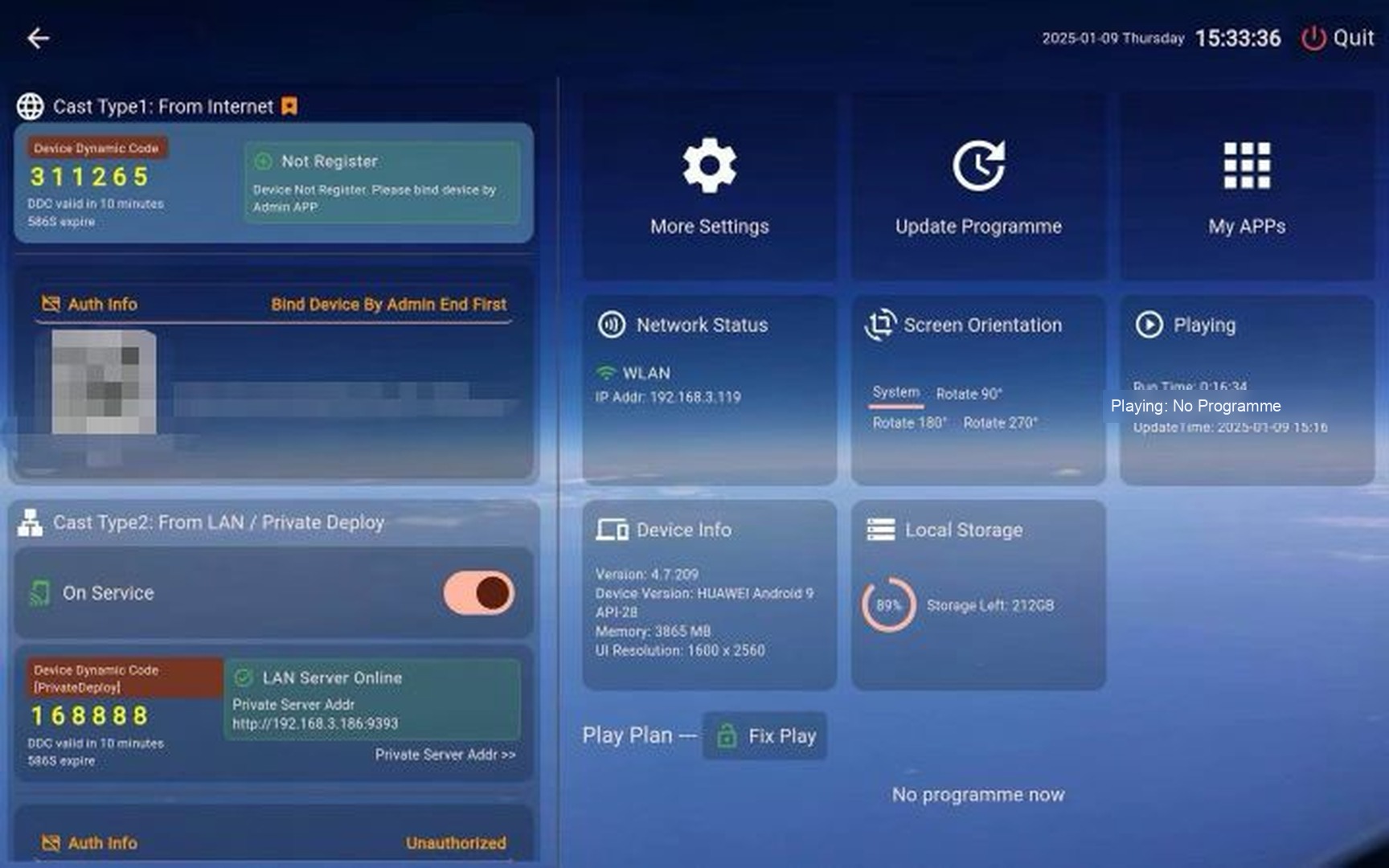
Step 2: Install the Management Terminal and Log In
You can use the management terminal on your mobile phone or computer as needed. If you only want to try it first, you can also use the web-based Admin End directly in your browser without installing anything.
Make sure the Admin End is available on your phone or computer. If you do not have it yet, obtain it from your current download or distribution channel.
After opening the management terminal, click "Login" and enter your mobile number and verification code to log in. 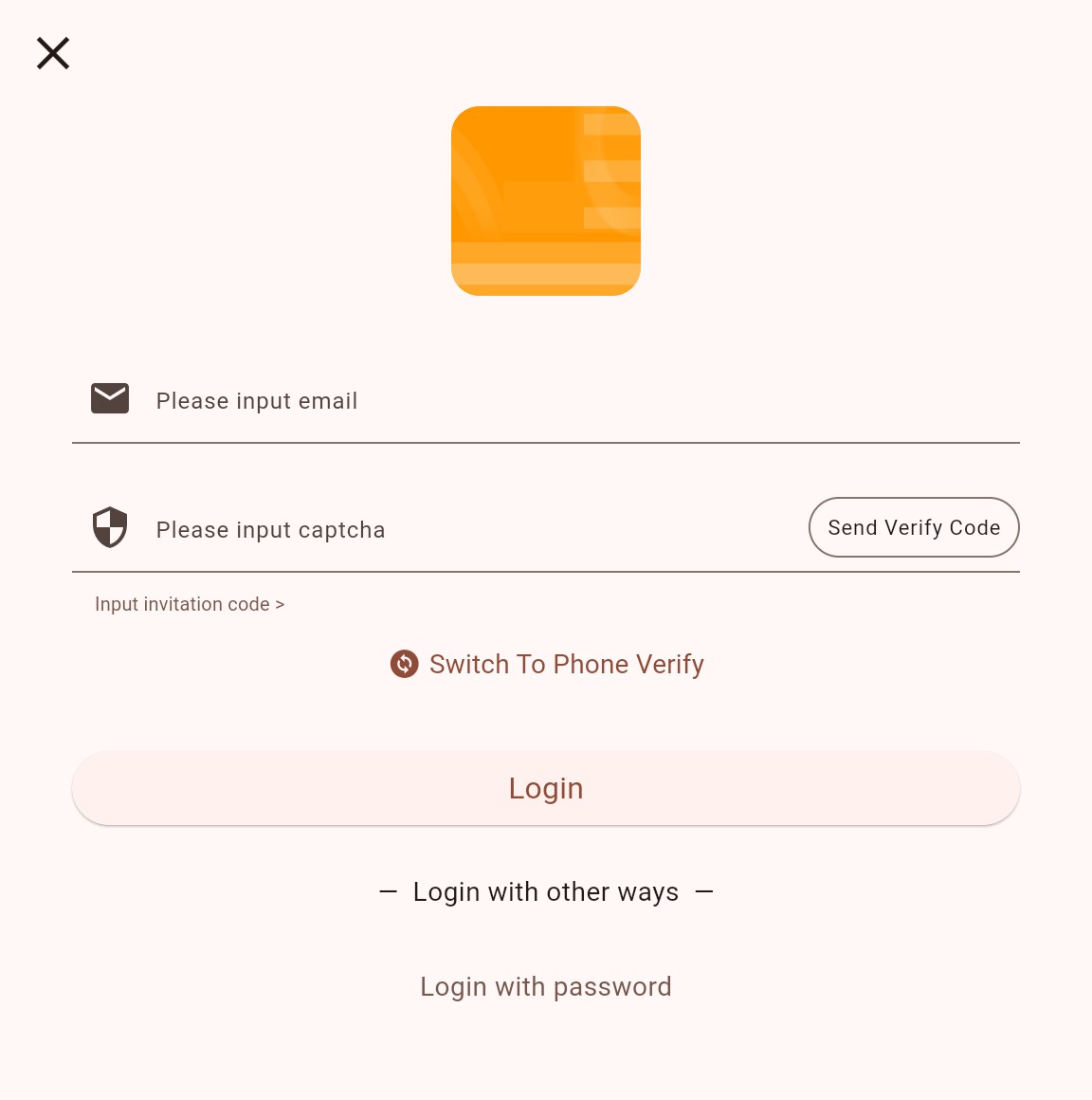
After logging in, you will see the default built-in program on the program interface, which can be used for casting tests.
Step 3: Cast Programs to the Display Terminal
After logging into the management terminal, click "Programs" in the main menu to view the built-in programs. Select the program you want to cast and click the "Cast" button. 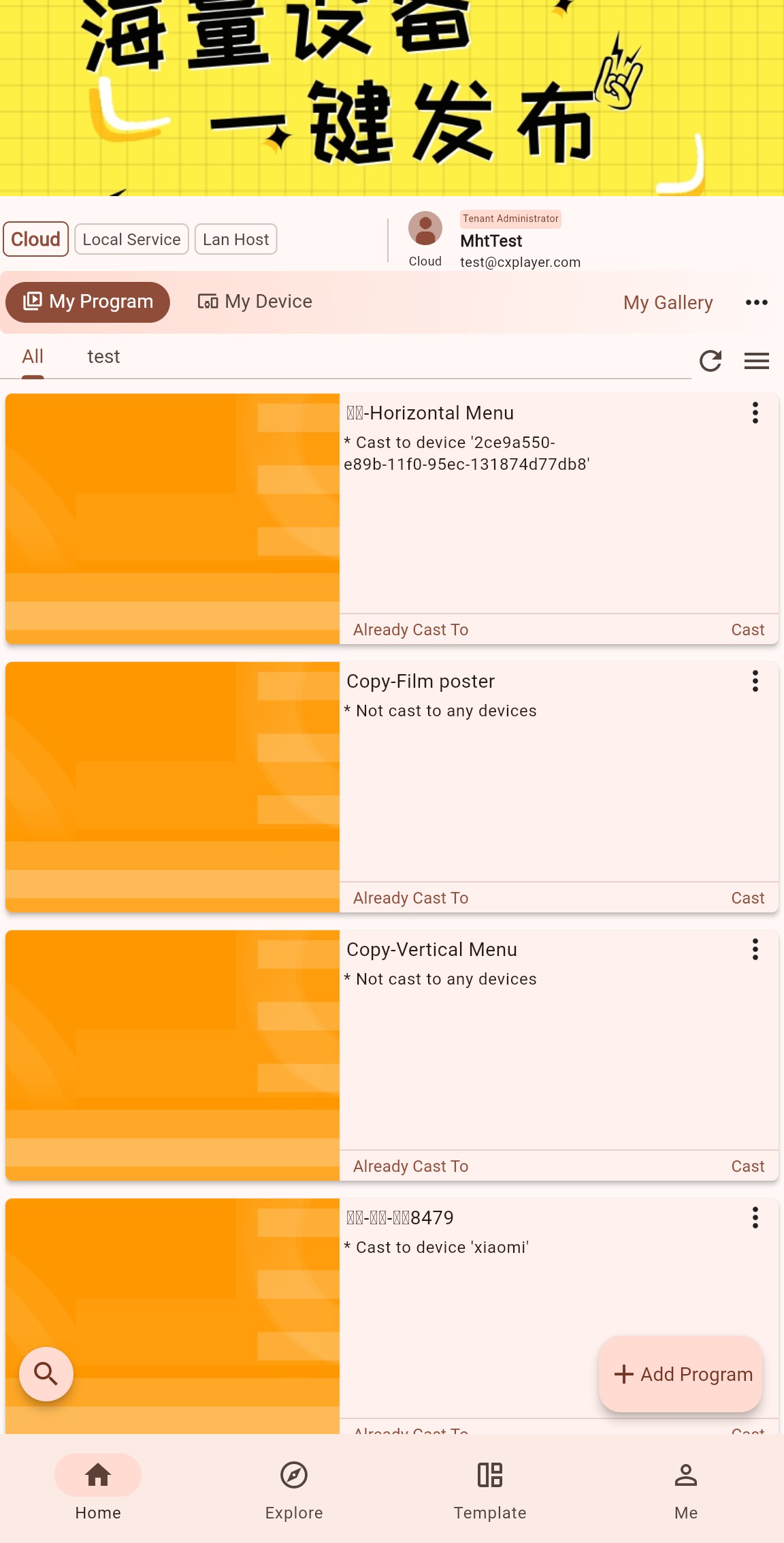
After clicking the "Cast" button, you will be prompted with multiple casting methods. Since the device is not yet bound, choose "Cast by entering device dynamic code" here. You can learn the other casting methods later after you become familiar with the basic flow. 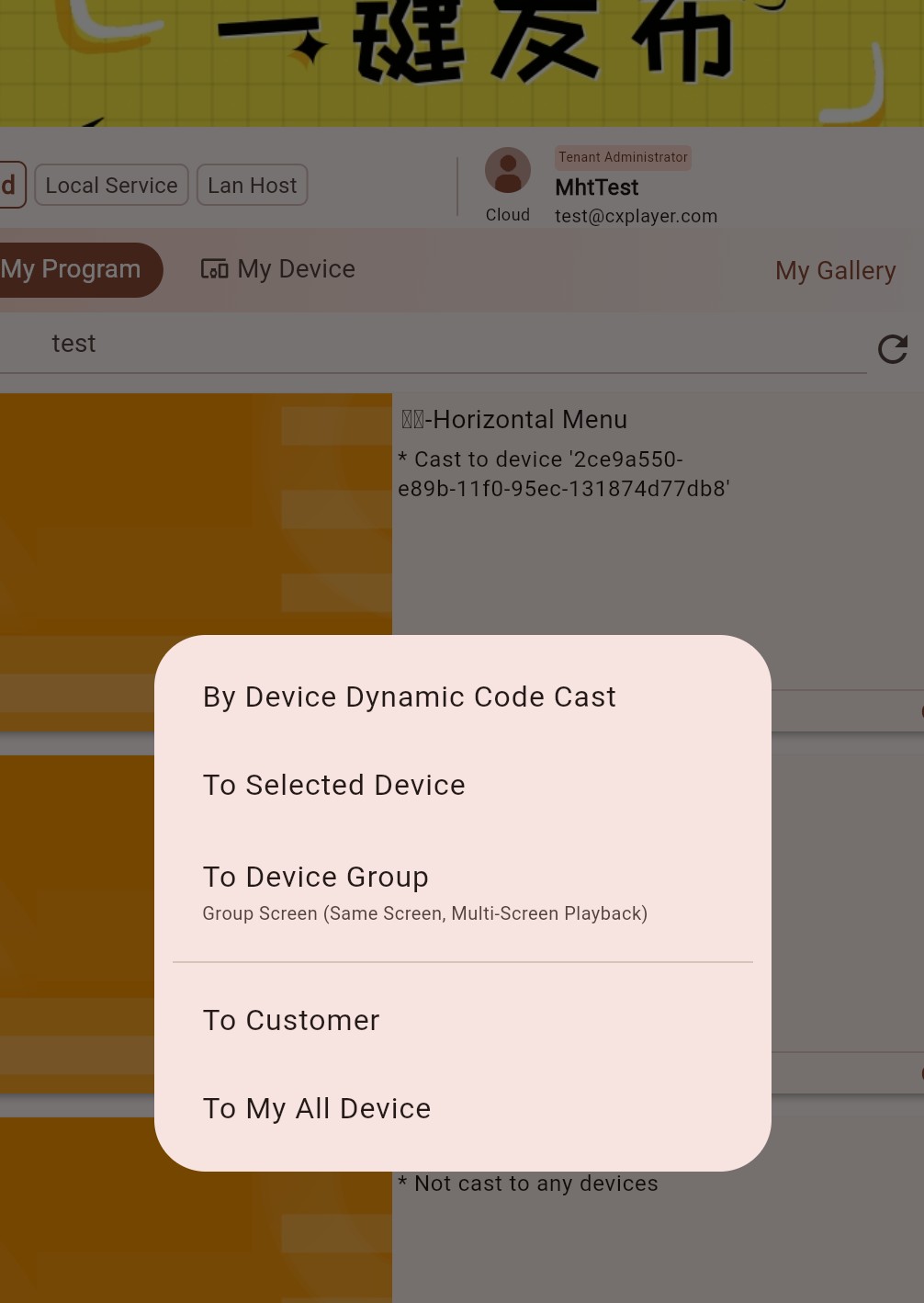
Enter the dynamic code displayed on the display terminal device. If the device is not on the main interface, press the return key to go back. After entering the code, click the confirm button in the upper right corner. 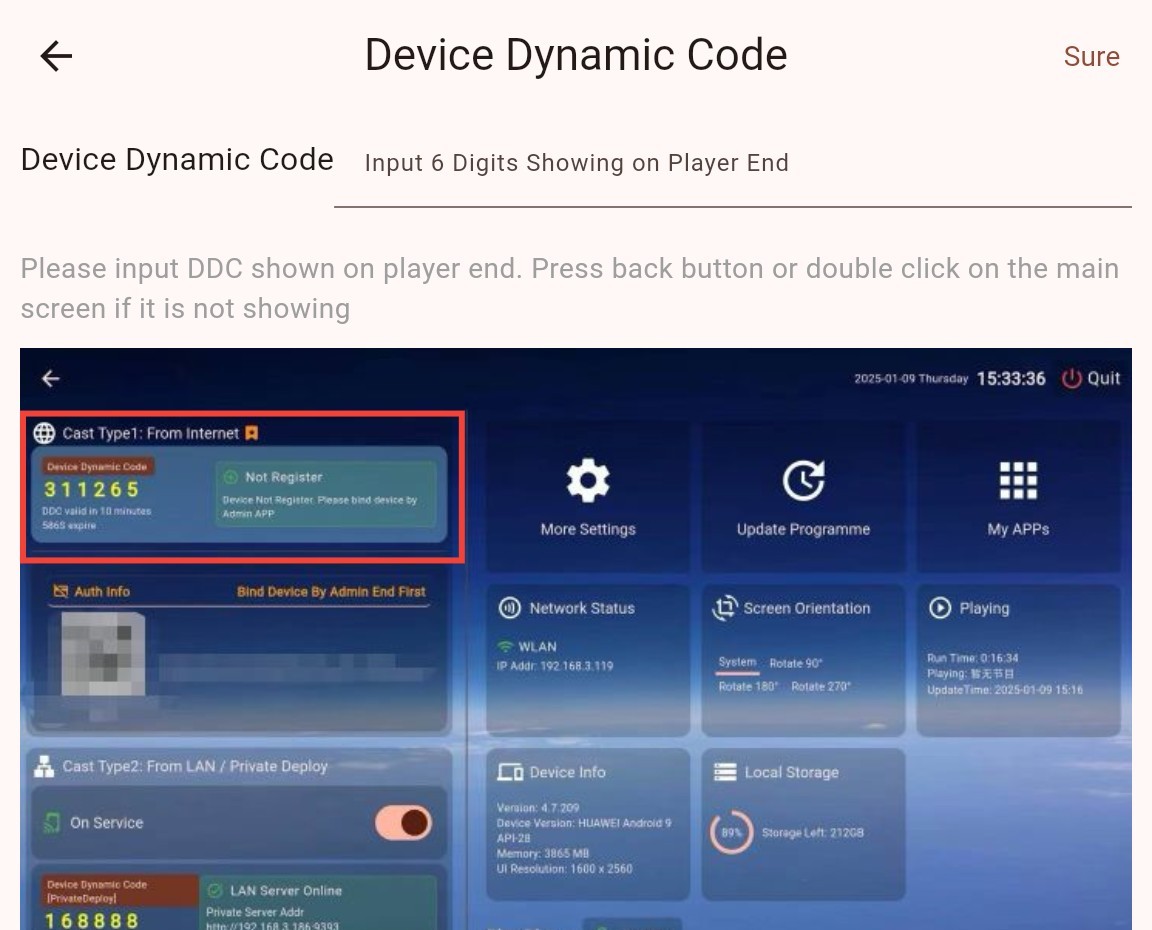
A dialog box will pop up to confirm whether the binding is complete. If you see the following dialog, the device has been successfully bound. 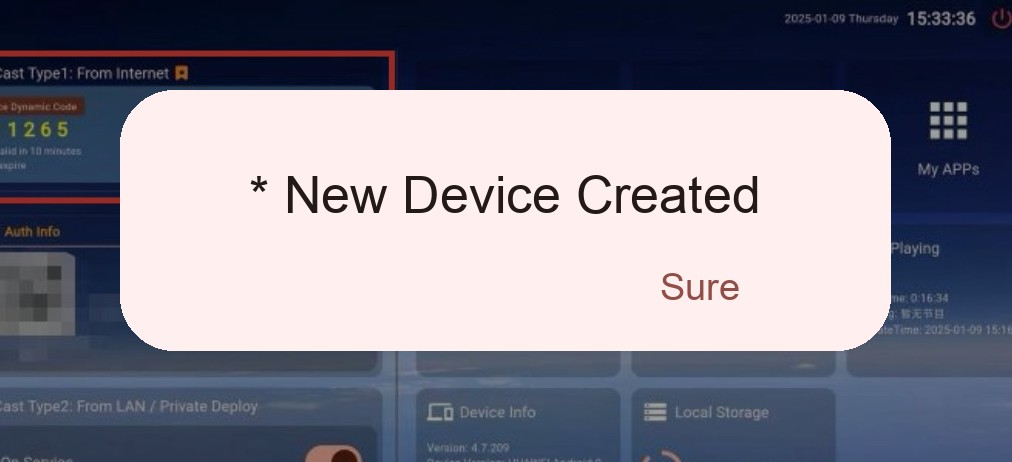
Click "Confirm" to continue to the casting settings dialog. The default settings are fine; just click "Confirm" to complete the casting. 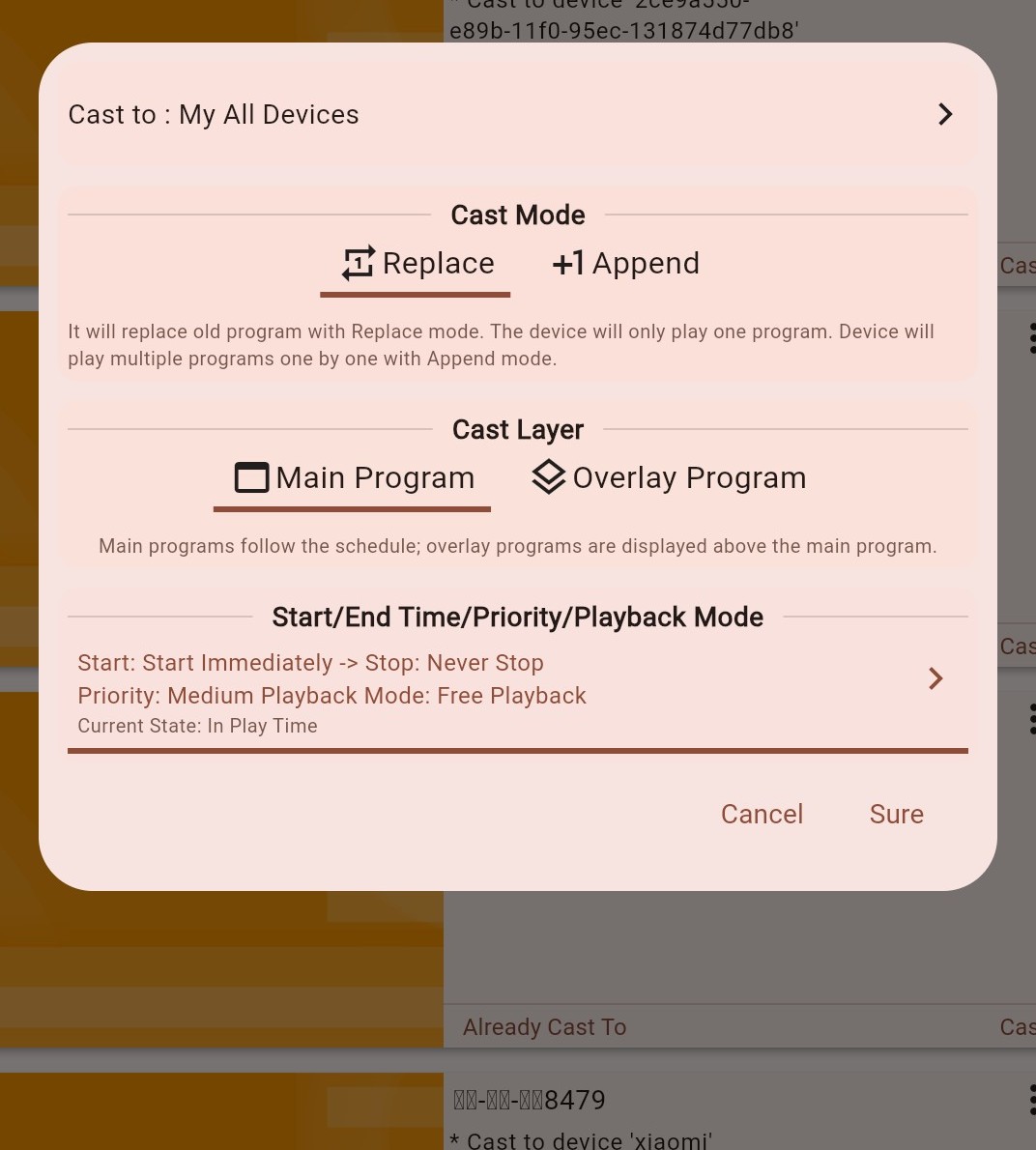
The device will immediately synchronize, and playback will begin once synchronization is complete.
If the device has already started playing the program, cloud casting is working successfully.