
If your devices cannot access the public Internet, or your programs and media must stay inside your organization's own LAN, while you still need to manage multiple devices together, start with this method.
You can think of it as moving the management model of cloud casting into your own local network. One computer running the Admin End becomes your local management center inside the LAN, and all display devices connect to that computer instead of a public cloud server.
Before you begin, make sure:
- The Player app is already installed on the display devices
- You have one computer that can stay on the LAN to run the Admin End
- That computer and the display devices are on the same LAN
- Private deployment cannot use the web-based Admin End; you must use the app version
Make sure the Admin End app is already installed; if you do not have the installation package yet, obtain it from your current download or distribution channel. The example below uses the Windows version of the Admin End. Linux and macOS versions work similarly.
Step 1: Open the Admin End and Allow the Local Service to Run
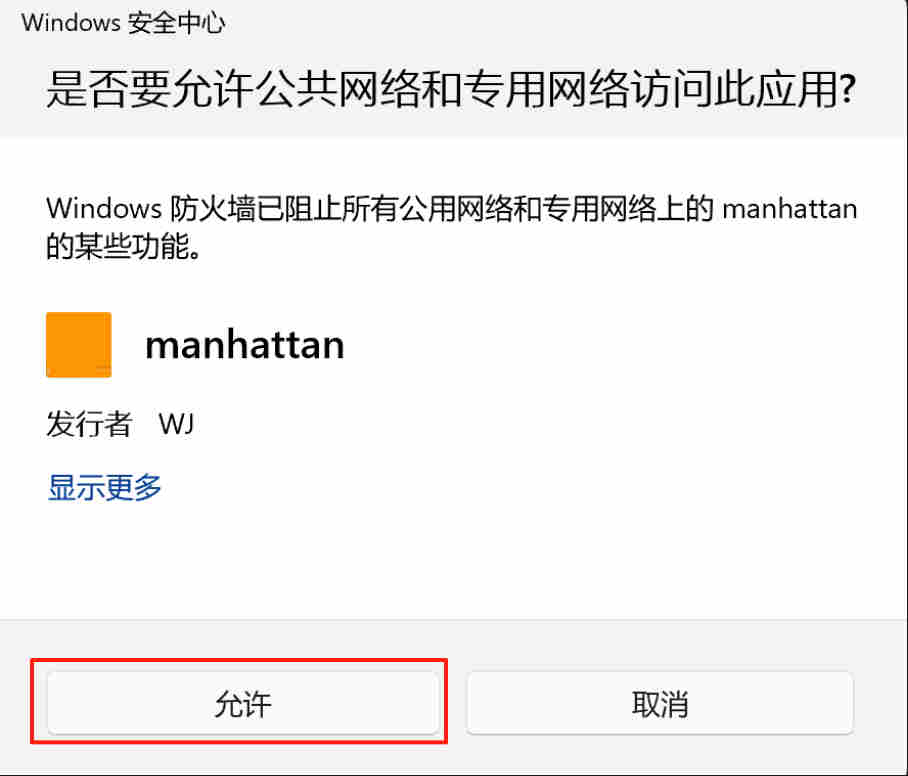
On Windows, double-click manhattan.exe to open the Admin End. If the following prompt appears, be sure to click Allow.
Step 2: Start the Local Management Service
Switch to the Local Management tab. If the status icon is not green, click Start. 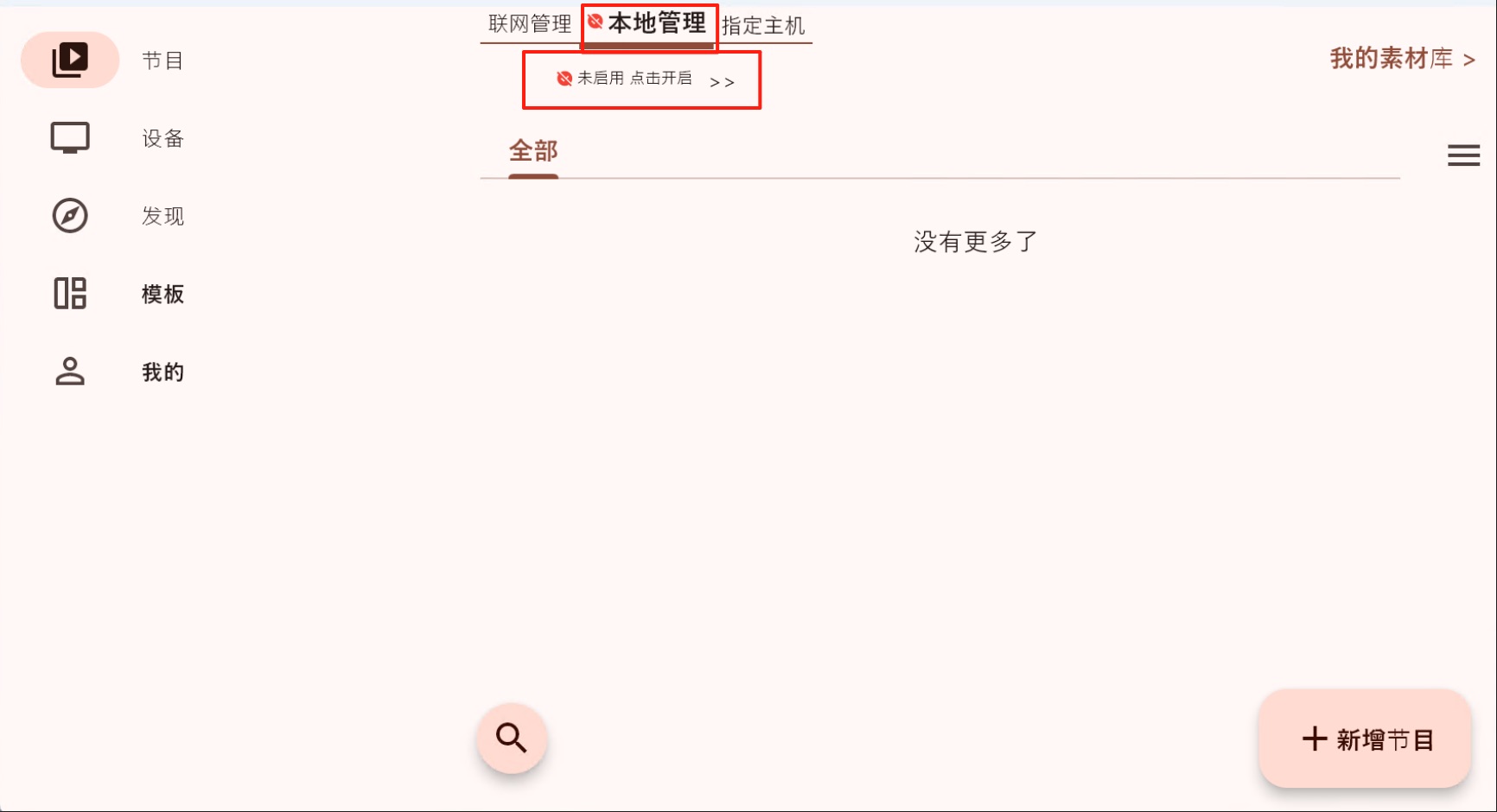
Once it is running, the icon turns green. 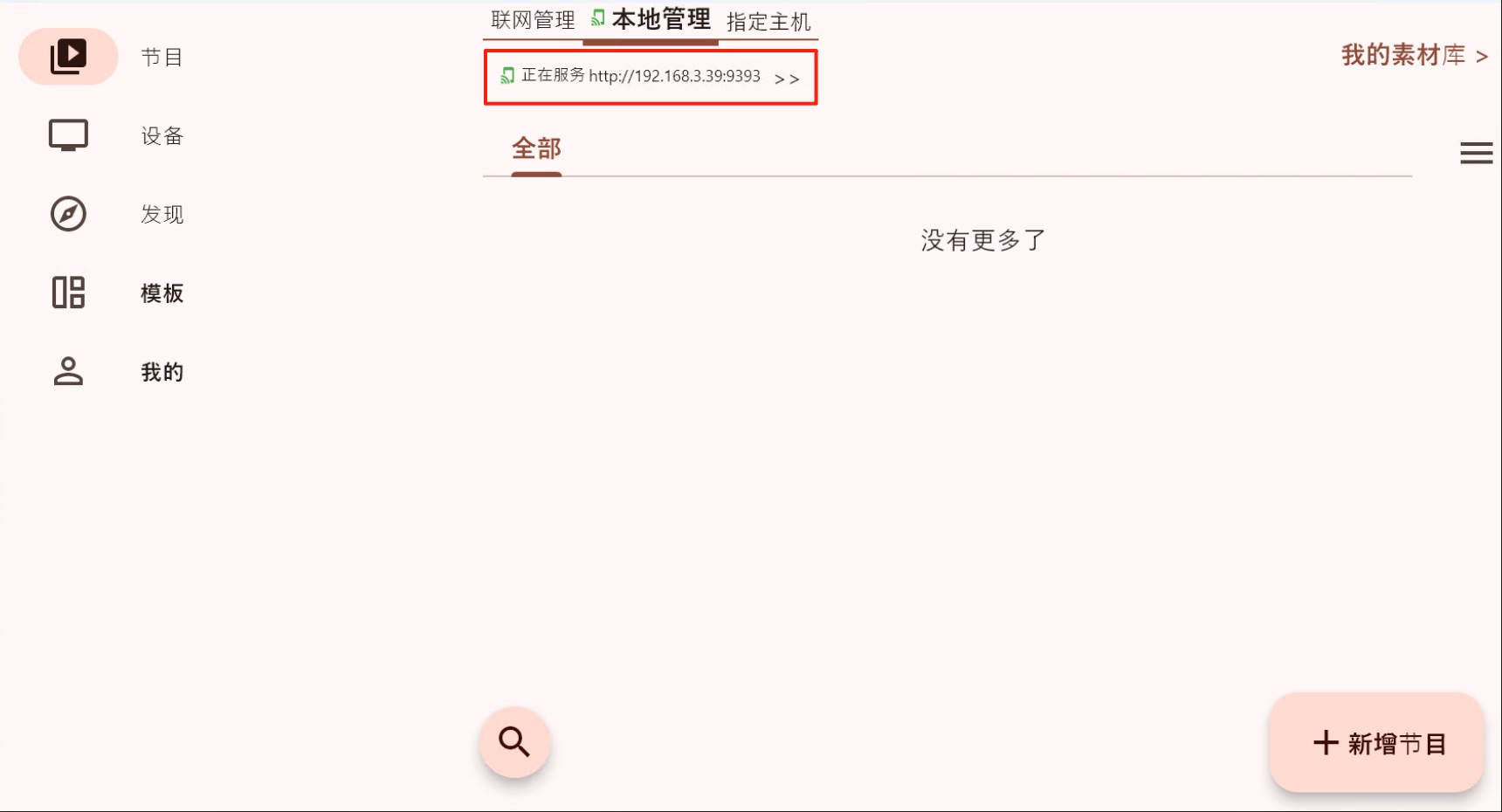
Step 3: Connect the Display Device to This Local Admin End
After the local service starts, the Admin End displays its own IP address. Go to the display device and configure this address there.
If the display device and the Admin End computer are on the same LAN, the Player's blue home screen usually discovers the Admin End automatically and completes the configuration. If automatic discovery fails, enter the Admin End IP address manually so the Player can connect and sync programs.
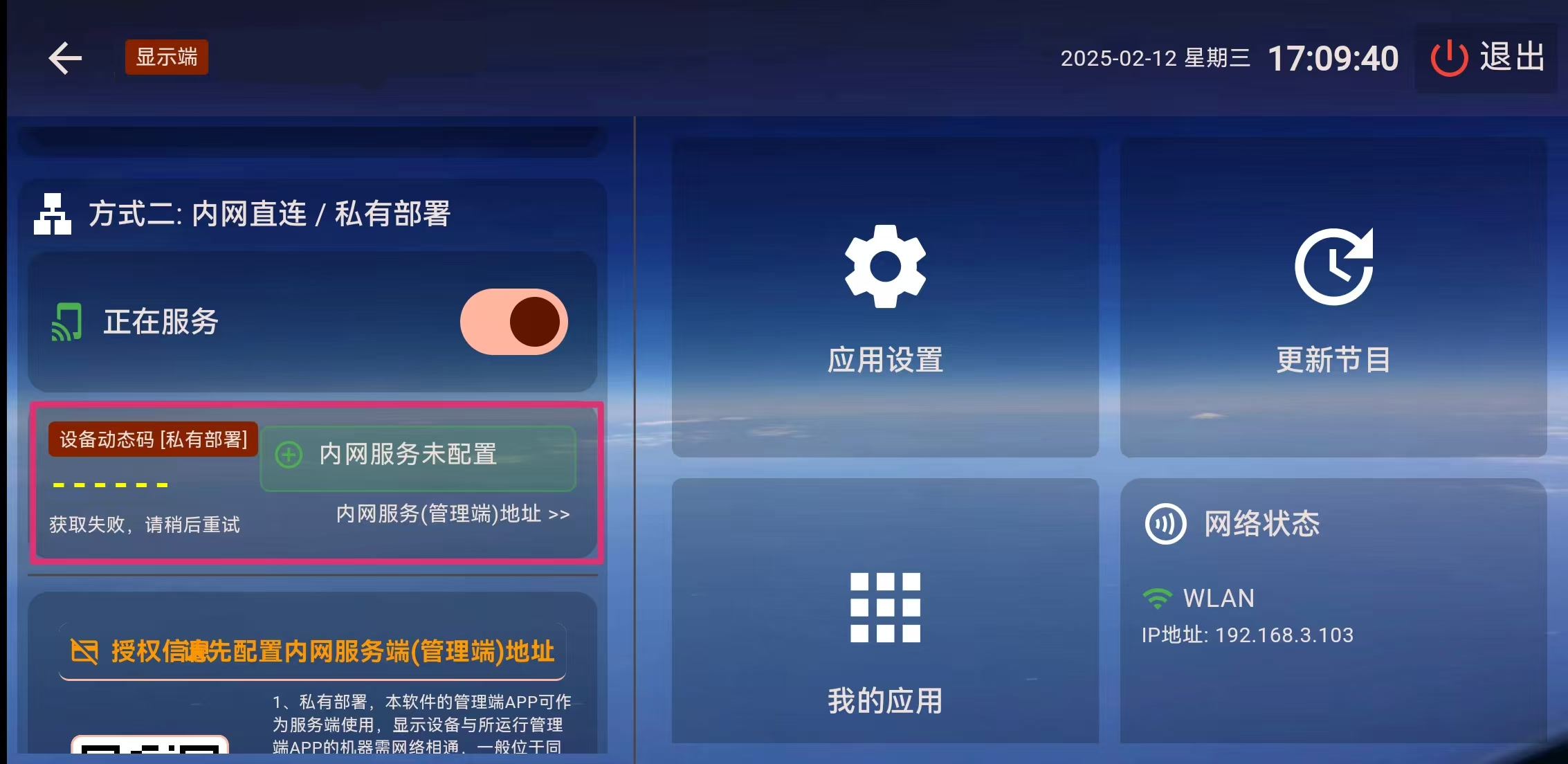
Enter the Admin End IP address and confirm. 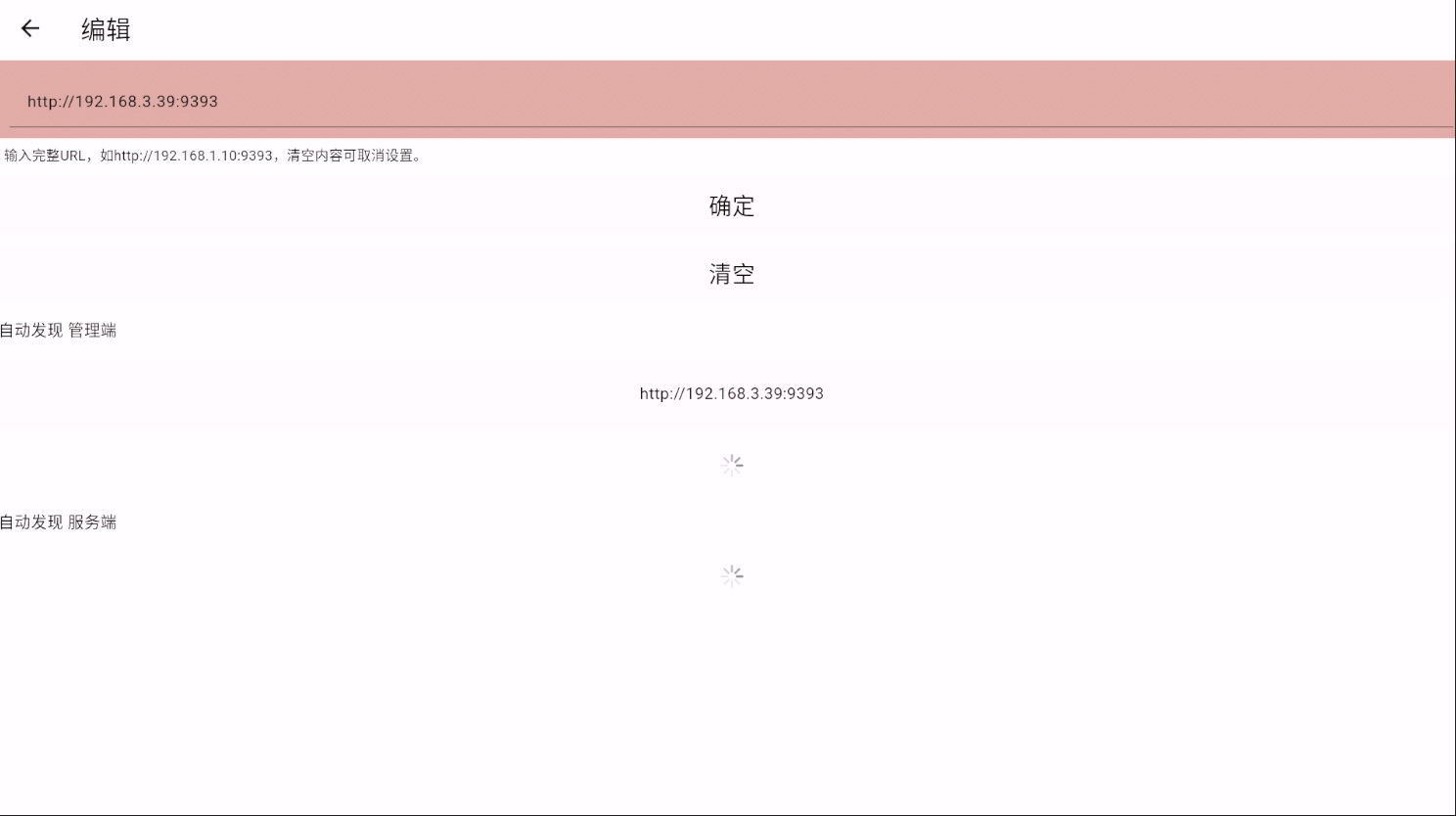
Step 4: Bind the Device
After a successful connection, the Player retrieves the device's dynamic code, as shown below. 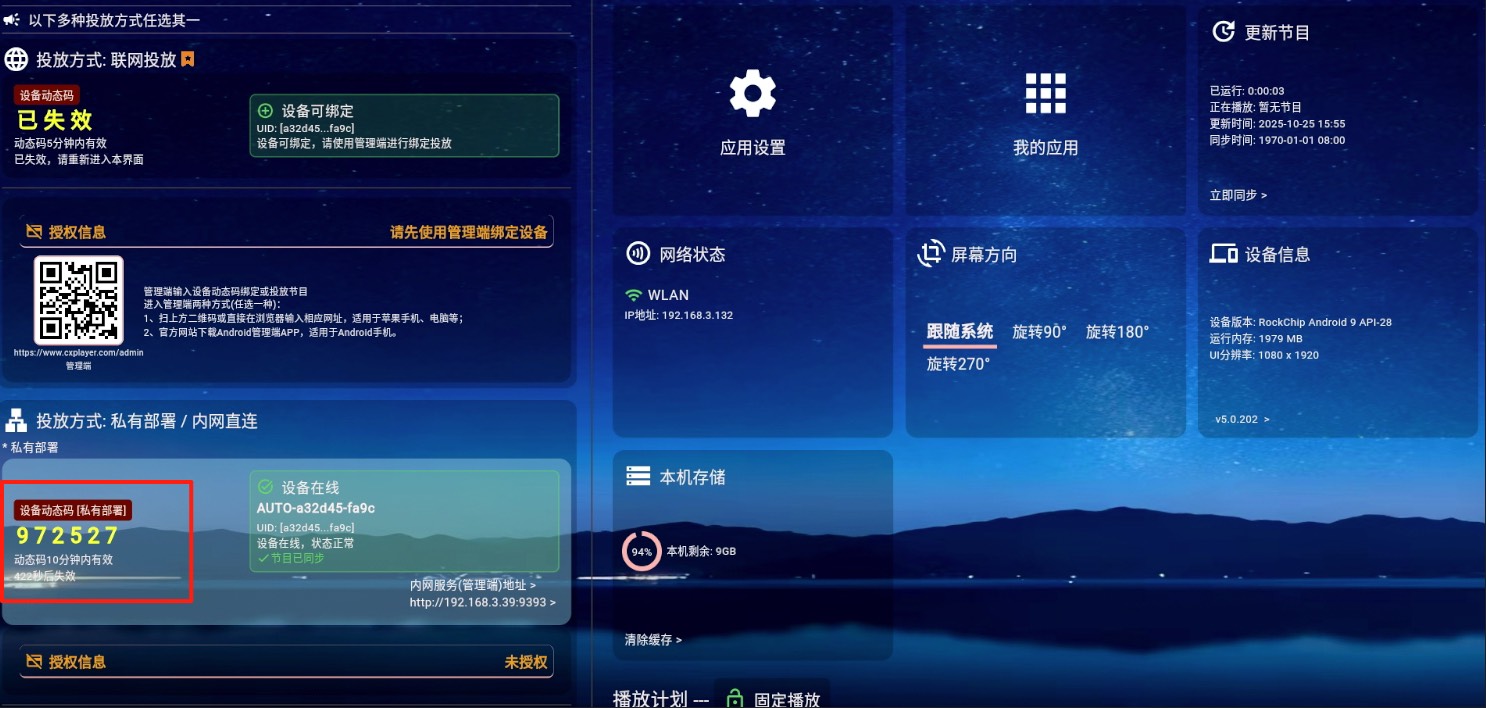
If automatic binding is enabled in the Admin End, the device will bind automatically and appear in the device list. 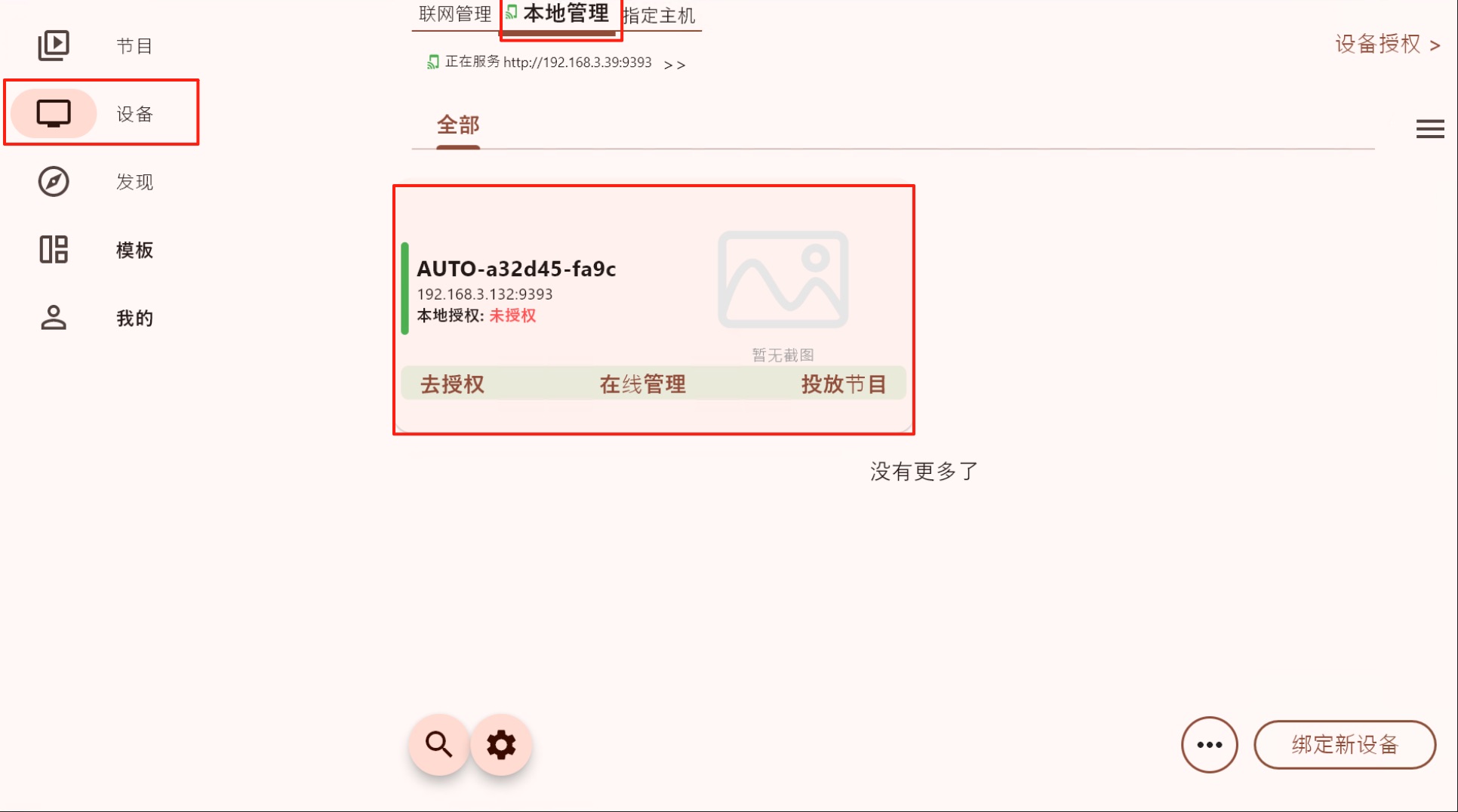
If automatic binding is disabled, click the Bind New Device button in the lower-right corner of the Admin End, and enter the dynamic code shown on the device to complete the binding. See Bind a Device for detailed instructions.
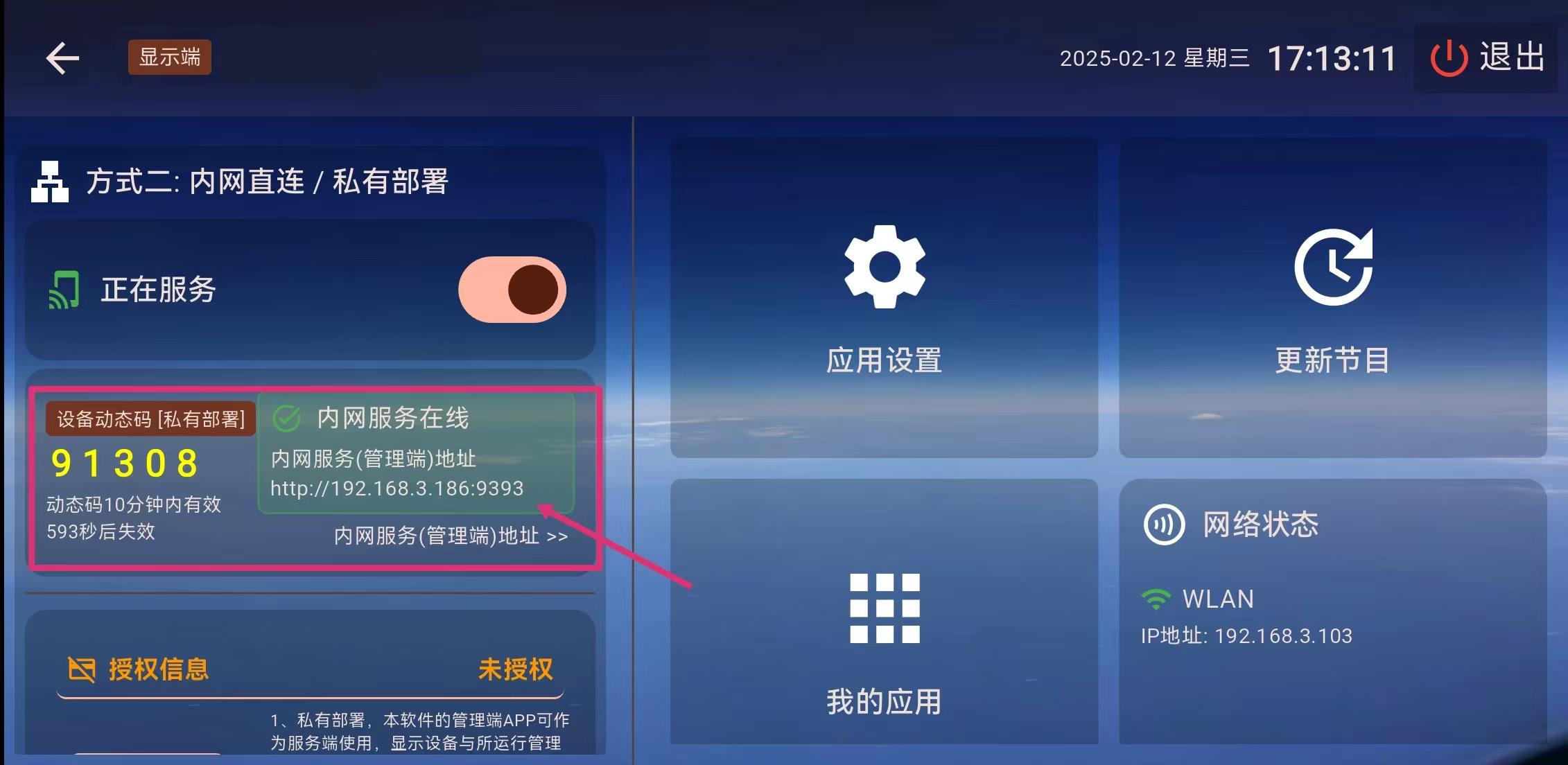
Step 5: Authorize the Device
After the device is bound, if the Player shows an "unauthorized" prompt, you need to perform local authorization before it can play content normally. Local authorization is a one-time operation — once authorized, the device can be used long-term.
If no authorization prompt appears, the device is already authorized and you can proceed to the next step.
Step 6: Edit and Publish Programs
Once the device is bound and authorized, the rest of the program editing and publishing workflow is similar to cloud casting: create a program, add media, save it, and then publish it to one or more devices.
If you can already see the device in the Admin End and the device starts playing the program you published, private deployment is working successfully.
Docker deployment is also supported
If you want to run the management service on a Linux server without a graphical interface, you can use Docker deployment, which is suitable for long-term server environments.
Troubleshooting
Local service fails to start
- Make sure port 9393 is not being used by another program.
- Try running the Admin End as an administrator.
- Check if any security software is blocking the local service.
Player cannot auto-discover the Admin End
- Make sure the Player and the Admin End computer are on the same LAN (connected to the same router or switch).
- Make sure the local service on the Admin End is running (green icon).
- Try manually entering the IP address shown on the Admin End.
- If the Admin End computer has multiple network interfaces (e.g., wired + Wi-Fi), make sure the Player and Admin End are on the same subnet.
Firewall blocking the connection
- Even after clicking Allow, some security software may still block the connection. Try manually allowing the Admin End program and port 9393 in your firewall settings.
- If you are on a corporate network, you may need to contact your IT department to open the internal port.
Admin End IP address changed
- If the Admin End computer uses DHCP, its IP address may change after a reboot, causing Players to lose connection.
- It is recommended to set a static IP for the Admin End computer, or reconfigure the new IP address on the Players.
Next Steps
- Learn the full program editing workflow
- Explore more device management capabilities
- Learn about deployment relationships and play schedules
- Read the detailed device authorization guide