
Fonts and offline use
Upload a font containing the characters you need, including brand typography, Japanese, Korean or Arabic, then apply it to text in your program. Font files travel with the program and work offline after the Player completes synchronization.
Update Manager and Player for full font-asset support. Cloud delivery retains the original font configuration format for older Players. Use an updated Player for LAN delivery, offline import and point-to-point delivery. Existing programs retain their previous font settings.
1. Upload your font
Open Media library → Fonts → Upload, or upload from Font → My fonts while editing text. Select an individual .ttf or .otf file, up to 64 MiB. ZIP archives, TTC collections and WOFF/WOFF2 are not supported.
Preview the font using your actual content. Font assets control text typography; they cannot be added as standalone slides like images or videos.
2. Apply it to text
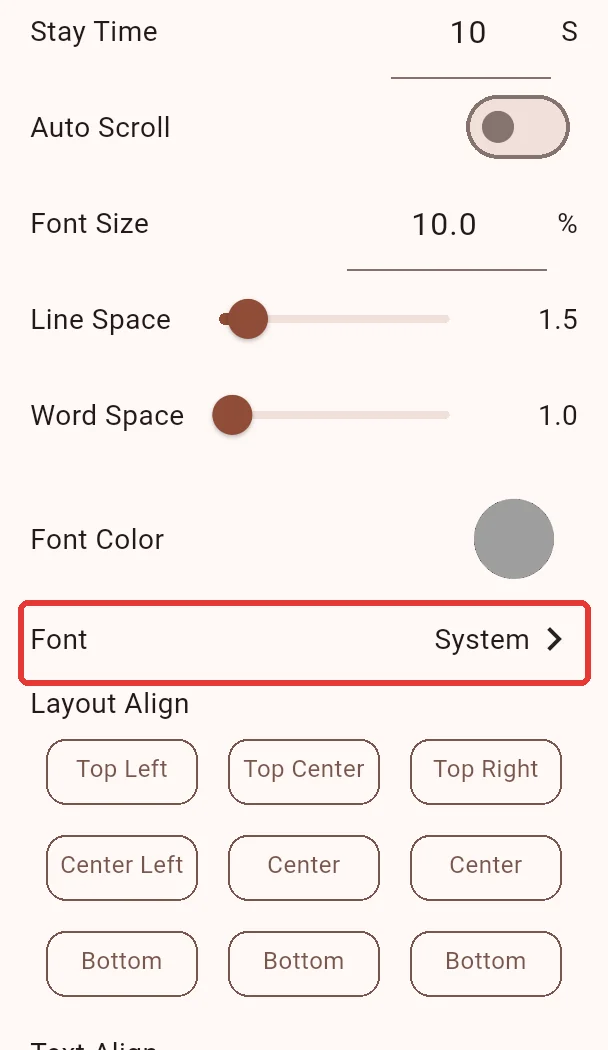
Add or select text in a program, open its parameters and select the current font beside Font.
| Tab | Purpose |
|---|---|
| My fonts | Fonts in the current media library, with upload and preview. LAN editing uses the current LAN library. |
| Online fonts | Fonts published in the deployment’s public library. Selecting one adds it to your library before applying it; an internet connection is required. |
Check the preview, save the program and allow the Player to synchronize. Choose System font to remove the custom font and use the playback device’s default. Glyphs and line wrapping may vary across devices.
3. Distribution and offline playback
Newly selected fonts use the same program distribution as images and videos: cloud synchronization, LAN direct connection, internet point-to-point delivery, and program ZIP export/import. You do not need to install fonts separately on every TV.
For an isolated network, obtain and upload the font in advance, then deliver or import the program containing it. After synchronization completes, verify the appearance on the TV, disconnect and reopen the program. The online catalog requires a connection for its initial download; upload a local file when the network is unavailable.
Older programs may still use legacy font downloads. Before transferring those fonts through ZIP/USB or point-to-point delivery, select the font again from My fonts or Online fonts, save, and use an updated Player. Older Players still need to download font files for cloud playback; offline import of new fonts is not guaranteed.
4. Verify actual content
A font only covers its included characters. An English-only font cannot supply missing Arabic glyphs. Test the actual text, numbers, punctuation and special symbols:
- Check missing characters, boxes or unexpected fallback glyphs.
- Review clipped titles and changed line wrapping.
- Verify size, line/letter spacing, bold, italics and outlines.
- Check scrolling text on the target TV.
See Text media for other parameters. Confirm that the font license permits your intended use, especially commercial display.
Common issues
| Symptom | Check |
|---|---|
| Upload fails | Individual, valid TTF/OTF; size at most 64 MiB; sufficient library space. |
| TV appearance differs | Both application versions, saved program and completed synchronization; test on the TV. |
| Boxes for some characters | Choose a font containing those characters. Uploading cannot add glyphs missing from a font. |
| Online fonts is empty | The deployment may not have published any; upload to My fonts instead. |
| Catalog fails to load | Check connectivity, or use local assets in My fonts or System font. |