
USB Disk Play
USB Disk Play is one of the easiest ways to play local content. Copy images, videos, audio files, or PDFs to a USB disk, select a mode on the player, and then insert the disk. The player creates a program or plays the files automatically.
Availability
This workflow applies to Android players that show Cast method: USB disk on the home screen. If this entry is unavailable, use another local-casting option provided by the app or confirm USB support with the app provider.
Recommended for first-time users
For the simplest setup, copy images or videos to the USB disk, select Copy and Append, and then insert the disk. Program ZIP import is an advanced feature described at the end of this page and can be skipped at first.
Before you start
- Copy the images, videos, audio files, or PDFs you want to play to the USB disk.
- Folders may be used to organize files, but nesting must not exceed three levels.
- For a copy mode, make sure the player has enough local storage.
- Grant external-storage access when the player requests it for the first time.
Step 1: Open the home screen
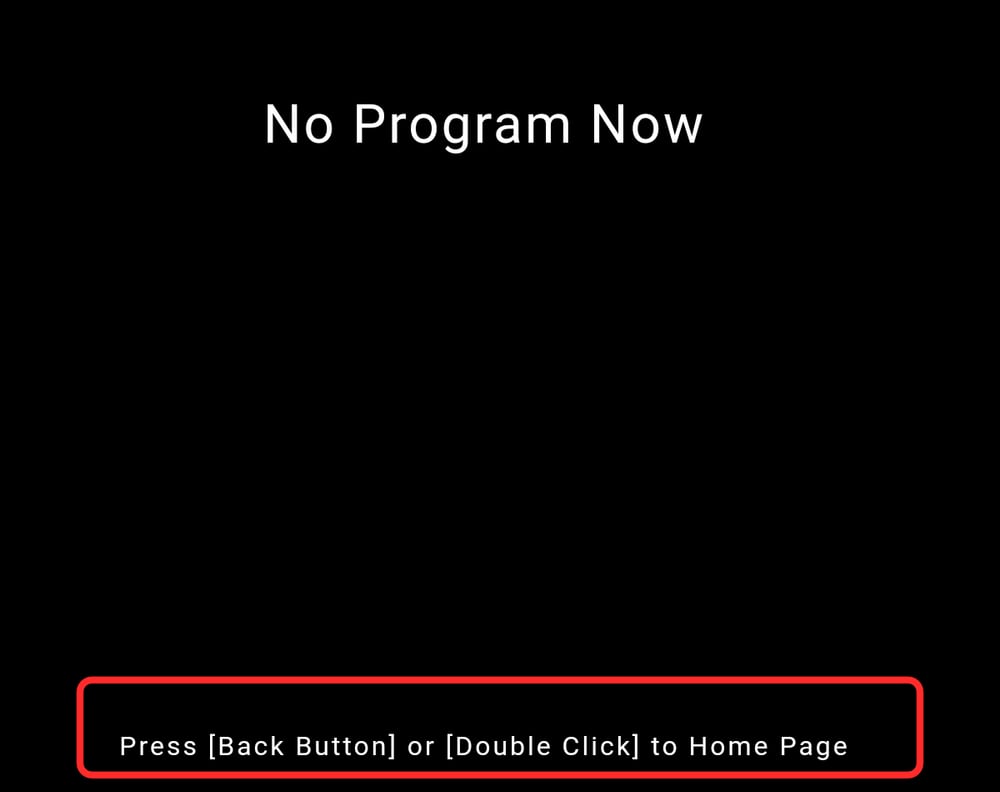
On the playback screen, press the remote control's Back button or double-tap the screen.
Step 2: Select a USB Disk Play mode
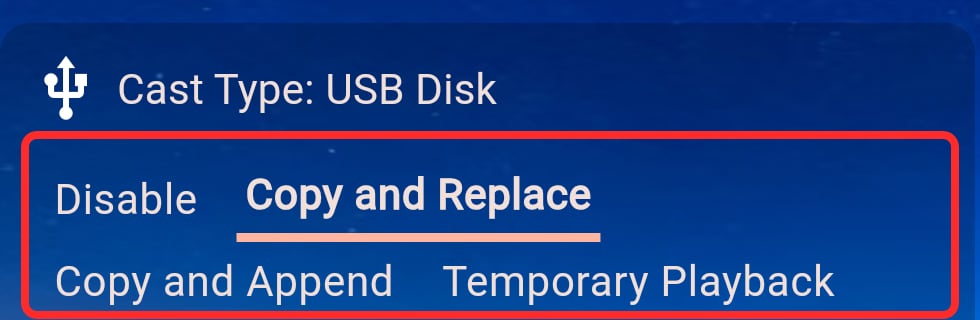
Scroll down in the left-hand area of the home screen, or press the remote control's Down button repeatedly, until you find Cast method: USB disk. Click the mode or press OK to switch modes. The highlighted selection is saved immediately.
| Mode | What it does | When the USB disk can be removed |
|---|---|---|
| Disabled | Takes no action when a USB disk is inserted. | At any time |
| Copy and Replace | Copies the media to the player and creates a new program. Existing external-storage programs are replaced after the new program is created successfully. | After copying and program creation finish |
| Copy and Append | Copies the media to the player and creates a new program while keeping existing programs. | After copying and program creation finish |
| Temporary Playback | Plays directly from the USB disk at high priority without copying media to the player. Use it for meetings, events, or other temporary content. | After playback; the disk must remain inserted while playing |
If unsure, use Copy and Append
Copy and Replace removes existing programs created from external storage. Use Copy and Append if you do not want to affect existing content.
Select the mode before inserting the disk
If the USB disk is already connected, remove it, select the required mode, and then reconnect it so that the player can detect the disk again and run the selected action.
Step 3: Insert the USB disk
- Confirm that the required mode is selected.
- Connect the USB disk to the player.
- The player automatically scans images, videos, audio files, and PDFs and handles them according to the selected mode.
- In a copy mode, wait for copying and program creation to finish. Remove the disk only after the success message appears.
- In Temporary Playback mode, keep the disk connected for the entire playback session. Removing it ends the temporary program.
Step 4: Check the result
- Copy and Replace: existing programs created from external storage are replaced after the new program is created successfully.
- Copy and Append: the new program is added without deleting existing programs.
- Temporary Playback: USB content plays at high priority. Removing the disk returns the player to other available programs.
Troubleshooting
Nothing happens after inserting the USB disk
Make sure the mode is not Disabled. If you have just changed the mode, remove and reconnect the disk. Also check external-storage permission, the USB adapter or cable, and whether Android has detected the disk.
Some files are missing from the program
Confirm that the files are images, videos, audio files, or PDFs; that folders are nested no more than three levels deep; and that the files are not damaged. Hidden files are not imported as program content.
Copying is interrupted or fails
Keep the USB disk connected and check the player's available storage. After freeing enough space, reconnect the disk and try again.
Playback stops after removing the USB disk
This is expected in Temporary Playback mode. To continue playing after removing the disk, use Copy and Replace or Copy and Append.
Advanced: Import program ZIPs
If you have already created a program with layouts and playback settings in the management app, you can export it as a ZIP and import it to a player from a USB disk. First-time users can skip this section and use the basic image or video workflow above.
See Program Export and Import for the complete export procedure.
Steps
- Export the program as a ZIP from the management app.
- Copy the generated
.zipfile directly to the USB root. Do not place it in a subfolder. - Select Copy and Append or Copy and Replace on the player.
- Insert the USB disk and wait for all programs to be imported.
Rules
- Program ZIPs are imported only in Copy and Append and Copy and Replace modes. Temporary Playback does not import ZIPs.
- The player scans only ZIPs in the USB root, not in subfolders.
- A valid program package must contain
cast.jsonin the ZIP root. We recommend creating packages with the app's Program Export feature. - Multiple program ZIPs may be placed in the root. The player imports all of them in filename order.
- If at least one valid program ZIP is found, program import takes priority and other media files on the same disk are not scanned. It is best to use program ZIPs and ordinary media files separately.
- Multiple packages are handled as one batch. If any package fails, the batch fails and ordinary media files are not scanned as a fallback. In Copy and Replace mode, the existing programs are kept.
- Reconnecting the same disk in Copy and Append mode imports the packages again and creates new programs.
A program ZIP is not imported
Make sure the ZIP is directly in the USB root, has a .zip extension, and contains cast.json in the ZIP root. ZIPs in subfolders, damaged ZIPs, and ordinary archives are ignored.
One of several program ZIPs fails
Fix or remove the faulty ZIP and reconnect the USB disk. When an import fails, the player keeps the existing programs and does not continue by scanning other media files on the same disk.