
Media preparation and reliable playback
Prepare media for the target screen and Player before uploading it. A file opening on a computer does not guarantee reliable long-term playback on a low-memory TV. Test complete playback cycles on the actual device.
1. Choose orientation and aspect ratio
For ordinary landscape screens, 16:9 such as 1920 × 1080 is a useful starting point; portrait screens may use 9:16 such as 1080 × 1920. Unusual screens and multi-region programs need the actual program or region ratio instead.
When ratios differ, fitting can leave borders, filling can crop content and stretching can distort it. Keep prices, QR codes and logos away from risky edges. Preview and inspect the TV. See Screen orientation.
2. Export images at useful dimensions
- Appropriately compressed JPG can suit photographic posters; use a transparency-capable format when needed.
- Avoid bulk-uploading camera originals, oversized long images or print artwork. Export screen-sized versions and retain source files.
- Use readable text at the real viewing distance, reduce dense tables and maintain strong contrast.
- Keep QR codes sharp, large enough and surrounded by clear space; scan-test them on the TV.
A small compressed file can still require substantial decoded memory. With a typical 4-byte-per-pixel buffer, 1920 × 1080 is approximately 8 MiB and 4000 × 3000 approximately 46 MiB, before textures, transitions and other content. These are estimates, not fixed application limits.
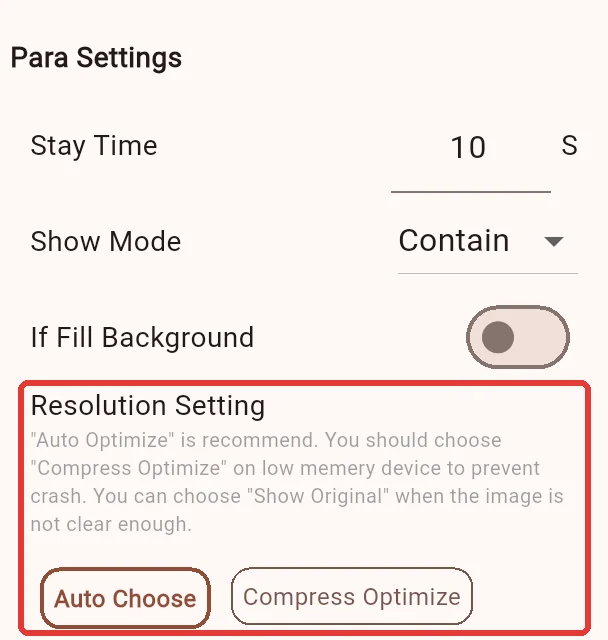
Image media offers automatic, compressed/optimized and original-image quality options. Start with automatic selection. Compare optimization on slower devices, and evaluate originals only when necessary for clarity. Avoid forcing every oversized image to use the original.
3. Test video encoding and performance
An extension such as MP4 identifies a container, not a single codec. Resolution, frame rate, bitrate, encoding and the device decoder all affect compatibility.
Test a short clip for picture, sound, orientation and looping before preparing a large batch. Simultaneous videos increase load. A device advertised as 4K-capable does not necessarily handle several videos and complex regions reliably.
For black frames, artifacts or stuttering, compare a lower-resolution, lower-frame-rate or lower-bitrate sample, then examine playback/decoder settings. Change one variable at a time and retain a known-good file.
4. Help low-memory Players
Start older or low-memory devices with one region, screen-sized images and simple transitions:
- Disable image transitions and check continuous rotation.
- Resize oversized images to the actual display requirement.
- Reduce simultaneous videos, web pages, transparency and complex widgets.
- Play several full cycles, exceeding the period after which failure previously occurred.
- If it recurs, retain logs, photos and times; see Remote maintenance.
These comparisons help investigate resource pressure. Low memory alone does not prove the cause. Frequent restarts do not replace media optimization.
5. Delivery checklist
| Area | Check |
|---|---|
| Images and text | Correct ratio, no missing key information, readable text and scannable QR codes. |
| Video and audio | Every file decodes; volume, looping and concurrent playback work. |
| Time and network | Correct device clock; online widgets and remote resources are reachable. |
| Offline use | Test after synchronization; remote web pages and online services may still need connectivity. |
| Long runs | Several complete cycles, schedule transitions, recovery and restart behavior. |
| Backup | Source files, program ZIPs and required dependencies; see Backup and migration. |
Continue with Media library management or an industry example.