
Media library management
The media library stores images, videos, audio, PDFs and web ZIP files. Uploading a file does not put it on a TV. Add it to a program, save the program and cast it to a device. Multiple programs can reuse the same uploaded file.
Text, solid colors and built-in widgets do not require file uploads. For adding media to a screen region, see Editing media.
1. Open the correct library
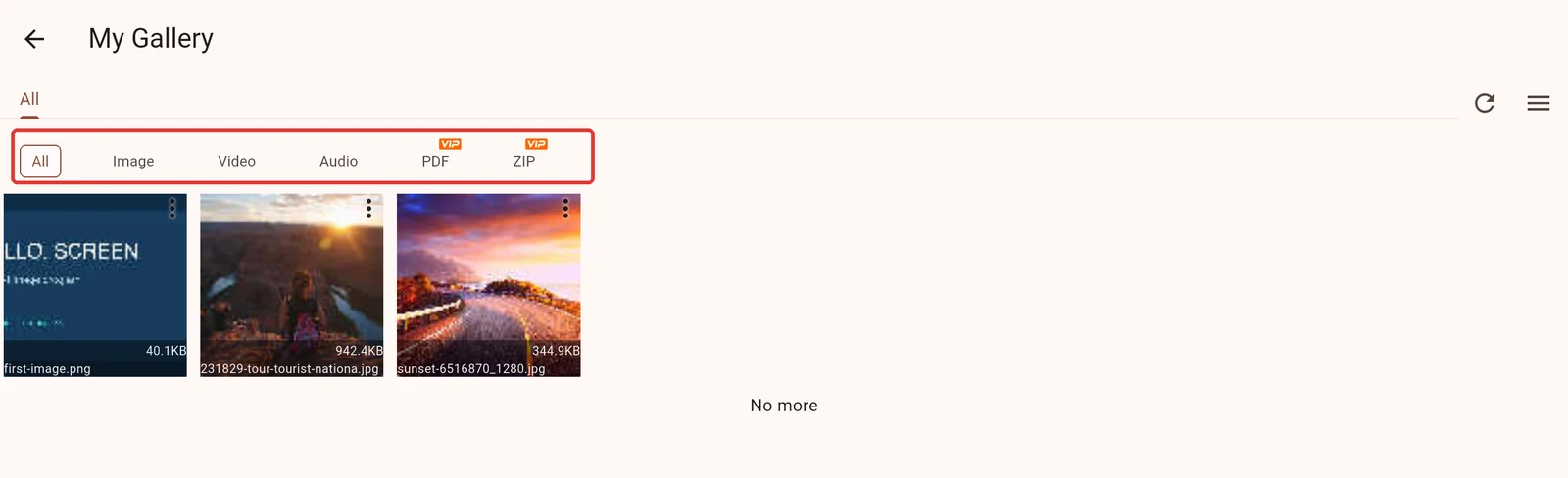
On the Manager home screen, select Cloud management or the intended LAN service, then open My Gallery. Accounts, customers/departments and services have different resource scopes. If a file appears missing, check the current source and account first.
2. Upload files
Select Local Upload, choose the media type and files, then wait for completion. Confirm that the files appear in the library. Keep the Manager running and the network connected during large uploads.
Prepare files using Media preparation. A web ZIP must follow the web media structure. A program export ZIP belongs in Program import, not the web media upload flow.
3. Find and organize media
| Action | Purpose |
|---|---|
| Image, video, audio, PDF and ZIP filters | Narrow down the file type. |
| Search | Find names containing a store, campaign or date. |
| Edit groups | Organize by location, department or purpose; a file can belong to multiple groups. |
| Rename | Change the display name. This does not replace the underlying file or update its contents. |
| View | Preview the file or inspect its details. |
Use recognizable names such as Lobby_Welcome_20261027. Groups organize resources; customer/department assignment controls resource scope. They serve different purposes.
4. Reuse media in programs
Open a program, select a screen region, choose Add and select existing media. Set its duration and display options, preview, save and check the result on the target Player.
To change a poster, add the new file to the program and remove the old item from its playback list. Renaming a library entry does not change the poster image.
5. Check references before deleting
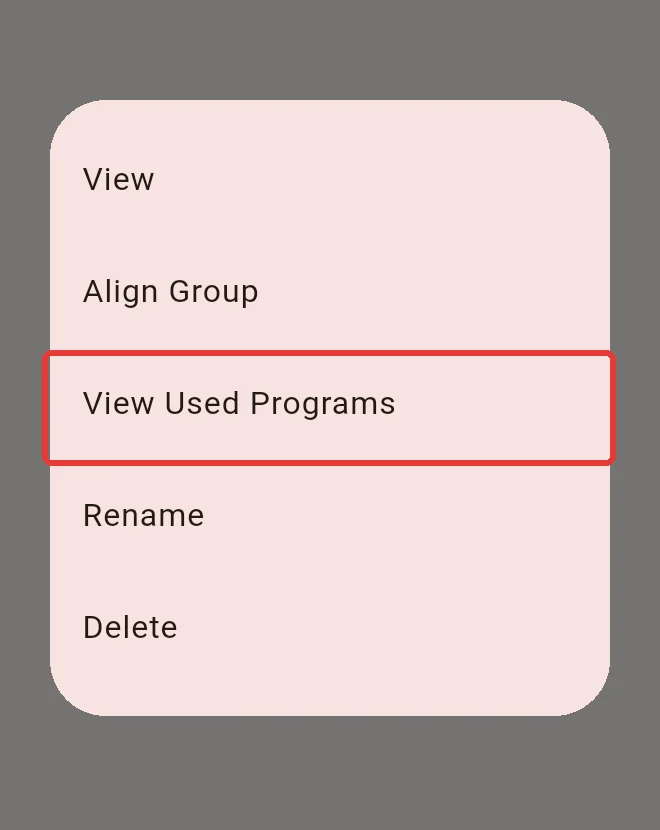
Open a media item's menu and select the action for viewing programs that use it. The result covers references visible to the current account. Update those programs before removing old files.
This is not an inventory of all historical export packages, device copies or other services. A Player's cached file is not a library backup.
6. Clean up and back up
The cleanup tool offers scopes such as all media and unused media. Read the confirmation carefully, including its scope, count and size.
- Keep original files and export important programs before cleanup.
- Deleting a library file is different from removing an item from one program. File deletion can affect programs that still reference it.
- The spreadsheet export is an inventory, not a backup of images or videos.
- For private services, see Backup and migration.
Common questions
Why did the TV not change after uploading? Check that the media was added to a saved program, cast to the correct device, synchronized and eligible under the current schedule.
Why is upload or deletion unavailable? Check account/customer permissions, storage capacity and service connectivity. Cloud upload errors may also require the administrator to check object storage.
Does a missing video thumbnail mean the file is broken? Not necessarily. Inspect the preview and test decoding on the actual Player.