
Media Types and Parameters
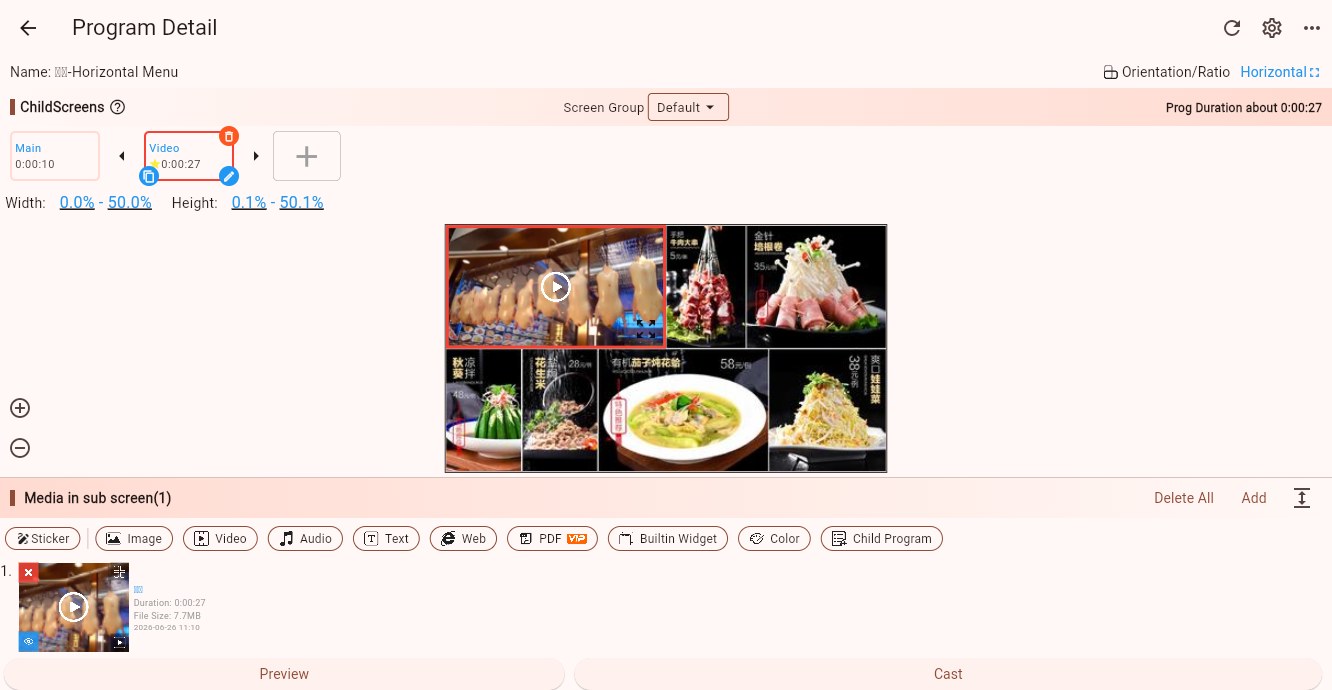
Media is the actual content played inside a child screen. A program can contain multiple child screens, and each child screen can contain one or more media items. When a child screen has multiple media items, they rotate according to the child screen playback settings.
Which Media Type Should I Use?
| Media Type | Best For | Details |
|---|---|---|
| Image | Posters, menu images, promotion images, brand screens | Image Material |
| Video | Promotional videos, product videos, activity videos, welcome videos | Video Material |
| Music | Background music, voice announcements, audio playback | Music Material |
| Text | Notices, price text, scrolling messages, dynamic dates or device attributes | Text Material |
| Web | Online pages, dashboards, AI-generated web ZIP packages | Web Material |
| Menu booklets, manuals, brochures, document playback | PDF Material | |
| Built-in Widget | Clock, weather, camera, and other live content generated by the Player end | Built-in Widget |
| Color | Solid backgrounds, color blocks, placeholders | Color Material |
| Child Program | Embed another program inside the current program | Child Program Material |
Media Sources
Different media types support different sources:
- My Gallery: select uploaded media, or upload a new local file from the gallery picker.
- System Gallery: select built-in system media, mainly used by image material.
- Network/Streaming: enter a network URL. The Player end loads the content from that address.
- Direct Input: text, web URLs, web ZIP entry files, and child program IDs are entered directly in the parameter panel.
- Generated by the Player end: widgets and color materials are generated locally on the Player end and do not require external files.
Common Parameters
Stay Time
Controls how long this media item stays in the current child screen. Images, text, web pages, PDFs, widgets, colors, and child programs all use stay time. Video and music usually follow their own duration, but they still participate in the child screen rotation.
Display Mode
Controls how visual media fits into the child screen. Common modes include contain, cover, fill, and fit width.
Media Source
The top of the right-side parameter panel usually shows the source selector. When the source changes, the add button behavior also changes: gallery sources open a gallery picker, while network sources ask for a URL.
Click To
Most media items support click events. You can use click events to jump to another media item, open a web page, or switch displayed content. Non-touch signage usually does not need click events.
Save
After adding media or changing parameters, the Save button appears in the upper-right corner. The change only takes effect after saving the program and syncing or casting it to devices.
Recommended Workflow
- Decide the child screen layout, such as full screen, top/bottom split, or left/right split.
- Select the child screen that should receive content.
- Click the target media type in the bottom media area.
- Select a source, upload a file, or enter content in the right-side panel.
- Adjust stay time, display mode, scrolling, volume, and other parameters.
- Save the program.
- Cast it to devices, or wait for existing casting relations to sync.
Tips for New Users
Use image material for ordinary digital posters.
Use video material for promotional videos.
Use text material for prices, notices, greetings, and scrolling messages.
Use a web ZIP package when you want to play dynamic web content generated by AI tools without deploying it to a server.
Use child program material only when you need to reuse another complete program inside the current one.