
Program approval and publishing
Use approval when stores or departments prepare content and an administrator checks it before publication. The administrator configures customer/department permissions; members then submit the operations that require approval.
Submitted does not mean published. Pending edits do not immediately replace the approved content playing on devices. After approval, check casting relations, synchronization and the actual display.
1. Configure permissions and resource scope
- Open Customer/Department Management and select the department.
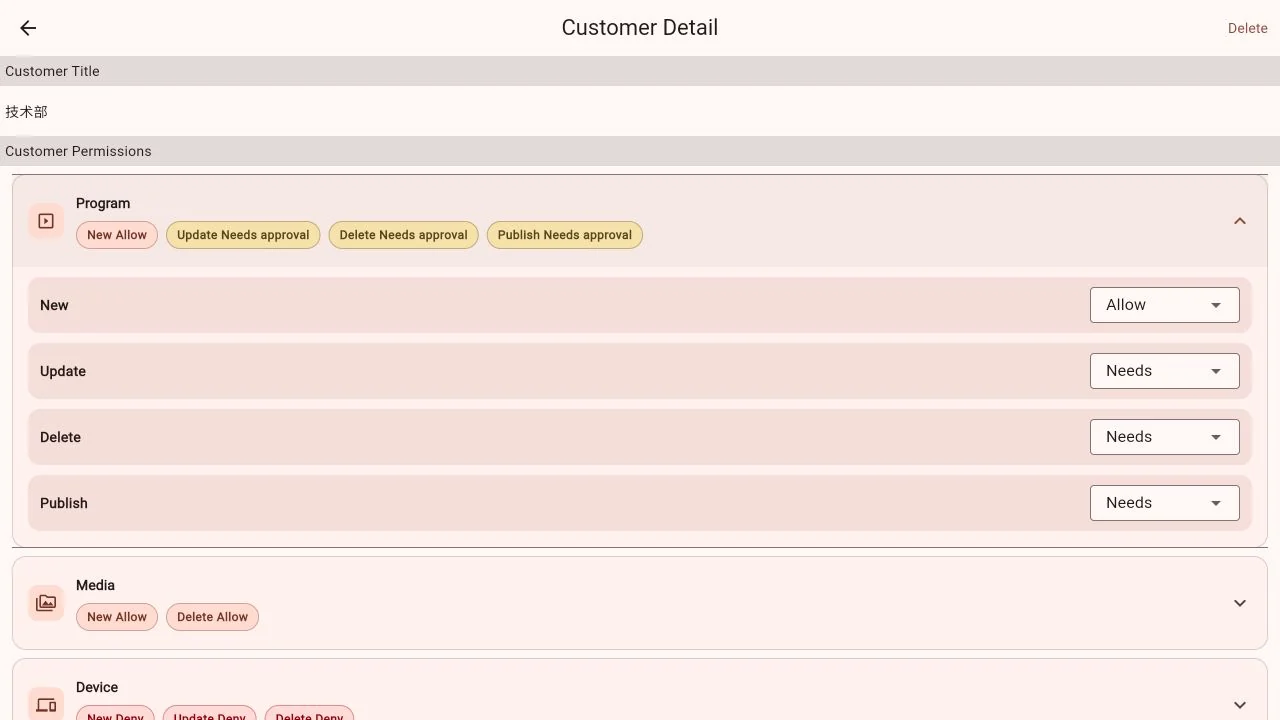
- Expand program permissions, set Update, Delete or Publish to Require approval as appropriate, and save.
- Assign the programs and devices members need to the same customer/department.
- Sign in as a member and verify the visible resources and permitted operations.
Program creation can be allowed or denied. Approval applies to updates, deletion and publishing. See Customer and department management for account and permission setup. Cloud and LAN services that support approval use this workflow; USB and folder playback do not pass through it.
2. Submit program edits
Edit an already saved program and follow the page prompt to submit it. A new program must first be saved as a record; later edits follow the department's update policy.
Preview images, videos, text and click actions before submission. Closing the editor is not saving, and repeated unrelated submissions make review harder.
Submitted edits are stored as a draft. To inspect them later, use Load pending program in the program menu. Save or discard any current unsaved edits before loading that draft.
3. Submit a casting request
When casting, select the intended devices and check Replace/Append, main/overlay layer, start and stop times, and priority. With approval required, this submits a request; it does not immediately start playback.
Deletion can also be set to Require approval to block direct member deletion. However, the current program-list Delete action does not automatically create a reviewable program-deletion draft. Ask an administrator to check and handle it. Removing a casting relation differs from deleting a program; consider a schedule change or removing casting for temporary interruptions.
4. Review as an administrator
Program cards show states such as Pending and Rejected. Open the program and use the menu entry matching the request:
| Entry | What to check |
|---|---|
| Load pending program | The submitted content; handle unsaved editor changes first. |
| Review pending program | The pending edits, then approve or reject. |
| View pending publish relations | Devices, Replace/Append, schedule, and whether the request removes a casting relation. |
When rejecting, an optional comment can explain what needs changing, for example an expired price or incorrect date. The member corrects and resubmits. If someone has changed the approved program in the meantime, review the latest version. A version conflict requires reloading and submitting again; do not assume the old draft was published.
5. Verify playback
- Confirm the request was approved rather than merely submitted.
- For edit-only requests, check that the program already has the intended casting relations.
- Check schedule eligibility, Player connectivity and synchronization.
- Confirm the picture at the TV. Use Remote maintenance for supplementary checks.
Common questions
No review button? Check that you are an administrator, the service supports approval and a matching pending request exists.
Approved, but the TV still shows old content? Check targets, schedule and synchronization. Approval alone does not prove playback.
A member cannot save or cast directly? Check whether the policy is Deny or Require approval. The first requires a permission change; the second uses the submission workflow.